 University IT
Understanding Google Storage Limit Alerts
Please note: The changes and features below will roll out when the Google Workspace storage limit starts on Sept. 1, 2025. To learn more, refer to the UIT news article What to Know About Upcoming Changes to Google Workspace.
The Google Workspace storage limit brings new features within Google to help you stay on top of your storage use.
Topics on this page:
Overview
Google automatically displays an alert if storage in a My Drive or shared drive nears or exceeds the 5 terabyte (TB) storage limit.
- These will be removed when the drive’s storage usage falls to below 80% of Stanford’s limit (under 4 TB).
- Drives that exceed the 5 TB storage limit automatically transition to read-only.
- Drives that are using the pay-as-you-go premium storage option will not receive alerts or transition to read-only.
Manage My Drive Storage
Tools to gauge your storage usage in My Drive
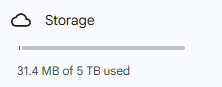
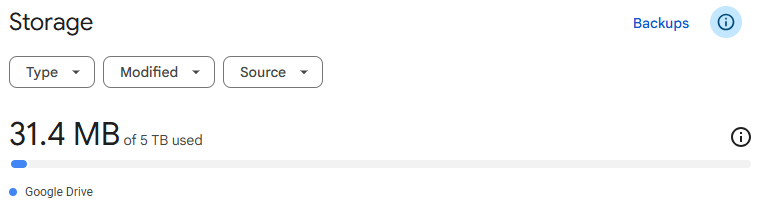
A status bar lets you see how the storage you're currently using compares to the 5 TB limit.
- When you log in to Google Drive, a status bar displays at the bottom of the left menu.
- When you check your My Drive storage details, the status bar displays at the top of the storage management page.
Alert notifications for account owners
"Storage low" notifications
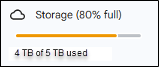
- If your My Drive reaches 80% capacity (4 TB), you'll see a yellow "Storage low" alert to let you know you are nearing the storage limit.

- A yellow alert will also display on your left menu.
"Storage full"
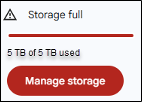
- If you reach 5 TB, a red "Storage full" alert will display.

- A red alert will also display on the left menu.
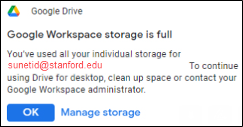
Google Drive for desktop app
- Notifications will display when storage is at 80% of the limit.
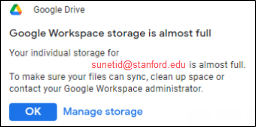
- And when storage reaches the limit.
Google Photos
You will notice similar alerts in Google Photos when storage is 80% and 100% full.
Notifications for collaborators
- If you reach your My Drive storage limit, collaborators accessing shared files owned by you (Docs, Sheets, Slides)will receive a notification to let them know the user who owns the file has met their storage capacity.
- Collaborators will still be able to access files, but they will not be able to edit.
- You can share files with collaborators, and they can copy those files to their drive or another location.
Manage Shared Drive Storage
Tools to gauge your storage usage in a shared drive
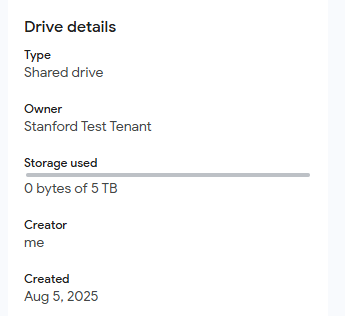
A status bar lets you see how the storage you're currently using in the shared drive compares to the 5 TB limit.
To see the storage usage, including the status bar, you must navigate to Details for the specific shared drive:
- Select the drive from the left menu.
- Click the "View details" icon (a letter "i" in a circle) in the top-right corner.
- A details panel will slide out on the right, showing information about the shared drive, including storage usage.
Alert notifications for shared drives
The notification you'll see depends upon your level of access in the shared drive.
Managers and content managers
- Managers and content managers will see a yellow banner alert when storage is low (80% capacity).

- A red alert will appear when the storage is full.

Contributors, commenters, and viewers
- Managers and content managers will see a red banner alert when storage has reached 90% of capacity.

- A red alert will appear when the storage is full.

Notifications for shared drive collaborators
Collaborators who have been granted access to a specific file or folder within the shared drive will not see the banner alerts when storage is almost full or full.
Restricted actions when a shared drive storage is full
Depending on their permission level, members and collaborators can still view existing files and folders within the shared drive. However, some actions are restricted when the shared drive transitions to read-only mode.
All members of the shared drive, as well as anyone who has been individually granted access to a specific file or folder within the shared drive, will receive errors when trying to create new files within the shred drive or move, upload, or copy content into the shared drive when the storage is full.
- Moving content: Attempting to move content into the drive from another My Drive or shared drive, will result in this error message.

- Uploading new files. Attempting to upload new files or folders will result in this error message.
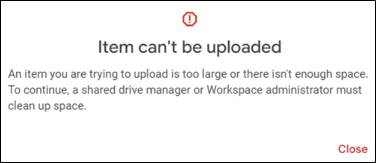
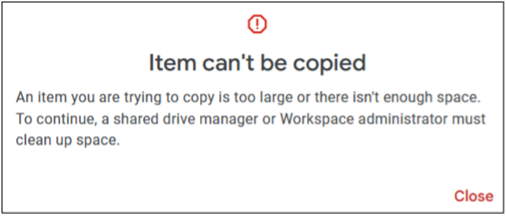
- Copying new files. Attempting to copy or paste a file or files within a shared drive will result in this error message.
Get Help
- If you're a collaborator facing challenges due to read-only limitations, it’s recommended that you reach out to the file owner.
- If you need to manage or reduce storage, visit the Google Workspace Storage Management guide.
- For personalized assistance, reach out to your local IT support team or submit a request for a storage consultation.
- If you need help with a technical issue related to Google functionality, submit a Help request.
