 University IT
How to Add a YubiKey to Your Microsoft Account
These instructions are for the School of Medicine community.
You can set up a YubiKey passwordless login to your Microsoft account with passwordless authentication.
What is a security key?
A security key is a hardware-based device that plugs into a computer to simplify two-step authentication. When prompted to authenticate, you simply tap the physical key. There’s no need to use your smartphone, and the same security key can be used on multiple devices.
Step 1: YubiKey Setup
- On your computer, open a new incognito/private browser window and navigate to https://mysignins.microsoft.com/security-info. If prompted to use Cardinal Key, cancel the prompt.
- Enter your username in the following format: <your SUNetID>@stanford.edu.
- Complete the sign-in process - the steps may vary depending on your previously configured authentication methods.
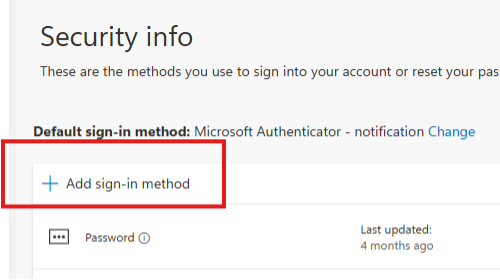
- You should be taken directly to the Security info page for your account. At the top of the list of sign-in methods, you should be able to select + Add sign-in method.
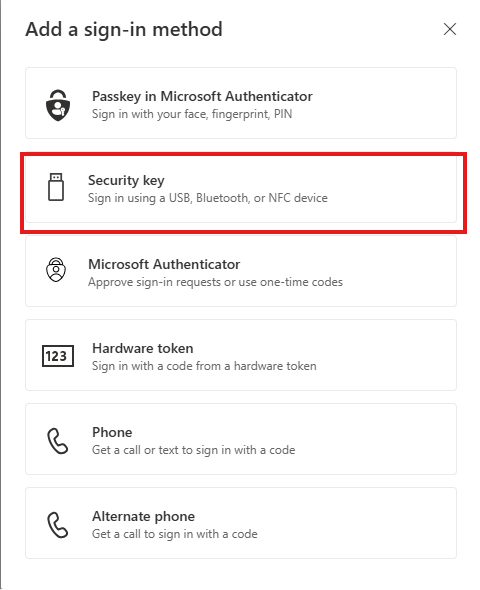
- Choose the option for Security Key.
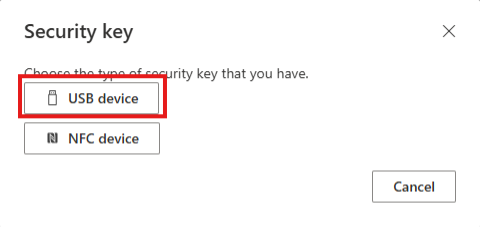
- Choose the option for USB device.
- Follow the prompts as they walk you through authenticating the YubiKey.
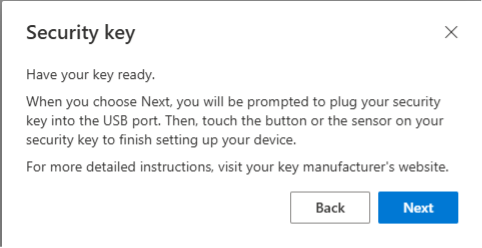
- Within the Windows Security prompt, choose the option for Security key and select Next.
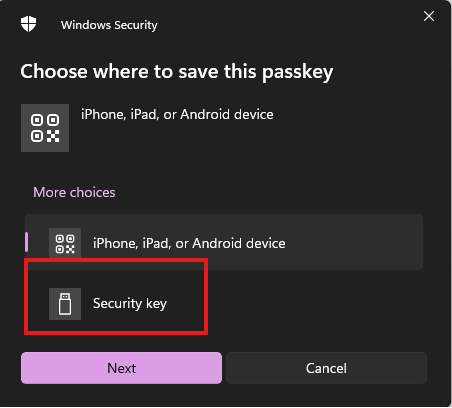
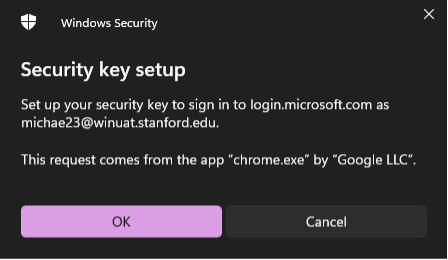
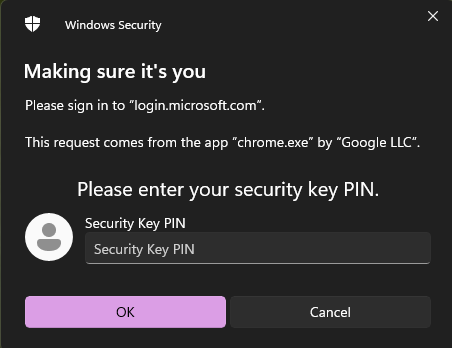
- Verify that this request is coming from you and select OK.
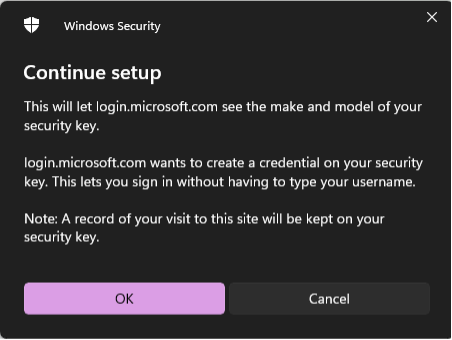
- You will see a warning that our Microsoft tenant will store a copy of the security key. Select Ok to continue the set up.
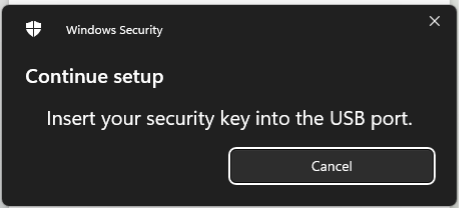
- Insert the YubiKey when prompted.
- If you have a PIN, you will be asked to unlock the YubiKey. Enter your PIN and select OK.
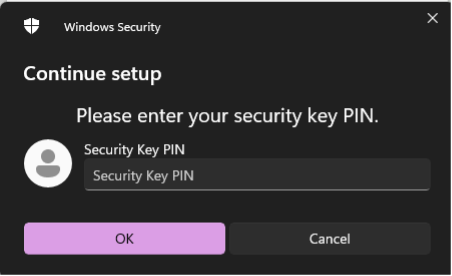
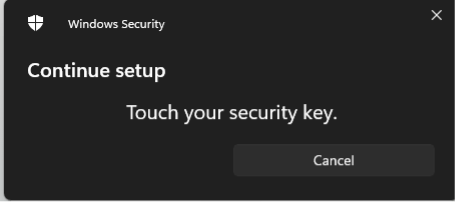
- It will then ask you to physically touch your security key.
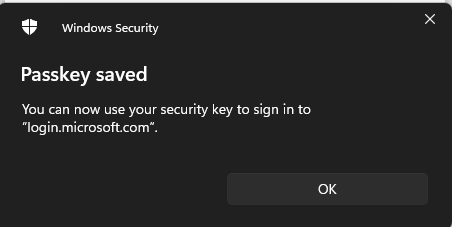
- Windows Security will confirm that the security key is set up for sign-ins to Microsoft.
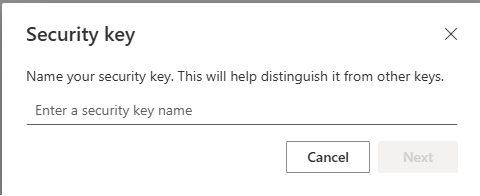
- Give your security key a name that is easy to recognize.
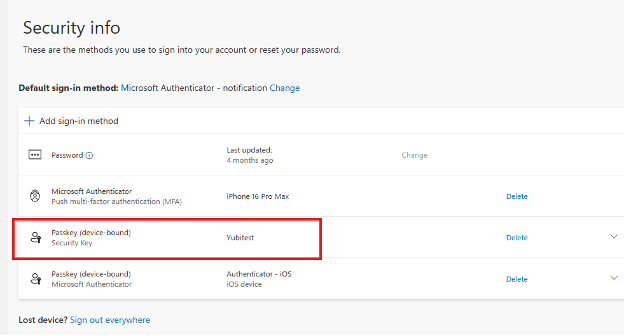
- Microsoft will confirm the addition of your security key and you should see it in the list of sign-in methods.
Step 2: YubiKey login from a Windows device
- On your computer, open a new incognito/private browser session and go to https://outlook.office365.com. If your browser attempts to use Cardinal Key, cancel out of it.
- Enter your username as <your SUNetID>@stanford.edu.
- Select Face, fingerprint, PIN or security key.
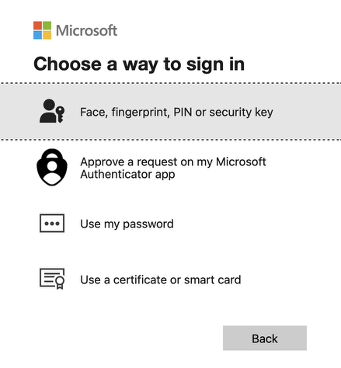
- Select Security key.
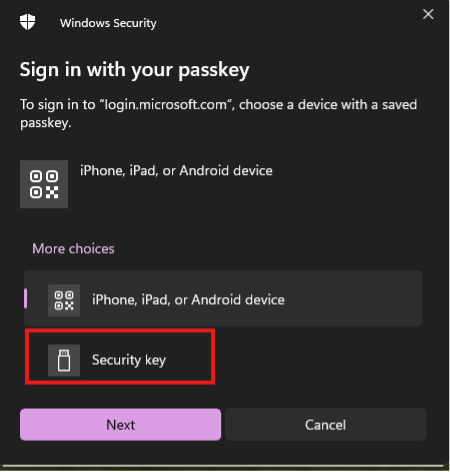
- Insert and authenticate your YubiKey.
- After physically touching the YubiKey, you should be put directly into Outlook.
What happens next?
Once you sign into your Stanford Microsoft account using the new login process, you'll be ready to connect all the devices you use to check email and access other university Microsoft services to Microsoft Intune. (If you check email with both your laptop and your phone, be sure to connect both devices)
Please wait 24 hours before connecting your devices to Intune, unless you are prompted to start sooner.
If you don't see the new login process appear 24 hours after completing set up, submit a Help request.
