 University IT
Zoom Workplace, Evolved
With the leap to version 6.0, Zoom rebrands with a refreshed interface and a host of new tools and choices
Zoom's desktop app, now named Zoom Workspace, includes updated features and new productivity solutions— all designed to enhance your collaboration experience. While the list of new enhancements is extensive, here's an overview of some key standouts. For more complete list of the latest Zoom Workplace updates and enhancements, review the release notes.
1. Workplace desktop app navigation
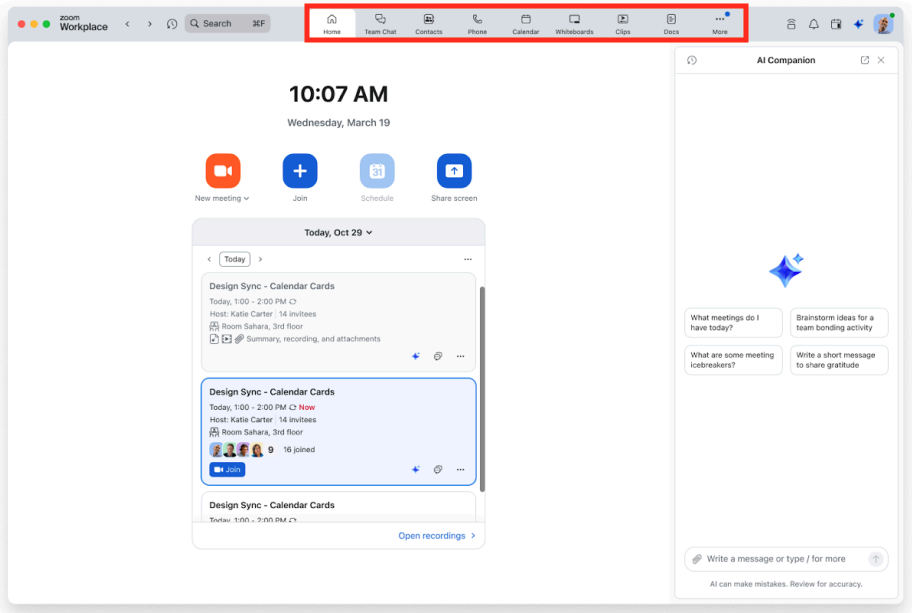
If you’re familiar with the Zoom desktop app, you’ll notice a cleaner layout: a new left-side navigation for faster access to key tabs and a streamlined More menu that organizes workspaces without cluttering your view.
- Left‑side navigation: Key tabs (Meetings, Chat, Phone, etc.) now appear along the left edge.
- More menu: Consolidates additional workspaces without crowding the main view.
 After
After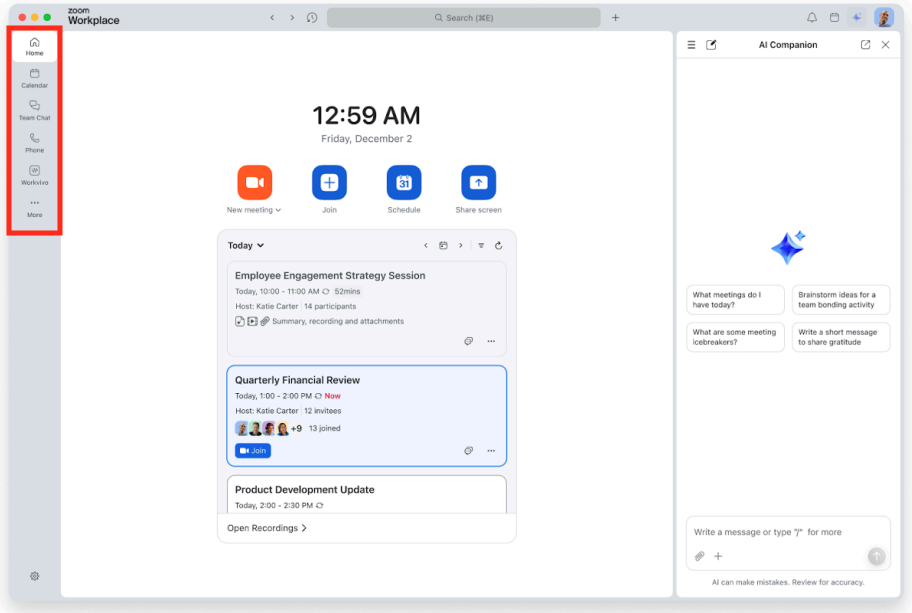
2. In‑meeting desktop experience
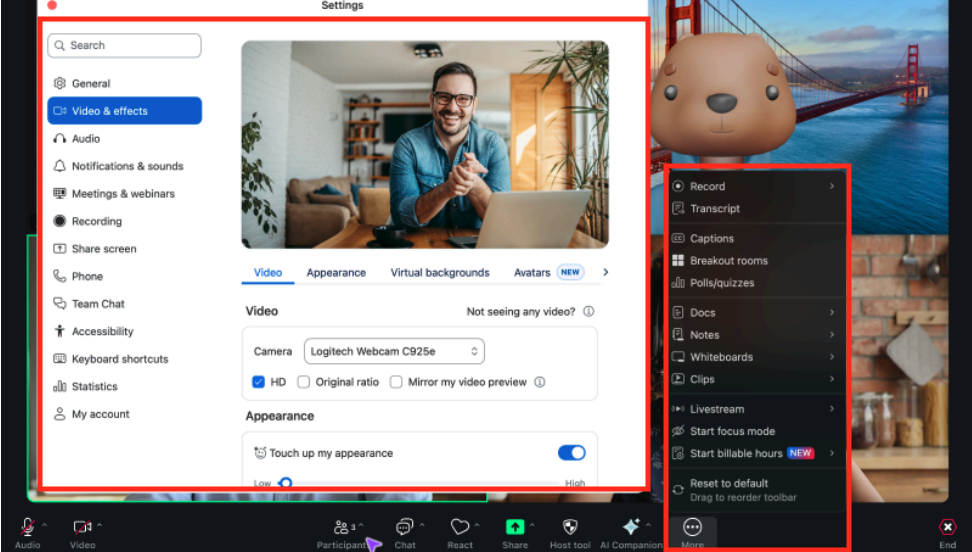
When you host or join a meeting, the toolbar shows essential controls by default, creating a more focused experience. You can pin/unpin and drag/drop buttons to reorder frequently used tools during a meeting. All hosting tools are grouped in one easy‑to‑find panel, simplifying meeting management.
- Default toolbar: Essential controls (mute, video, share, participants, chat, more). Click the caret menu on the toolbar buttons to open the settings automatically.
- Consolidated host controls: Meeting hosts have consolidated controls in a categorized right panel; caret menus automatically open relevant settings, providing streamlined access to all meeting management functions.
- Customize on the fly: Right-click to Pin/unpin, drag/drop from the More menu to the toolbar, and rearrange primary toolbar buttons within the current meeting.
 After
After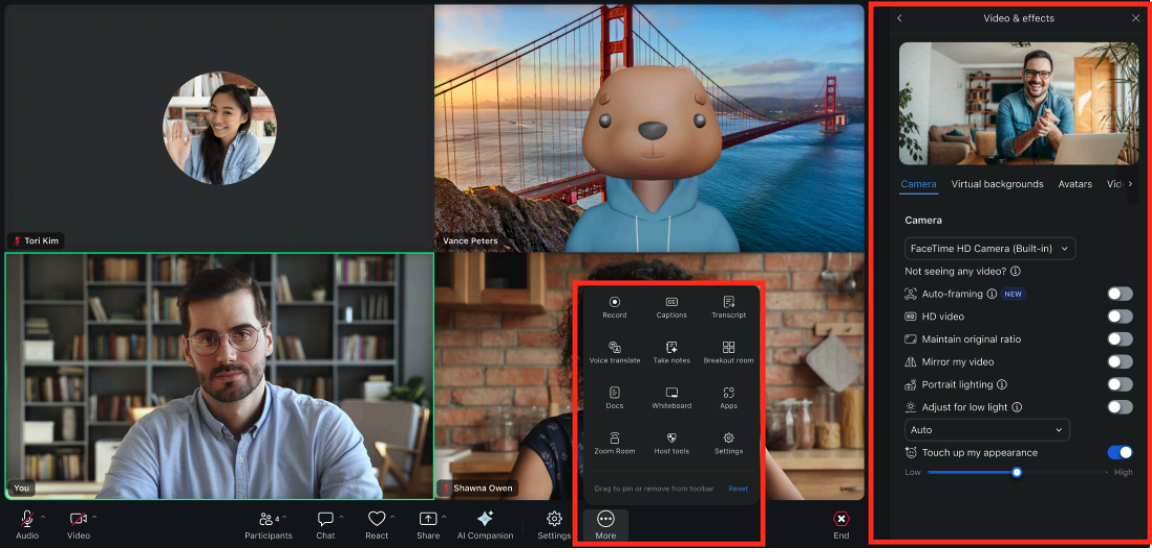
3. In-meeting mobile experience
When connecting from a mobile device, the streamlined interface enables quick adjustments to settings and personalization, preserving familiar features while integrating Zoom Rooms for comprehensive management.
Consolidated controls: Toolbar and settings are grouped for fewer taps; key actions are surfaced at the bottom.
Single entry point: Meeting settings, effects, personalization, and audio options live in one place; adjust controls faster with fewer clicks.
Unified personalization hub: Manage virtual backgrounds, filters, avatars, captions, translation, and audio preferences together; keep your view uncluttered.
- Rooms integration: Zoom Rooms settings are built in for comprehensive control; manage room and meeting options side by side.
- Same power, easier access: All the customization you’re used to remains; now surfaced in a simpler layout for quicker changes.
 After
After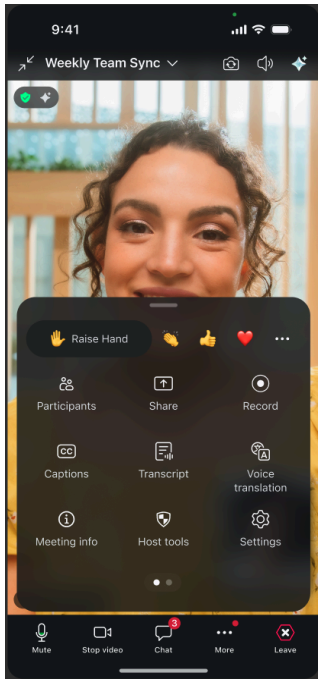
FAQs
Will my in‑meeting toolbar layout carry over after I update?
No. Updating to 6.7.0 resets the toolbar to the new default. You can re‑arrange and pin/unpin during meetings, but layouts can’t be migrated, saved, or restored.
Can Stanford Zoom admins set a default toolbar layout for everyone?
No. Stanford Zoom Admins can enable/disable features, but cannot centrally set or enforce custom toolbar layouts.
Have any Zoom Workplace features been removed?
No. All previously enabled core features remain available.
Where can I learn more about using Zoom at Stanford?
There are many resources available on the Zoom Video Conferencing service page.
Where can I learn more about using the new features in Zoom Workspace?
To learn more, review the Zoom Workplace release notes.
Contact us
If you have questions about Zoom, submit a Help request to the Stanford Zoom team.
