 University IT
Microsoft Planner | FAQs
What is Microsoft Planner?
Microsoft Planner is a collaborative task management tool with the Microsoft 365 environment that helps teams organize, assign, and track projects through list views, Kanban boards, and visual status charts - all integrated within the Microsoft Teams environment.
Who can use Planner?
Faculty, staff, and students.
Can I access Planner on my mobile device?
Yes, it's available on both Android and iOS via the Planner app.
How do I log into Planner?
- Check your availability in the "Who can use MS Planner" section and follow an prerequisite steps. Once you have access, follow the steps below to login via a web browser. Ensure your web browser is up-to-date.
- Using a web browser, visit https://planner.cloud.microsoft/ and click "sign In" or you can go to portal.office.com and launch the Planner app from the app launcher.
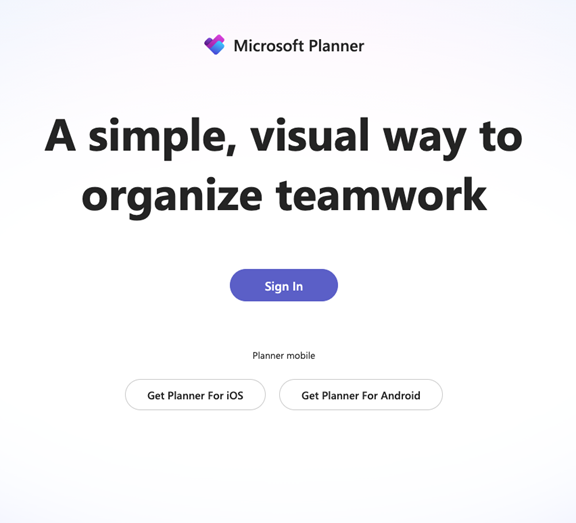
- Enter your Stanford University email address and complete authentication.
Are there service updates and maintenance for Planner?
Yes, Microsoft regularly updates the Planner mobile app based upon the schedule determined by their roadmap.
How do I use Planner in Teams?
To enhance user experience and collaboration, you can use Planer within Teams. For a quick introduction on using Planner for Teams, follow this guide.
What is a plan and what do I need to create one?
A plan within Planner simply refers to the overall project, deliverable, or goal that encompasses your tasks. You must create a plan to begin managing tasks effectively within Planner.
How do I create a plan?
- If you already have a Teams site, you will need to determine if all members of that team should have access to the Planner plan. If you would prefer to have an isolated Planner plan with its own membership, then you will need to create a new Teams site for this purpose. You can request a new Teams site in the “Get Started” portal (top left icon) of the Teams app.
- Note: Membership of the plan is tied to the Teams site. If you remove users in Planner, it will also affect their Teams site membership. We recommend that you use Planner within Teams to maintain team membership.
How do I add/remove members in Planner?
- The membership between Planner and Teams is shared. The members of a Teams site will be the same members within Planner. If you choose to use Planner outside of Teams, ensure you avoid removing members as it will affect the associated Teams site membership.
- If you do not have a team within Teams, Request a new Microsoft Team for Planner. You can use an existing team within Team to provide membership to your plan within Planner.
- If you would like to add people outside of your organization, please see Guest access in Microsoft Planner.
- After you've added people to your plan, you can assign them to tasks.
How do I manage tasks in Planner?
- Managing tasks in Planner consists of many actions, such as adding tasks to a plan, assigning tasks and due dates, commenting on tasks, adding attachments to a task, etc..
- For a quick introduction on how to manage tasks in Planner, read Microsoft's guide on how to manage tasks in Planner.
Can I add files to a task for easier access?
Yes, you can add files to a task so that all relevant team members can access them. To do so, follow these instructions on how to attach files, photos, or links to a task.
How do I view the progress of my plan or tasks?
- Every plan has an associated dashboard that visualizes your progress to-date. To access it, simply open Planner, click on a plan, and choose the "Charts" tab at the top of the window.
- For more information on how to make the most of your dashboards, read this article from Microsoft.
Why am I not able to add the Planner tab to a Teams site?
You must be an owner or have the required permissions to add the Planner tab within a Teams site.
Where can I look for more information on how to use Planner?
For more information on how to use Planner, please visit the Microsoft Planner website or watch these Microsoft Planner training videos.
How secure is Planner?
- Planner is approved for protected health information (PHI) or personally identifiable information (PII) with Cardinal Key. Visit Risk Classifications to learn more.
- For best practices and to add an additional level of security, you should avoid including personal information in task titles or details. For more information, please submit a Help request.
How do I plan an event in Planner?
Learn how to plan an event in this Microsoft support article.
How do I close or archive a plan when it's done?
This is not currently supported in Planner. When work on a plan is done, you have three options as defined in this Microsoft support article..
How do I create a new plan based on an existing one?
You can copy a plan.
Can a group have more than one plan?
Yes, you can create multiple plans per group when you add a plan to an existing group or add a Planner tab to a Teams channel.
Can I print plans or tasks in Planner?
Currently, printing plans or tasks from Planner is not supported. You can check the Office 365 Roadmap to see upcoming features the Planner team is developing.
Where are the files kept in Planner?
Planner plans are associated with Office 365 Groups and the files of Office 365 Groups are stored in an associated SharePoint document library. To find your Planner files, select the three dots to the right of the plan name (...), then choose "Files."
For more information, visit:
- Microsoft Planner Help & Learning
- Watch LinkedIn Learning Courses
- Watch LinkedIn Learning Videos
