 University IT
Stanford Email Authentication
Recently, Stanford set a Domain-based Message Authentication, Reporting, and Conformance (DMARC) policy (see additional information below) of “quarantine” for the Stanford.edu domain. This policy is an email security protocol that authenticates emails to prevent spoofing and phishing attacks. It informs mail servers around the internet, including our own, that any messages from the Stanford.edu domain that fail authentication checks should not be delivered to recipients.
Emails sent from Stanford.edu mail using our core email services (Office 365, Gmail, smtp.stanford.edu) will automatically pass authentication checks. This webpage will cover the considerations and actions necessary to ensure that emails sent from other email services do not fail authentication checks.
These use cases include:
- Mass mailing services, such as Marketo and Mailchimp, used by Stanford groups to distribute bulk emails to both internal and external recipients.
- SaaS platforms, like Salesforce or Zendesk, send individual messages to specific recipients.
- Groups on campus that send emails from subdomains (e.g., something.stanford.edu), whether from on-campus locations or using external services.
Message authentication
There are industry standards for authenticating email messages—digital checks that a message using an @stanford.edu email address is genuinely from Stanford University. Ensuring that messages sent by an external vendor pass an authentication check is a critical first step in guaranteeing that your message will be received.
Email Authentication refers to the policies and protocols used to verify the legitimacy of email messages. When a mail server receives a message from, say, a stanford.edu address, it performs authentication checks to validate that the messages really came from Stanford, based on information we make available. The Sender Policy Framework (SPF) and DomainKeys Identified Mail (DKIM) protocols are different mechanisms for authenticating a specific message. DMARC uses the checks provided by SPF and DKIM and includes an overall instruction for mail servers regarding what to do with a message if it fails those checks.
Using Mass Mailing Platforms and Saas Platforms
Stanford relies on the DKIM mechanism to authenticate messages sent by external services. You will need to review your vendor’s documentation on how to enable DKIM signing. Information for commonly used mass mailing vendors, such as Emma, Mailchimp, and Marketo, can be found in the Bulk Mail Platforms: Domain Authentication section.
For questions or assistance, please submit a Help request
Using Gmail and Other Services to Send from your Stanford Account
University IT does not recommend managing your Stanford email through a personal Gmail account, and we have very limited support available for those who choose to set up their email this way. However, users who are interesting in configuring their Gmail account, please review Can I have POP access enabled so I can access by Stanford mail in my personal Gmail account?.
Considerations When Using Subdomains
There are different considerations for mail sent from subdomains.
Here are some tips for different scenarios to avoid issues with message authentication:
Mail Servers:
- For departments or groups running their own mail servers meant to send and receive mail:
- Ensure an SPF record is published for your domain.
- Consider working with UIT to have the messages signed via DKIM.
- With SPF and DKIM in place, setting up a separate DMARC record may not be necessary (your subdomain will inherit the policy set on the stanford.edu domain), but it is a possibility.
System Generated Mail:
- Many servers on the campus network or hosted in the cloud send system-generated messages to administrators.
- For on-campus systems:
- Route all mail through smtp.stanford.edu (see https://uit.stanford.edu/emailcalendar/smtp).
- For on-campus systems:
- For off-campus systems with a Stanford hostname:
- Set up a neutral (p=none) DMARC record for that subdomain.
- Submit a Help request for assistance.
For Subdomains Used for Mass Communication:
- Set up SPF, DKIM, and DMARC records.
- Start by gathering information from your mass mailing vendor.
- Work with UIT to get the necessary records published.
- Submit a Help request for assistance.
Bulk mail platforms: domain authentication
The steps involved in the authentication process vary by vendor. In most cases, the vendor will ask us to publish a DomainKeys Identified Mail (DKIM) record that will automatically authenticate emails sent from the “stanford.edu” domain. While you may see reference to this in vendor documentation, changes to the Stanford Sender Policy Framework (SPF) record are neither a supported option nor necessary to meet authentication requirements.
To streamline the UIT support process:
- Locate your vendor’s documentation on email domain authentication. We’ve provided documentation for Mailchimp and other commonly used email marketing platforms at Stanford in the sections below.
- Submit a Help request to UIT. Depending on the platform, UIT will need specific information from your account to update the domain.
Bulk emails from a subdomain
If your sending address is in a subdomain (e.g., yourdept.stanford.edu), you will likely need additional records set up to meet Google and Yahoo’s guidelines. In this case, you will also need to locate the vendor documentation and submit a Help request. UIT will provide consultation and assistance in setting up the records you need.
Email domain authentication by platform
The platforms below are some of the most common email tools used at Stanford. If you manage an account for a third-party email marketing platform for your school, department, business unit, or team, please refer to the following guidance.
Mailchimp
First, verify your domain through these Mailchimp instructions. For example, if you send from [emailname]@stanford.edu, walk through the instructions to add and verify the “stanford.edu” domain.
Once your domain is verified, follow Mailchimp’s email domain authentication instructions, which will direct you to click through the authentication steps within your Mailchimp account.
When asked to choose as your domain provider, select Other, and click Next for all remaining steps.
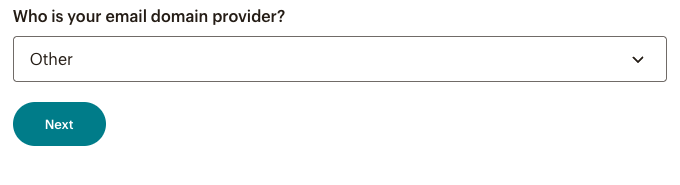
UIT has already updated the “stanford.edu” domain records to allow Mailchimp to complete the process so no other action will be required by you.
Once Mailchimp confirms our records and completes the authentication process, you will see the "Authenticated" green label within Mailchimp.

Marketo
If you manage a Marketo account, follow steps 1 to 3 in Marketo's instructions.
On step 4 "Add Domain," enter the following for the information:
Domain: stanford.edu
Selector: [unit/group]-marketo (Select a name that is specific to your group or use. Examples: uit-marketo; ucomm-marketo)
Key Size: 2048
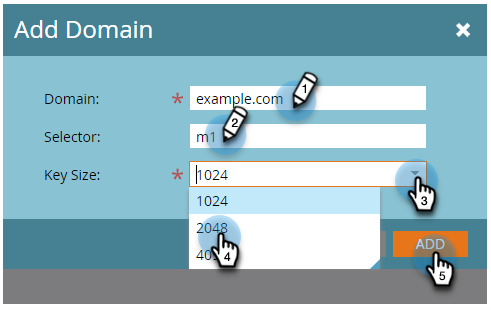
Next, submit a Help ticket to UIT with the domain information you entered.
Emma
If you manage an Emma account, refer only to Step three: TXT record in Emma's instructions.
Follow the steps for "Finding your validation hash."
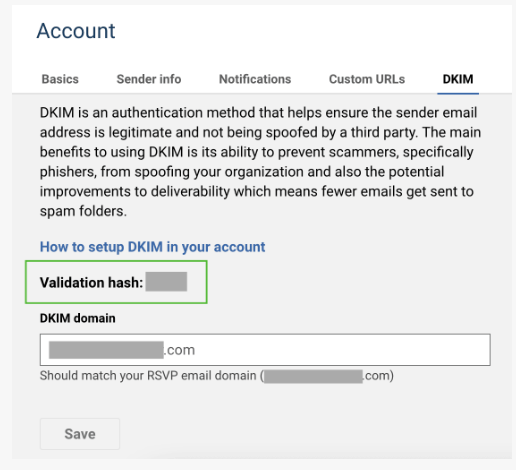
Once you've located your validation hash within your Emma account, submit a Help ticket to UIT with the validation hash to create the TXT record.
Additional considerations when using mass emailing services
All incoming emails are scanned by our anti-spam provider, and we adhere to a strict policy of not making exceptions.
Minimizing false positives
Occasionally, "false positives" (messages that are mistakenly blocked) may occur. To minimize this risk for your mass mailing, we recommend sending a test email to yourself or your internal team first. If the test message is received, you can proceed with sending it to your entire recipient list. However, if you do not receive the message, please submit a Help request, and we will collaborate with our anti-spam vendor to find a targeted solution.
Allowlist policy
As a matter of policy, we do not utilize an allowlist because of the security risk that would represent to the Stanford community. Therefore, requests to add your vendor to Stanford’s “allowlist” to ensure message delivery will not be accommodated.
Sender Policy Framework (SPF) and DMARC
Additionally, we do not add external vendors to Stanford’s Sender Policy Framework (SPF) record. Allowing an external vendor access to our SPF record could enable any customer of that service to send messages authenticated by Stanford’s domain. Fortunately, passing an SPF check is not necessary. The modern standard for email authentication is the Domain-based Message Authentication, Reporting, and Conformance (DMARC), where passing either an SPF check or a DKIM check suffices.
Understanding spam detection
If your message gets marked as spam and you're wondering why, we're often unable to provide specific details since our vendor considers their detection algorithms to be proprietary. However, if a specific link in the message seems to be triggering the spam block, we can typically identify it and share this information with you. Removing this problematic link can help ensure successful delivery of your message.
By adhering to these guidelines and suggestions, we aim to enhance the efficiency of your email communications while maintaining the security and integrity of Stanford’s email system.
Learn more
- Can’t find the right documentation for your platform? Reach out to UIT for support.
- Refer to Google and Yahoo guidelines for detailed information about authentication requirements and recommendations.
