 University IT
Claude CLI Setup With AI API Gateway
This document provides steps on how to install and configure the Claude Code CLI using AI API Gateway model aliases.
Prerequisites
Required Software
| Software | Minimum Version | Download Link |
|---|---|---|
| Claude Code CLI | Latest | https://claude.ai/install.sh |
| Terminal (macOS/Linux) | N/A | Built-in |
| VS Code (optional) | 1.93+ | https://code.visualstudio.com/download |
System Requirements
| Requirement | Claude Code CLI |
|---|---|
| OS | macOS / Linux (Windows via WSL recommended) |
| RAM | 4GB+ recommended |
| Disk Space | Minimal |
| Internet | Required for API calls |
| AI API Key | Required |
AI API Gateway Details / API Key
- Base URL (root):
https://aiapi-prod.stanford.edu(do not include/v1) - API Key: Your own AI API key (sent via secure channel)
- Model alias: Must match the gateway alias exactly (example:
claude-4-sonnet/claude-opus-4-6)
Installation
Step 1 — Check if Claude CLI already exists
Run:
shell
claude --version
Expected result: A version string is returned.
If you get command not found, proceed to "Step 2".
Step 2 — Install Claude Code CLI
Run:
shell
curl -fsSL https://claude.ai/install.sh | bash
Add the install location to your PATH (zsh):
shell
echo 'export PATH="$HOME/.local/bin:$PATH"' >> ~/.zshrc
source ~/.zshrc
Re-check:
shell
claude --version
Expected result: A version string is returned.
shell

Configuration
Claude CLI picks up gateway configuration from the Claude settings file.
Step 1 — Create Claude settings directory (if needed)
shell
mkdir -p ~/.claudeStep 2 — Create/update CLI settings file
Edit:
shell
nano ~/.claude/settings.json
Paste the following (replace placeholders with your values):
shell
{
	"$schema":
"https://json.schemastore.org/claude-code-settings.json",
	"env": {
		"ANTHROPIC_BASE_URL":
"https://aiapi-prod.stanford.edu",
		"ANTHROPIC_AUTH_TOKEN": "YOUR_AIAPI_KEY",
		"CLAUDE_CODE_DISABLE_EXPERIMENTAL_BETAS": "1",
		"DISABLE_PROMPT_CACHING": "1"
	}
}
Save the file - Ctrl+O. Click Enter and Exit (Ctrl+C)
Warning: Make sure not to share, post, etc. your API tokens.
Step 3 — Confirm the file exists (do not execute it)
View it safely:
shell
cat ~/.claude/settings.json
Configuration fields explained
| Field | Description |
|---|---|
ANTHROPIC_BASE_URL | Root gateway URL (example: https://aiapi-prod.stanford.edu). Do not append /v1. |
ANTHROPIC_AUTH_TOKEN | Your AI API key |
CLAUDE_CODE_DISABLE_EXPERIMENTAL_BETAS | Prevents experimental/beta headers that can cause gateway errors |
DISABLE_PROMPT_CACHING | Prevents prompt caching behavior/headers that can error in some gateway setups |
Validation
Run Claude CLI using your gateway model alias
Start a session:
shell
claude --model claude-4-sonnet/claude-opus-4-6
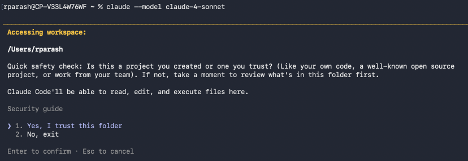
Test Case 1
In the session, enter:
Say OK
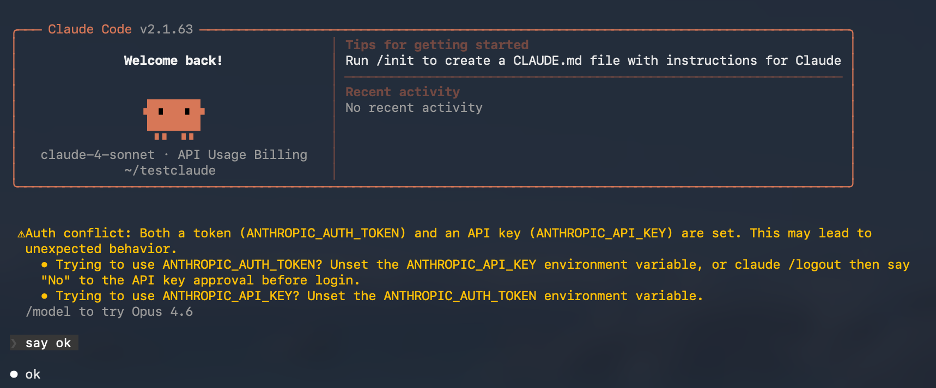
Expected result: Claude responds normally.
Validation is complete when: you can start a session and receive a response without errors.
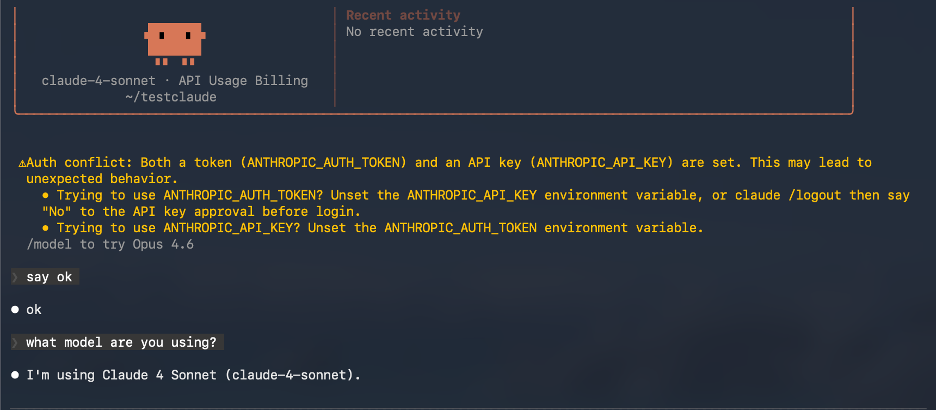
Test Case 2 — Model Verification
Input:
What model are you using?
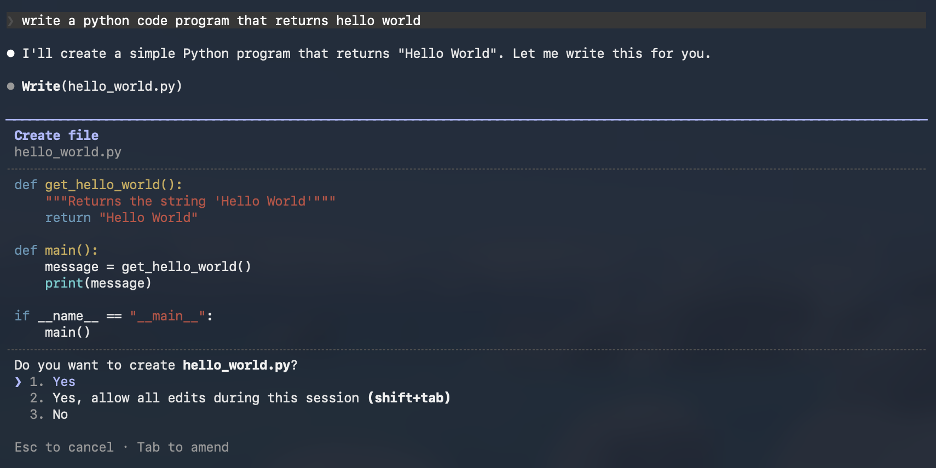
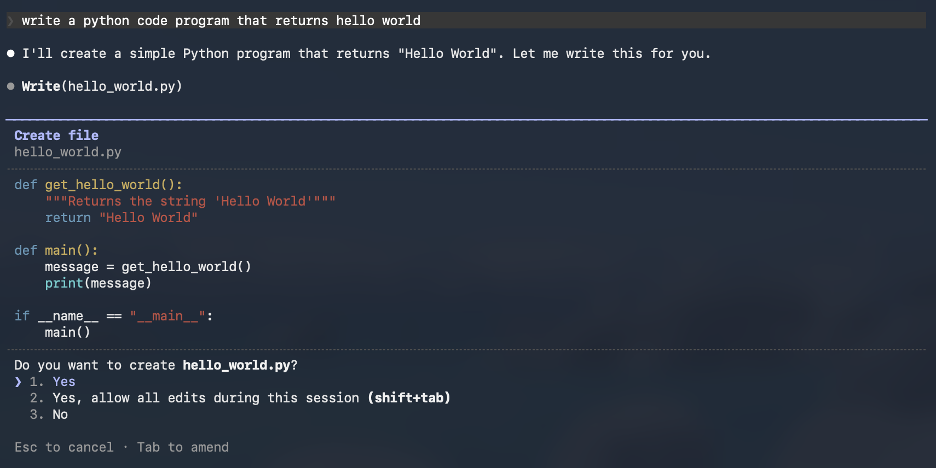
Test Case 3 — Code Generation Test (Python)
Ask:
Write a simple Python code that returns Hello World.
Test Case 4 — Web Application
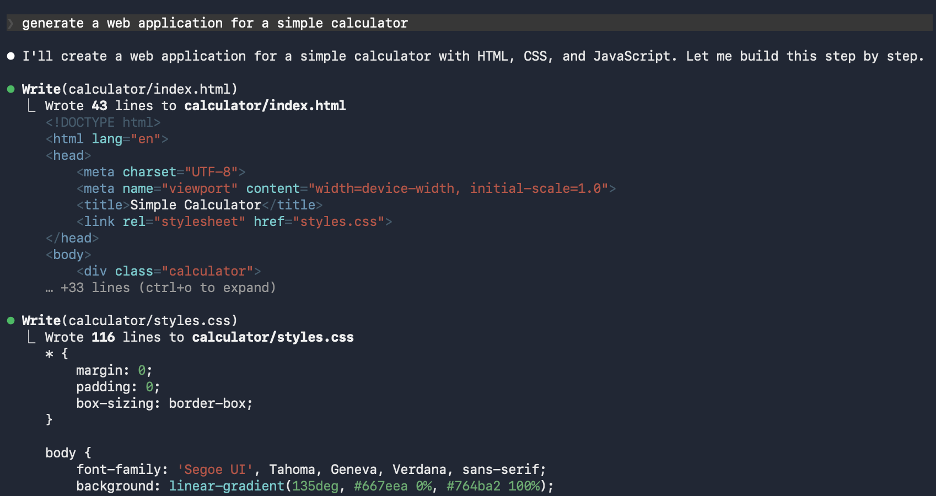
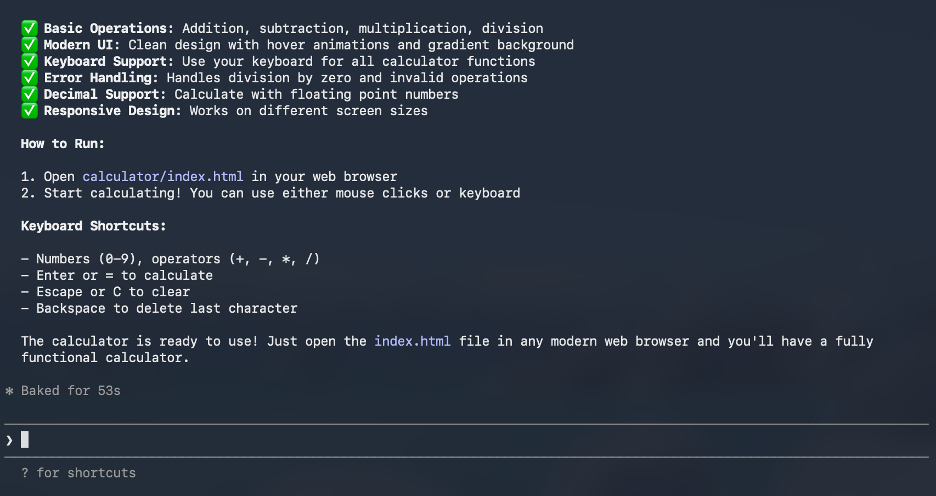
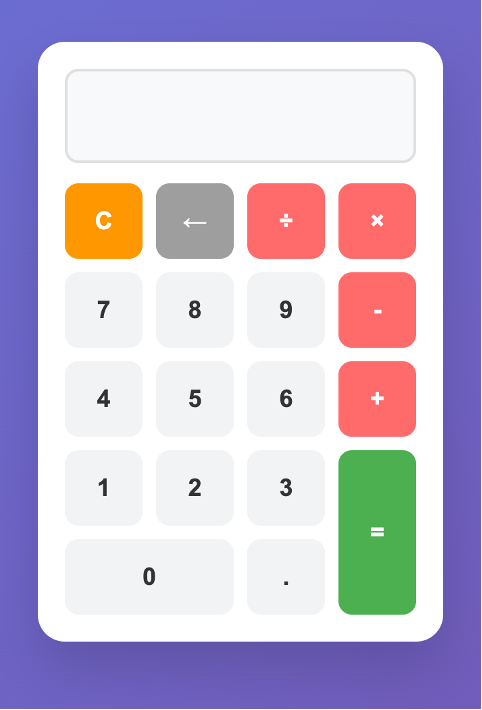
Ask:
Generate a Web Application for a simple calculator
Troubleshooting / Common Errors
Don't execute the settings file
- Wrong:
~/.claude/settings.json - Right:
nano ~/.claude/settings.json or cat ~/.claude/settings.json
Base URL should be root, not /v1
- Correct: https://aiapi-prod.stanford.edu
- Wrong: https://aiapi-prod.stanford.edu/v1
Model name must match AI API alias exactly
If you get "model not found" / "invalid model", confirm available aliases:
shell
curl -s https://aiapi-prod.stanford.edu/v1/models \
-H "Authorization: Bearer YOUR_AIAPI_KEY"Then update your CLI command.
If prompt-caching or beta header errors appear
Ensure these exist in ~/.claude/settings.json:
CLAUDE_CODE_DISABLE_EXPERIMENTAL_BETAS=1DISABLE_PROMPT_CACHING=1
