 University IT
Stanford Spok Mobile Quick Start and Best Practices Guide
Spok Mobile Setup
Step 1: (Required) Order a Messaging ID/Pager ID
A Messaging ID (Pager ID) is a unique five-digit or seven-digit numeric ID that each user must have to use any of the messaging delivery method services (similar to a username or login ID). Once a Messaging ID is created, messaging delivery services can be added to the Messaging ID profile.
To order a Messaging ID/Pager ID, go to the Messaging ID Request form on ServiceNow.
Forgot your Messaging ID? Go to Smart Page and either go to the advanced paging search or click your name once you get a result from the global search.
For more information, go to the Paging and Messaging Services site..
Step 2: (Required) Install Mobile Device Management (MDM)
Go to one of these webpages to install MDM:
- Stanford Health Care: AskSHC
- Stanford Medicine Children’s Health: Connect Anywhere
- Stanford University: Mobile Device Management
Step 3: Complete Spok Mobile Registration
To register Spok Mobile:
- Go to MyPager and click Enroll in Spok Mobile.
- Complete the online form. You will receive a welcome email from Spok Mobile within an hour that includes registration instructions.
- Complete the registration instructions to start sending and receiving messages.
Note: During the registration process, you must allow notifications when promoted on the mobile device.
For more Information, go to Stanford Spok Mobile.
Step 4: Enable Health Check in Spok Mobile App
When Health Check is enabled, the app automatically notifies the user if they do not have a valid network connection. The notification appears at the top of the Spok Mobile application screen.
For more information, go to Health Check for iOS or Health Check for Android.
Step 5: Review Spok Mobile App Introduction
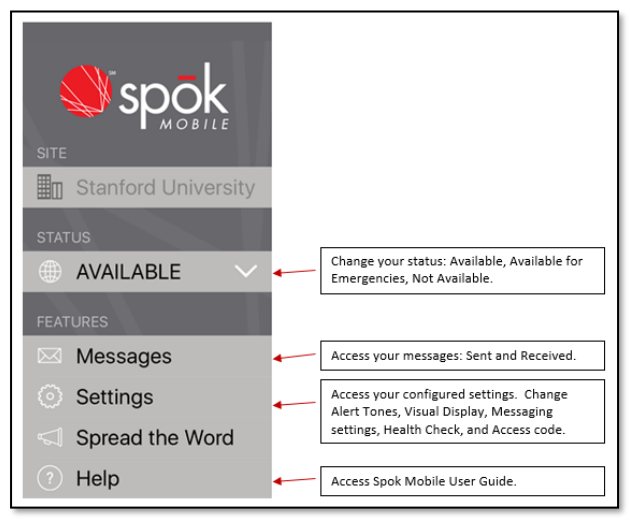
For more Information, go to the Reference Information for Spok Mobile
Support and Escalation
If you have an issue with your Spok Mobile app, report the problem immediately so we can fix it as quickly as possible.
Support Resources
View an Online Knowledgebase | Request Help or Report a Program by Phone | Submit a Help Ticket |
|---|---|---|
(650) 725-4357, option 3 then 1 |
Additional Resources
Smart Page:
Smart Page is a Stanford paging website that allows users to view and send messages; manage personal paging profile; and set, edit, and view on-call schedules. For more information, go to Smart Page.
MyPager:
My Pager is a Stanford self-help website that allows a user to enroll in Spok Mobile, reset a Smart Page Password, change their paging status, and manage their delivery destination. For more information, go to MyPager.
The following table shows what functionalities are provided by each resource.
Functionality | Spok Mobile | Smart Page | MyPager | Operator (288) | ServiceNow Request |
|---|---|---|---|---|---|
Send a Page | ✔ | ✔ |
|
|
|
Change Status (i.e., Available, Not Available | ✔ | ✔ | ✔ | ✔ |
|
Reset Password | ✔ |
| ✔ |
| ✔ |
View Paging History | ✔ | ✔ |
|
|
|
Set a Covering Exception (call forwarding) |
| ✔ |
| ✔ |
|
Set a Referral Exception (instruction to call |
| ✔ |
| ✔ |
|
Manage Delivery Destinations |
|
| ✔ |
|
|
View/Edit On-Call Schedules |
| ✔ |
| ✔ |
|
