 University IT
FAQs: Microsoft Login with Authenticator
Browse the frequently asked questions below to learn about using Authenticator and find solutions to common issues.
Need more help?
- See also: FAQs about the transitioning to the new login
- Submit a Help request.
Getting started
I already have the Microsoft Authenticator app installed on my mobile device. Will there be any conflicts or a different view?
No. Like Duo, you can have accounts from multiple organizations without issue.
How will Microsoft Authenticator work if I don't have a mobile device?
Microsoft Authenticator requires a mobile device capable of installing current apps from the Apple App Store or Google Play Store.
Can I use Apple Watch or Android wearable devices for Microsoft Authenticator?
No. Apple Watch and Android wearable devices (such as Samsung Galaxy Watch) are currently incompatible with Authenticator's security features. However, you can mirror Authenticator notifications from your phone to your wearable device.
Will this change impact how I log into hospital applications?
If you use your SUNet ID to log into hospital websites and applications like SHC Connect or SHC Service now, you will use the new university Microsoft login experience for these as well.
Troubleshooting
I received a SAML error while setting up the Authenticator app for passwordless login on my iOS device. What should I do?
If you take too long during the setup process, you may encounter a SAML error due to a session timeout. This timeout issue requires you to remove your Stanford account from the Authenticator app and restart the iOS setup process from Step 2. To resolve the SAML error, follow these instructions to remove an account from Authenticator on an iOS device.
Tip: To avoid this error in the future, complete the setup process promptly without long pauses between steps.
I received a SAML error while setting up the Authenticator app for passwordless login on my Android device. What should I do?
If you take too long during the setup process, you may encounter a SAML error message. This timeout issue requires you to remove your Stanford account from the Authenticator app and restart the setup process. To resolve the SAML error, follow these instructions to remove an account from Authenticator on an Android device.
Tip: To avoid this error in the future, complete the setup process promptly without long pauses between steps.
I've set up my new Microsoft login. Why are some Microsoft third-party apps now asking me to sign in?
You may need to sign in to some apps that connect to Microsoft after you are set up with the new Microsoft login. For example, your LinkedIn in Outlook app may ask you to sign in the next time you open your Outlook calendar. This change will not affect your access to the application itself. The following apps are among those that will likely be impacted:
- Atlassian
- Calendly
- Fizz
- GitHub
- Notion
- Smartsheet
- Spark Mail
- Thunderbird
- VaultMe
What if an application takes me to Entra ID but then has me authenticate Stanford IDP as well?
If you experience an authentication "Double Hop," there is likely a specific setting in the application directing authentications to the Stanford IDP. The application owner will need to take action to adjust the setting.
I'm not receiving a verification code when I try to sign in to Microsoft. What should I do?
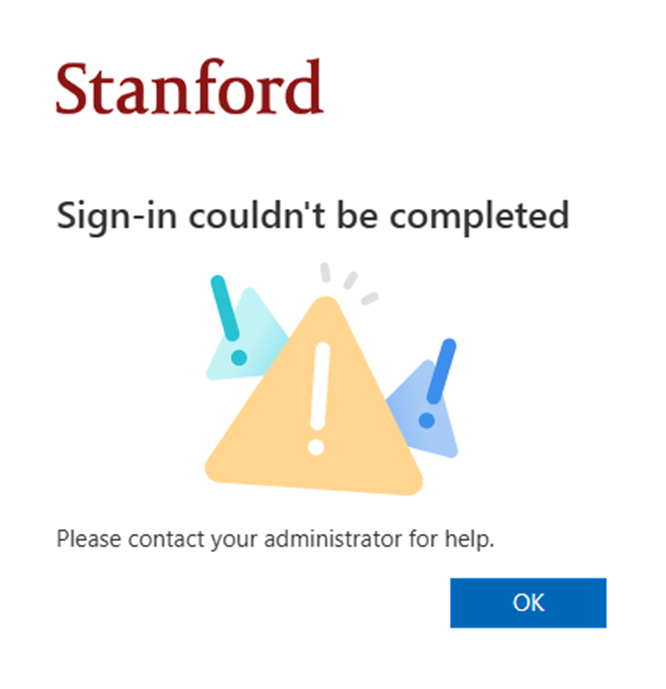
Verification codes can fail to arrive for a few reasons. You might see a message like "Sign in couldn't be completed" or "We'll help you set up another way to verify it's you." If you're unable to receive a code or complete sign-in, contact IT support.
Here are examples of error messages you might see: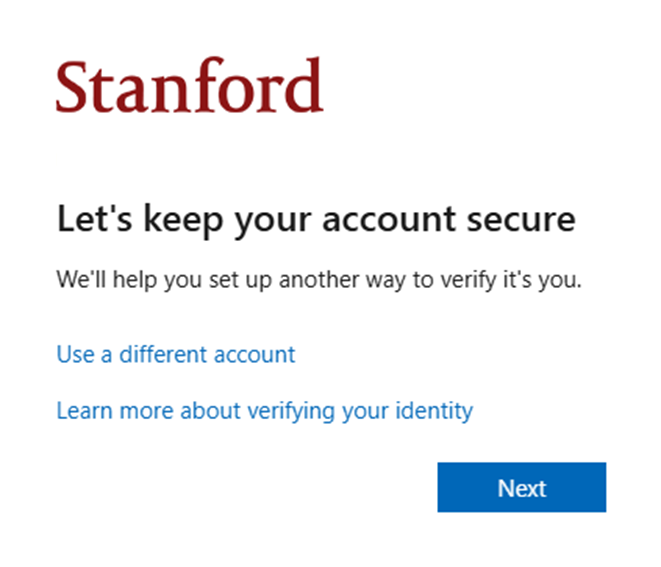
New or lost devices
I have a new phone. How do I set it up with Authenticator?
Do not remove Authenticator from your old device until you have completely set up your new device. Microsoft will continue to use your old device for authentication until the new phone is fully configured with passwordless sign-in.
To ensure you don't lose access to your account during the switch, complete the entire setup process on your new iOS or Android device, including enabling passwordless authentication. You can then follow these steps to remove an Authenticator account from your old device:
I've lost my phone that had the Authenticator app set up. What should I do?
If your phone is lost or stolen, you need to take immediate action to protect your Stanford account and data.
- First, report the lost or stolen device right away using Stanford's Take Action for Lost or Stolen Devices process.
- Once you have a replacement device, submit a Help request to get Microsoft Authenticator set up on your new phone using your Temporary Access Password.
