 University IT
How to Log in to Microsoft Using Authenticator
These instructions are intended for participants of the Microsoft Login Pilot Program only. Before you can complete this process, you'll need to set up the Microsoft Authenticator app on your mobile phone.
Passwordless authentication lets you access your Stanford Microsoft account without ever typing a password. Instead, you'll simply approve the sign-in from the Microsoft Authenticator app on your phone.
- Go to the Microsoft site or application where you want to sign in.
- When prompted, enter your Stanford email address as <your SUNet ID> @ stanford.edu on the Stanford Microsoft login screen.
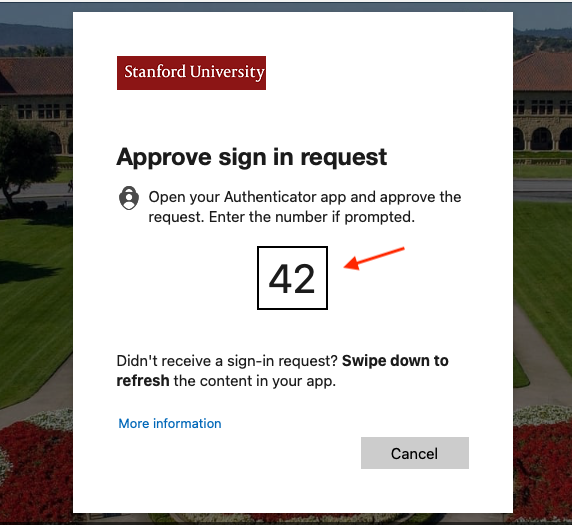
- You’ll see a prompt asking you to open the Microsoft Authenticator app and approve the request. A number will appear in the sign in on your computer screen.
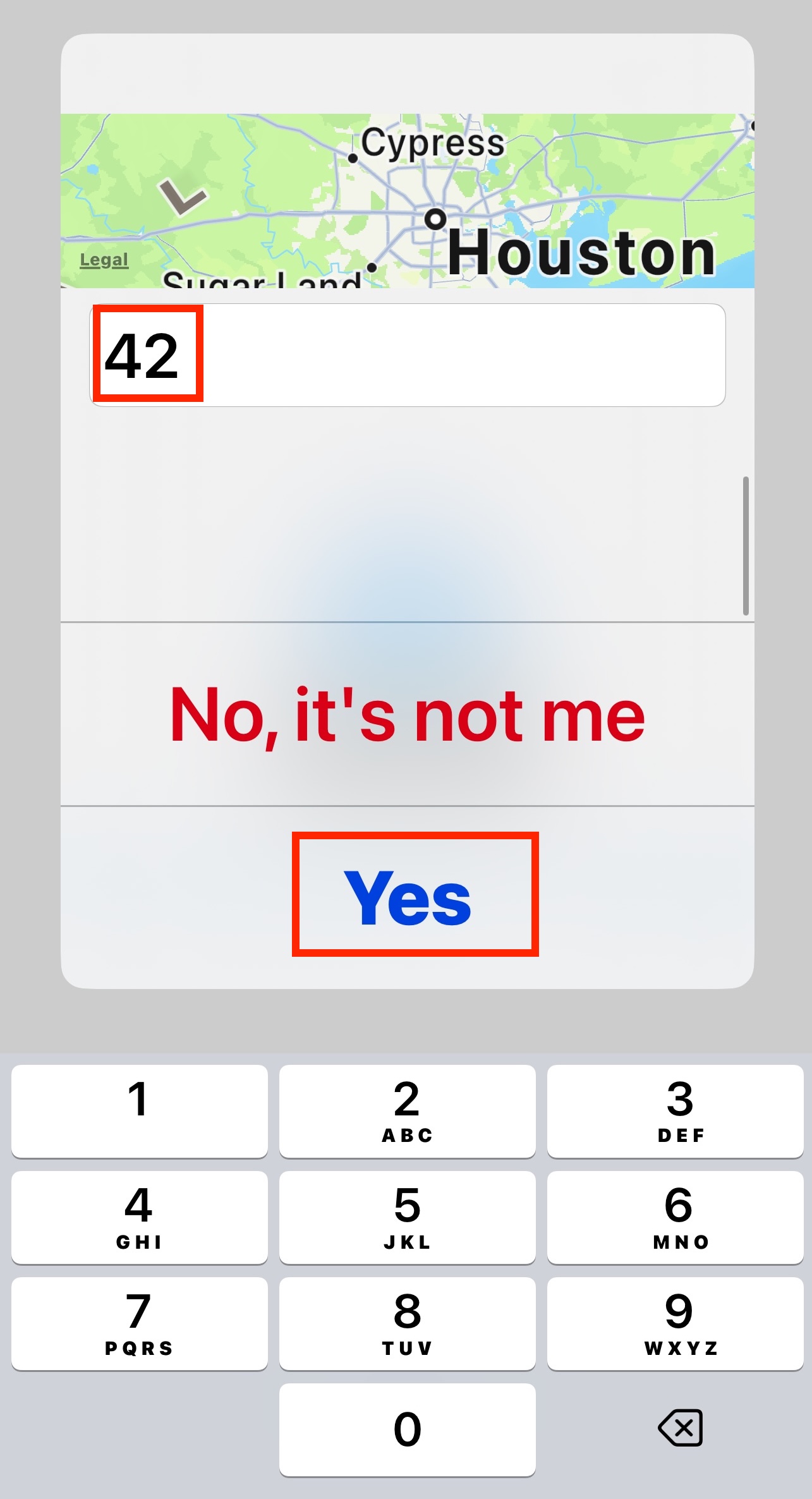
- On your mobile phone, open the notification from Microsoft Authenticator. Enter the number shown on your computer and tap Yes to approve the request.
Last modified
