University IT
How to Find Files Shared with "Anyone with the link" in Google Drive
As a data owner, you should regularly audit and review your files to prevent unintended data exposure. There are two ways to search. You can do a quick, comprehensive search across all your accessible drives or a focused search within a specific location like a single shared drive.
Find all files across all of Google Drive
Use this method to find all files with this sharing setting across your "My Drive," "shared with me," and all "shared drives" you are a member of.
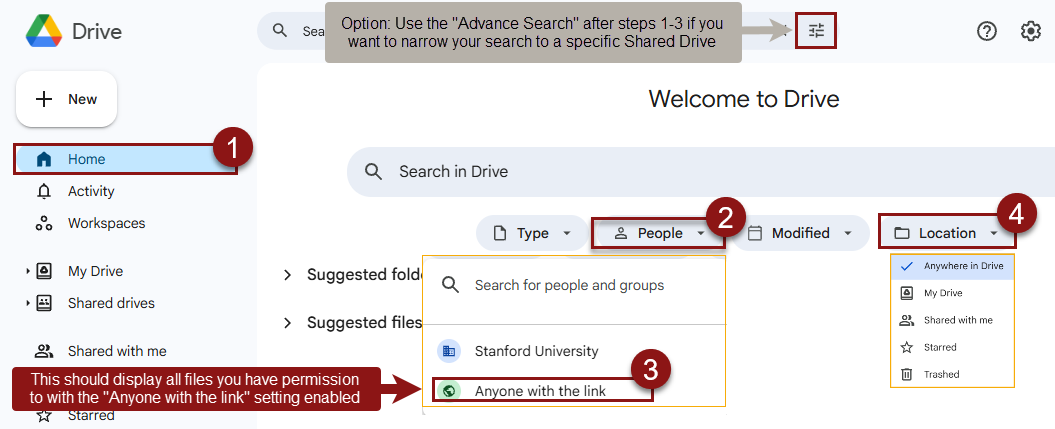
- Open Google Drive and click the Home tab.
- In the search bar at the top of the page, click the People filter chip.
Note: The People filter is represented by a person icon. You may need to have a wider browser window to see the filter chips directly. If you don't see it, click the Search options icon (sliders) on the right side of the search bar to use the advanced search. - From the dropdown menu, select Anyone with the link.
- Google Drive will display a list of all files and folders with this sharing setting enabled. Review the results to identify items that require remediation.
- If you want to narrow your search, click the Locations filter chip or follow the instructions below to use the advanced search.
Focused Search Within a Specific Location
Use this method to audit a specific location, such as a single shared drive or your "My Drive." To start, click the Search options icon (represented by three sliders) on the far right and follow the steps below.
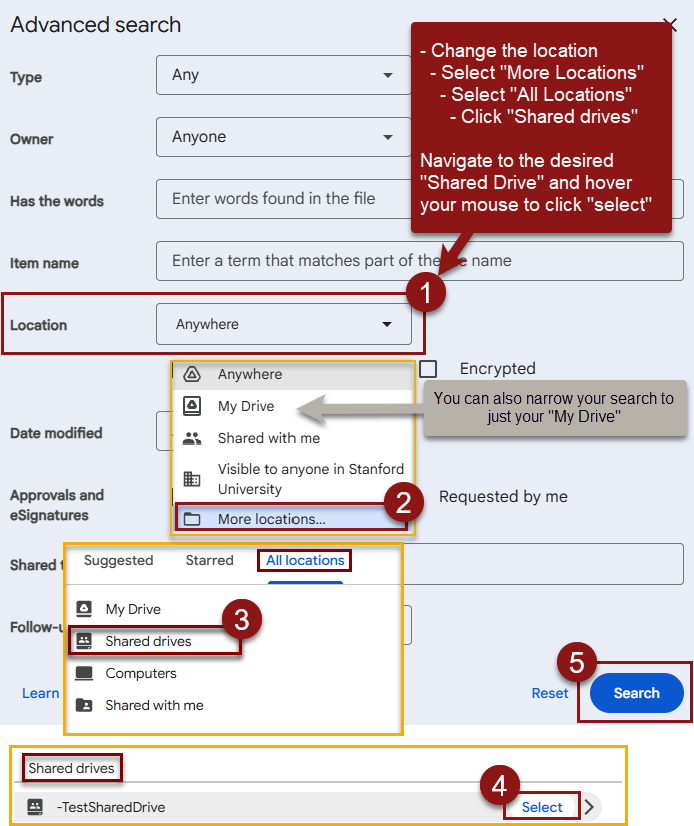
- In the Advanced search window, locate the Location field and click the dropdown menu.
- From the Locations drop down, select More locations …
Note: You can also select other locations like My Drive or Shared with me. - To search a specific shared drive, from the All locations tab, choose Shared drives, then browse to and select the desired drive.
- Browse to the desired drive and click Select.
- Once you are brought back to the Advanced search window, click Search. The advanced search window will close, and a filter for your chosen location will now appear in the main search bar.
- In the main search bar (with the location filter already applied), click the People filter chip.
- From the dropdown menu, select Anyone with the link.
- Review the results. The list will now display only the files and folders from your selected location that are set to "Anyone with the link." Review this list to determine which items require remediation.
How to Update file sharing Permissions
Once you have identified a file or folder that should not be public, follow these steps to update its permissions to a more secure setting.
- Locate the file in your search results.
- In your search results, locate the file or folder you need to secure. Click the three-dot menu to the right of the file name. Hover over Share in the menu, then click Share again in the flyout menu.
Alternative: You can also click the file once to highlight it, then click the Share icon (a person with a plus sign) or click the three-dot menu in the menu bar at the top of the screen. Hover over Share in the menu, then click Share again in the flyout menu.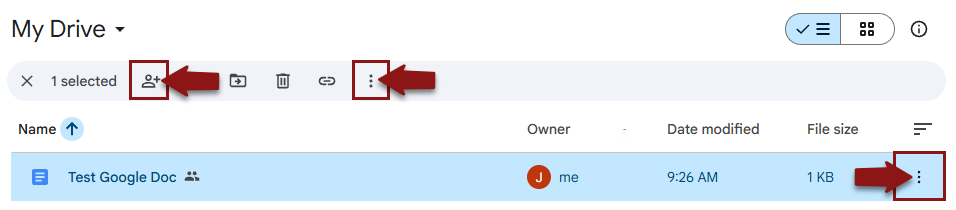
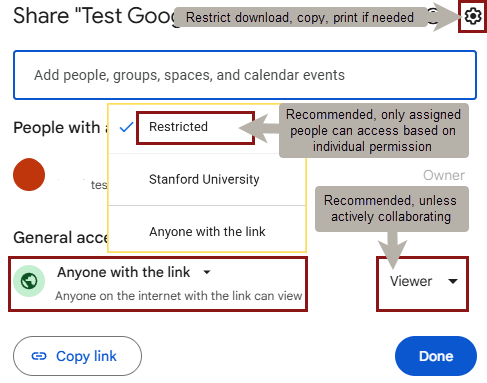
- In the sharing window that appears, locate the General access section. Confirm the current setting is "Anyone with the link."
- Click the dropdown arrow next to "Anyone with a link" and choose a more secure options:
- Restricted (recommended): This is the most secure setting. Only specific people you have added by email address in the section above can access the file.
- Stanford University: This setting allows anyone logged in with an @stanford.edu account to access the file. Use this for broad internal sharing.
Note: When sharing within Stanford or with specific people, you can also control their permission level. After selecting an option like "Restricted" or "Stanford University," use the dropdown menu to the right to choose whether people are a Viewer (can only view), a Commenter (can view and add comments), or an Editor (can make changes). Learn more about how to share Google files securely.
- Click Done to save your changes.