University IT
Update Your Password, When Required, to Meet New Security Standards
To align with industry best practices and protect university resources, University IT (UIT) updated the minimum password standards for the Stanford community, contractors, and third-party partners who access Stanford systems.
When do I need to update my password to meet these standards?
The new password standards are effective on Oct. 22. However, existing passwords stay valid until they expire or need to be reset. At that time, you will need to create a new evergreen password that meets the updated standards. This means that most users do not need to take action immediately.
How are the password standards changing?
The password standards have different requirements for each type of account: user, administrator, or service (a non-human account used by applications or services).
Key changes to the password requirements include:
- Longer passwords. The minimum length is now 15, 20, or 25 characters, depending on the account type.
- No complexity rules. You no longer need to combine uppercase and lowercase letters, numbers, and symbols. Security research has shown that longer passwords are stronger than shorter ones, regardless of the characters that the password contains.
After you update your password in a user or administrator account following the updated standards, you do not need to update your password again unless there is evidence of a compromise, a policy violation, or another risk factor. For example, HIPAA covered entities will no longer need to update their password yearly.
How do I update my password?
When you update your password, you must log in using multi-factor authentication (MFA) to verify your identity. Duo Push is UIT’s recommended MFA method. If you do not use MFA to log in, call the UIT Service Desk for help.
To create your new password, first review and follow the guidance on the Password Standards page based on your type of account. Because longer passwords are stronger, consider using a passphrase, which is a short string of four or more random, unrelated words. UIT also recommends using the Dashlane Password Manager to securely generate and store passwords.
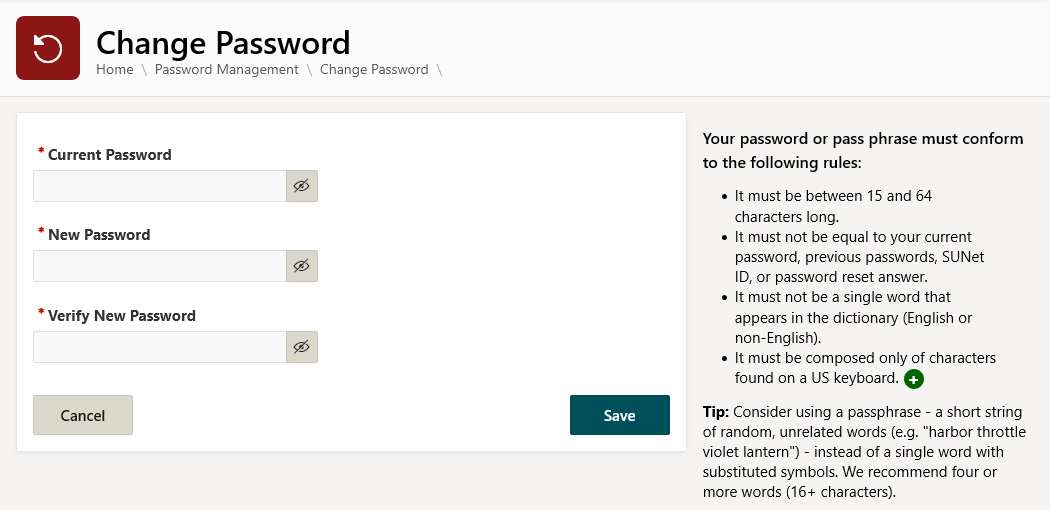
Then go to Stanford Accounts, select the Password Management tile, and select the Change Password tile, authenticating as needed. Follow the instructions on the page to change your password, as shown below. For a detailed walkthrough, visit Changes to Password Management Pages on the Stanford Accounts Application.
How do I get help?
If you have questions about this change or need help, please submit a Help request.
DISCLAIMER: UIT News is accurate on the publication date. We do not update information in past news items. We do make every effort to keep our service information pages up-to-date. Please search our service pages at uit.stanford.edu/search.
What to read next:

Action Required: Upcoming Upgrades and Changes to Stanford VPN
Google Drive Files Become Unavailable 180 Days After Owner’s Account Is Suspended