University IT
Changes to Password Management Pages on the Stanford Accounts Application
To align with industry best practices and protect university resources, University IT (UIT) updated the minimum password standards for the Stanford community, contractors, and third-party partners who access Stanford systems. To learn more about these changes, visit the news article Update Your Password, When Required, to Meet New Security Standards or review the Password Standards page.
Several pages within the Stanford Accounts Password Management section will be updated on Oct. 22 to reflect these revised minimum password standards. The changes are described below.
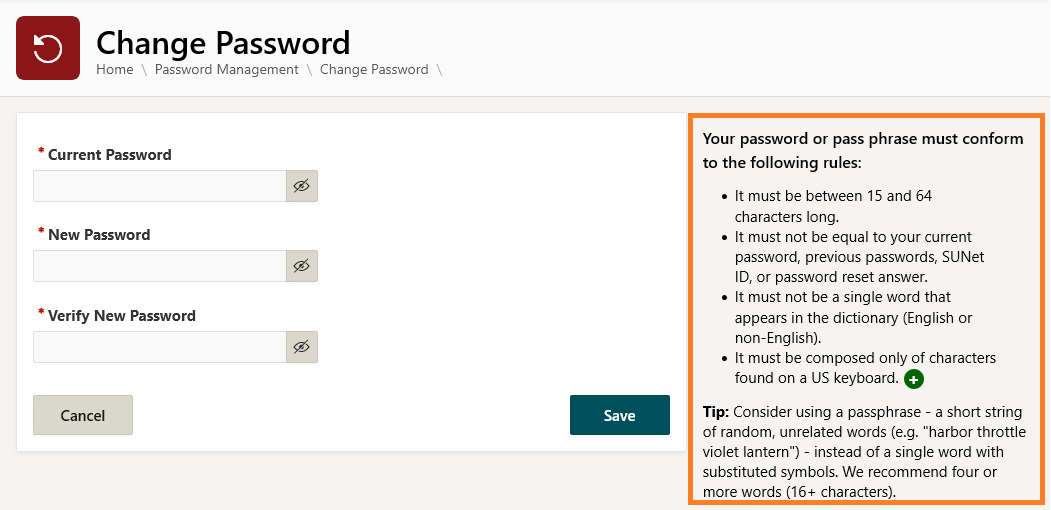
Updated Change Password page
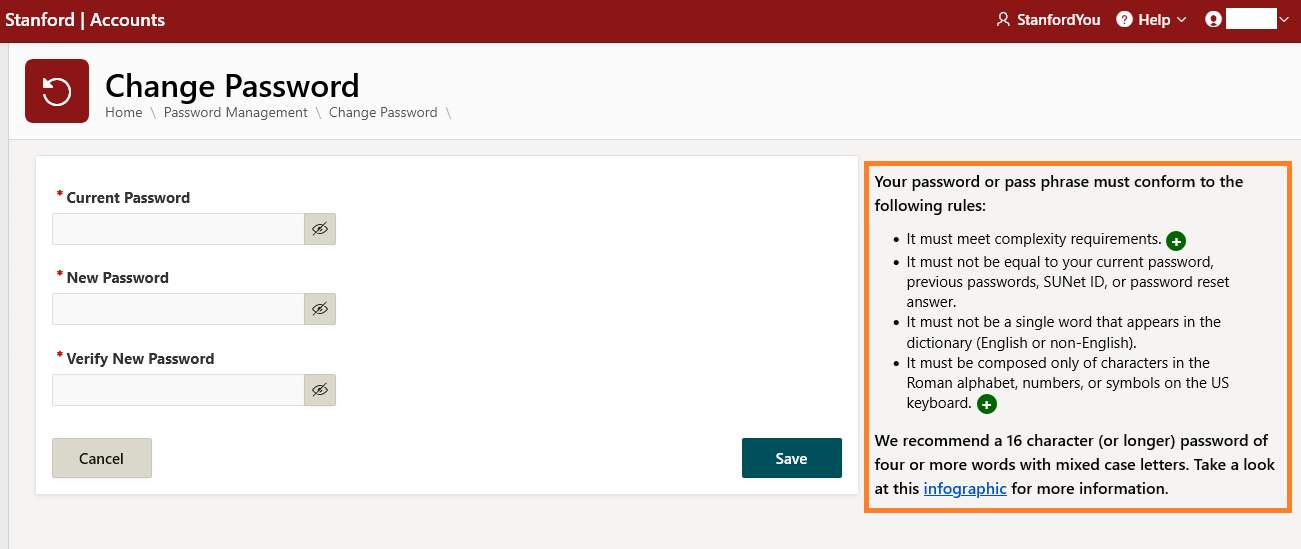
The right side of the Change Password page describes the required length of a password, which has increased to meet the updated standards. The password complexity requirement (combining uppercase and lowercase letters, numbers, and symbols in the password) has been removed. The Tip at the bottom of the page also recommends using a passphrase to create a password.
When you update your password in Stanford Accounts, you must log in using multi-factor authentication (MFA) to verify your identity. Duo Push is UIT’s recommended MFA method. If you do not use MFA to log in, call the UIT Service Desk for help.
New Change Password page (as of Oct. 22)
Previous Change Password page (before Oct. 22)
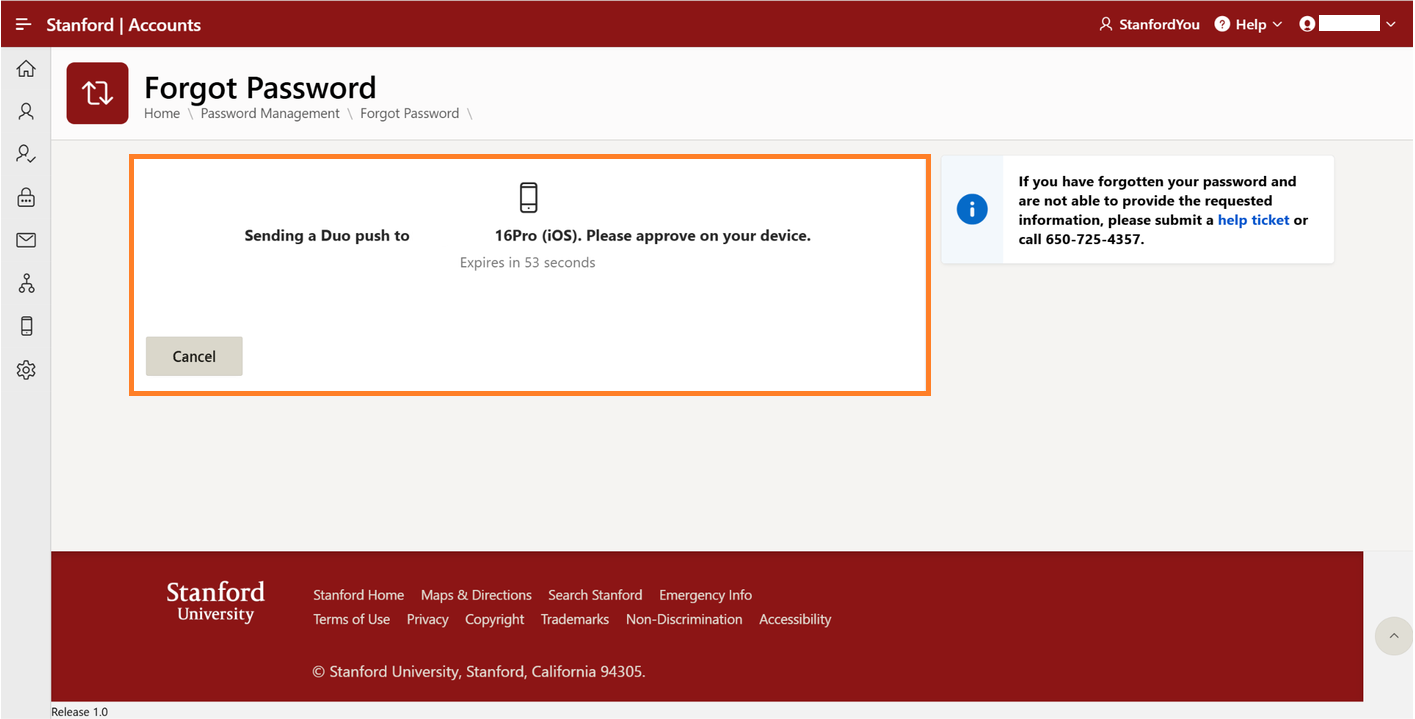
New Forgot Password process
When you reset a forgotten password, you will be sent a Duo Push to authenticate after you enter your SUNet ID. If you do not have the Duo app on your authentication device, you will be asked to contact the UIT Service Desk to set up an alternative authentication method.
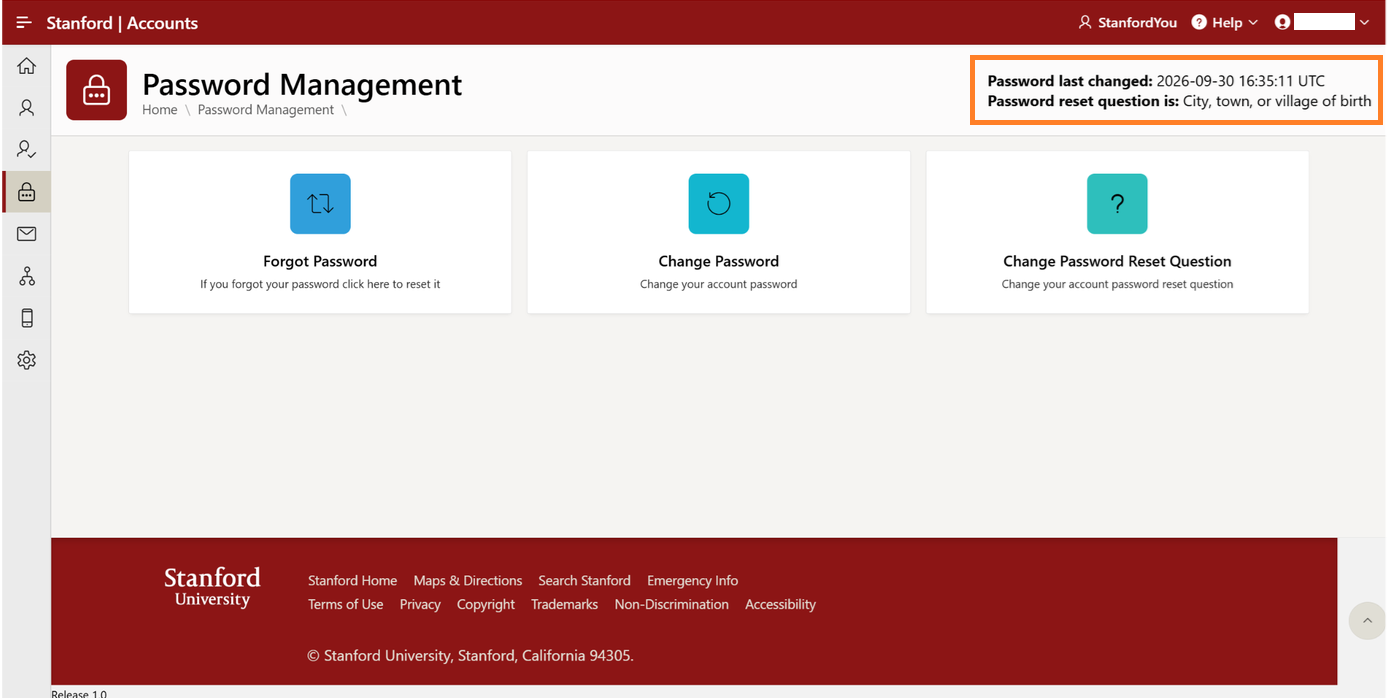
Removal of Password Expiration information
Passwords created following the new password standards do not expire. As a result, you will no longer see an expiration reminder on the Password Management page when you are logged in.