University IT
Overview of the Stanford Accounts Application
On this page:
The Stanford Accounts Application (called Accounts, for short) is the central web application for creating and maintaining your SUNet ID, the primary account for all students, faculty, and staff. This page describes how to navigate the Stanford Accounts Application.
1 - General: Look and Feel
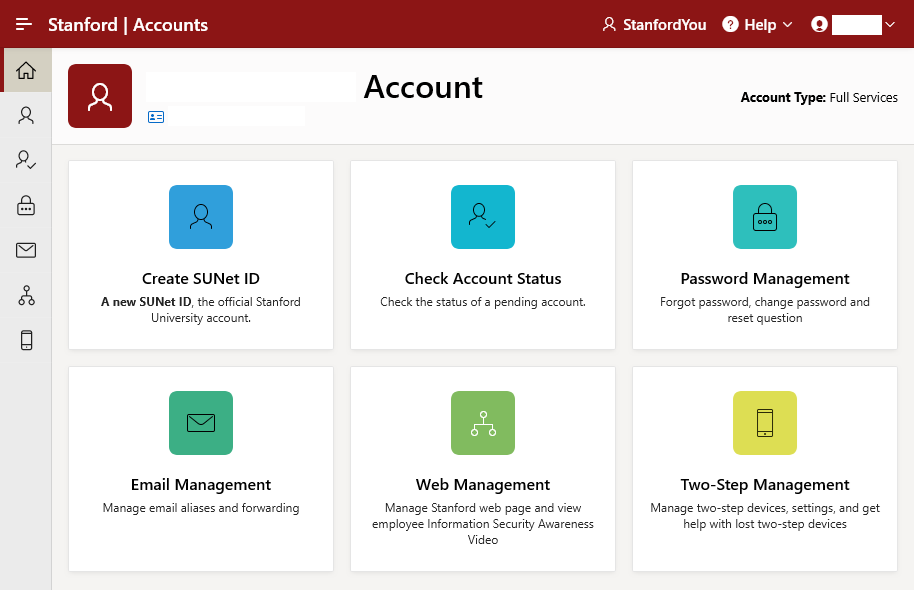
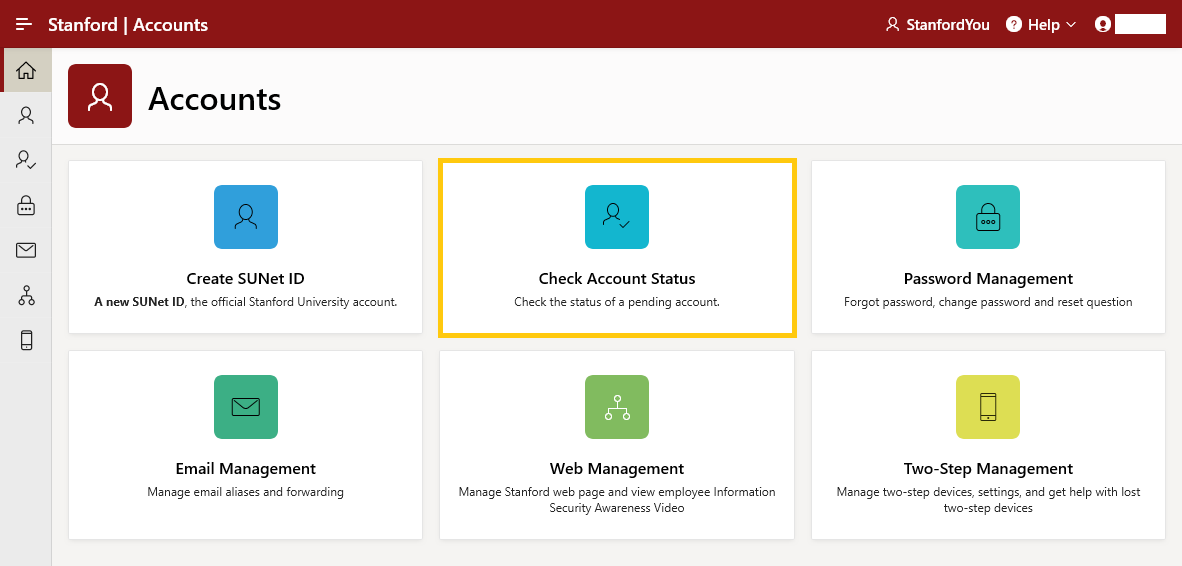
Go to Stanford Accounts (accounts.stanford.edu) to access a dashboard with tiles that organize everything you need on the main landing page.
2- Navigation
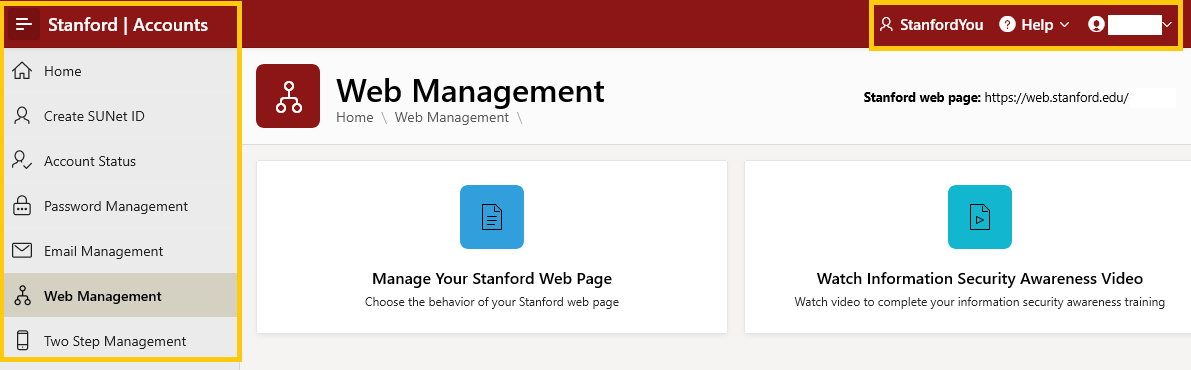
Use the left navigation panel to move between the tiles. Click the hamburger menu to expand the details for the icons. The top right menu combines access to StanfordYou, log out, and the “Help” drop-down menu to review helpful instructions or submit a Help request.
3- Create a New SUNet ID
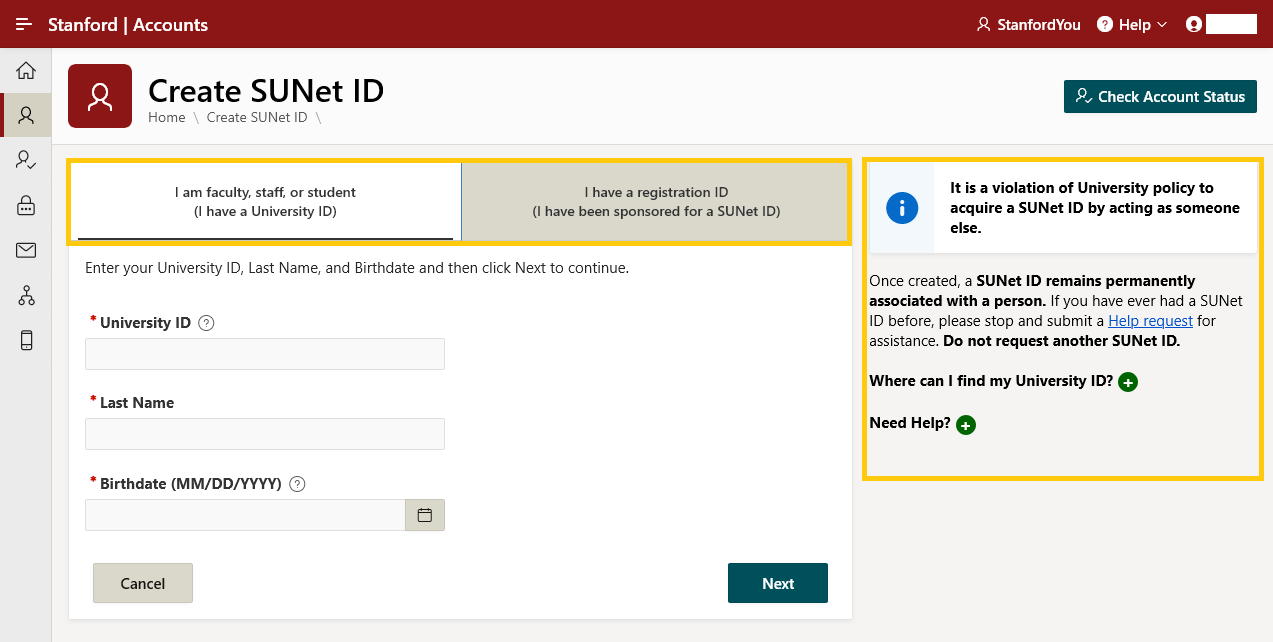
The options for creating a new SUNet ID appear as tabs under the “Create SUNet ID” tile. To set up a sponsored SunetID at base level, sponsees are required to provide a valid non-Stanford email address at the time of SUNetID creation.
4- Check Account Status
The “Check Account Status” tile let you check the status of a pending account. There is also a “Check Account Status” button located within the “Create SUNet ID” tile to check the status of a pending account.
5- Password Management
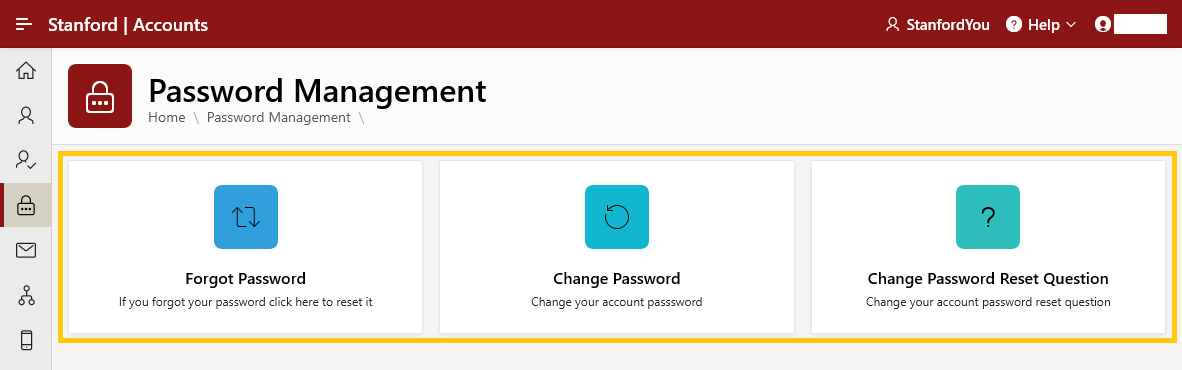
Select the “Password Management” tile to reset a forgotten password, change a password, or change the password reset question. Note: for more options to change your password, visit SUNet ID Passwords.
6- Email Management
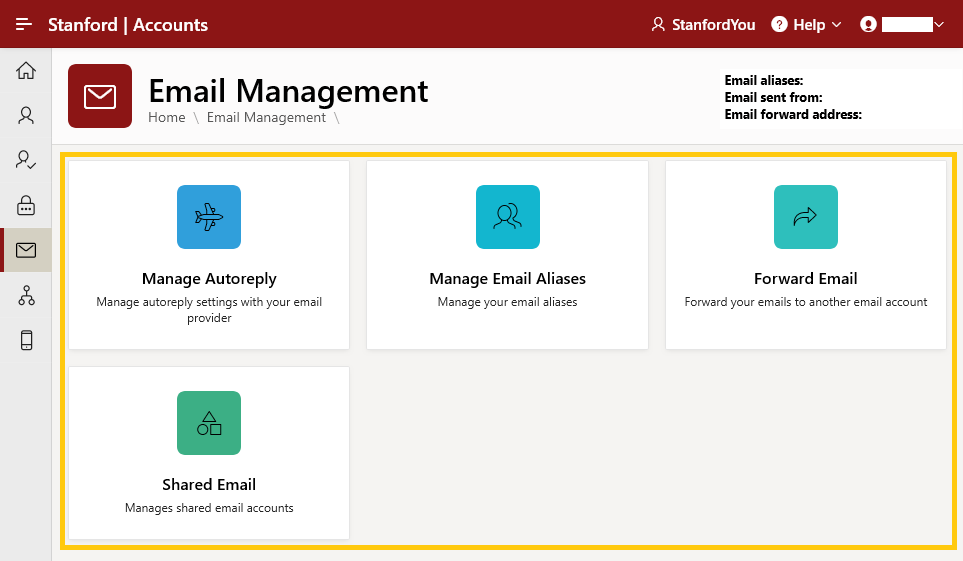
Select the "Email Management" tile to manage your autoreply settings in Microsoft 365, manage your email aliases, and manage your email forwarding. Individuals with access to manage shared email accounts will also be able to manage them through the “Shared Email” tile.
Refer to these step-by-step instructions if you need assistance with setting up automatic replies in Stanford email (Microsoft 365 or Gmail).
7- Shared Email Management
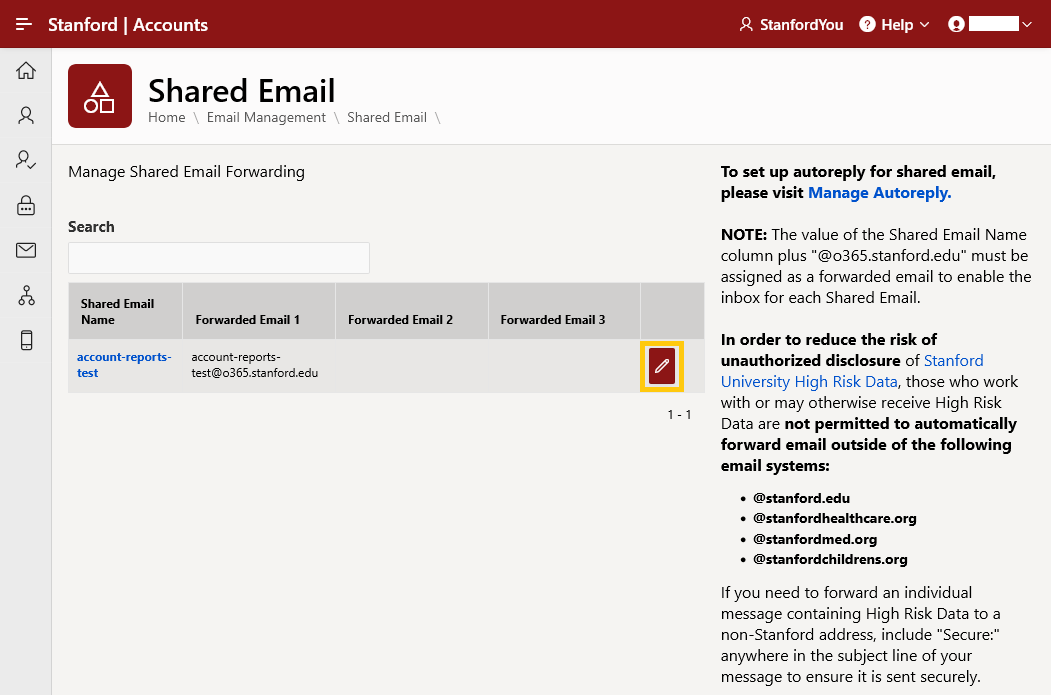
Use the “Edit” button to easily manage your shared email forwarding.
8- Web Management
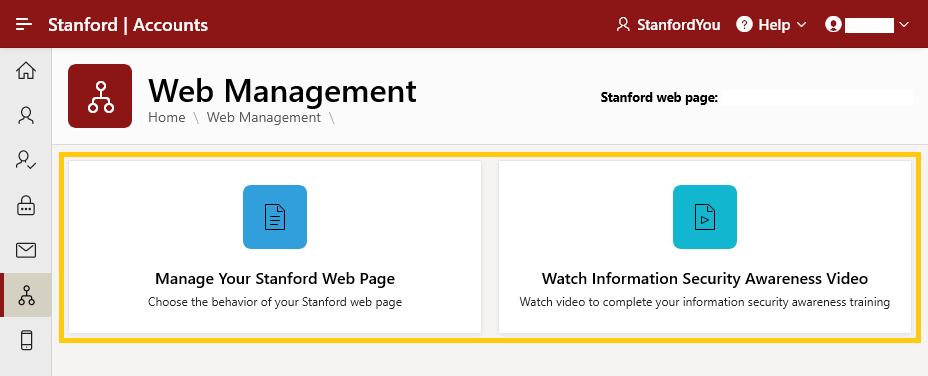
Use the "Web Management" tile to manage your Stanford web page and watch the Employee Information Security Awareness Video to complete your information security awareness training.
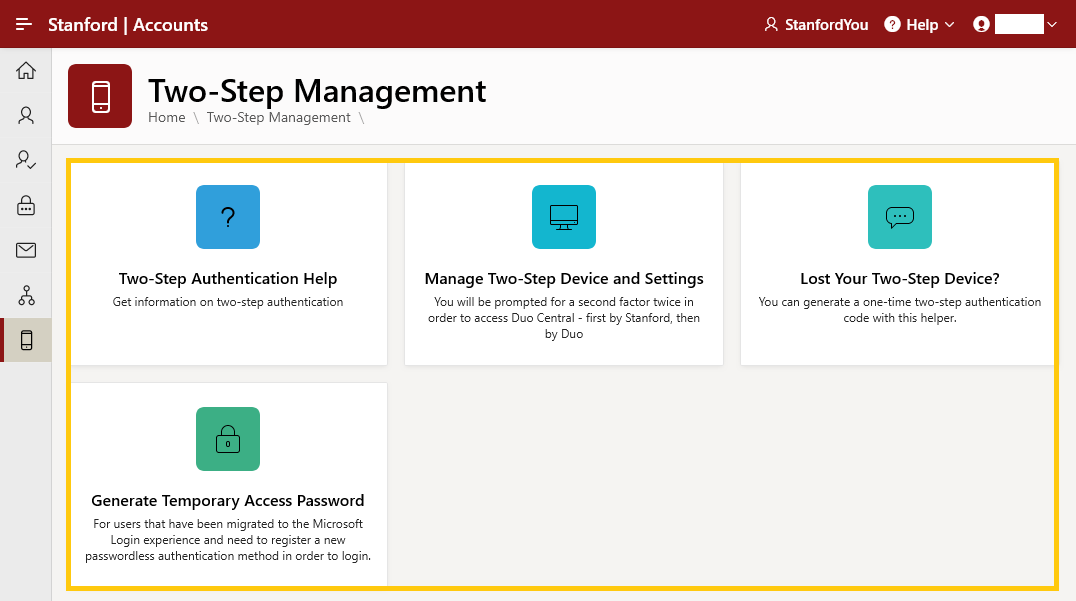
9- Two-Step Management
Use the “Two-Step Management” tile to learn about two-step authentication, manage your two-step device, report a lost device, or generate a temporary access password.