University IT
In the AI Playground, Now You Can…
The Stanford AI Playground continues to adapt and improve at lightning speed, adding new AI innovations and responding to user feedback.
Many people are using the AI Playground for:
- Generating text for emails, documents, presentations, or proposals
- Summarizing data
- Brainstorming ideas
- Performing mathematical computations
- Writing, improving, or rendering code
- Generating images, charts, or graphs
- AI-powered web searches
- Data analysis (finding trends, categories, and insights)
It’s likely you perform one or more of those tasks daily or frequently, meaning the AI Playground can be a very helpful toolbox for you!
And with a new round of freshly-installed updates, now you can…
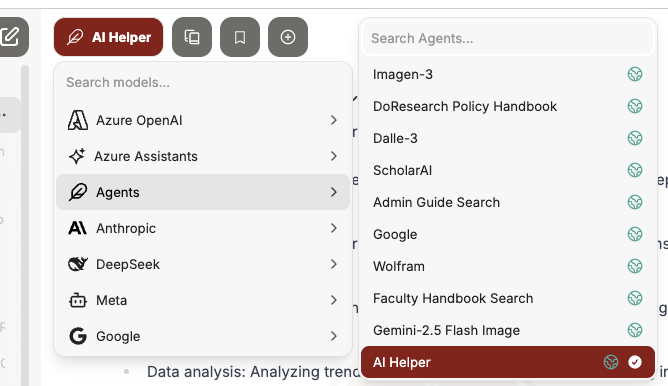
Use the AI Helper agent
This feature was enabled in September; it can provide quick answers about the AI Playground, show you how to get more out of AI, and help identify areas where AI can help support your day-to-day tasks.
Try something like: "In the AI Playground, which model and other settings should I try to analyze a large data set?"
How to use:
- In the main/central panel, click the top-left button to open the models menu.
- Locate AI Helper in the Agents list, or search "AI Helper" in the built-in search bar.
- Select AI Helper.
Gain more conversational context with Memories
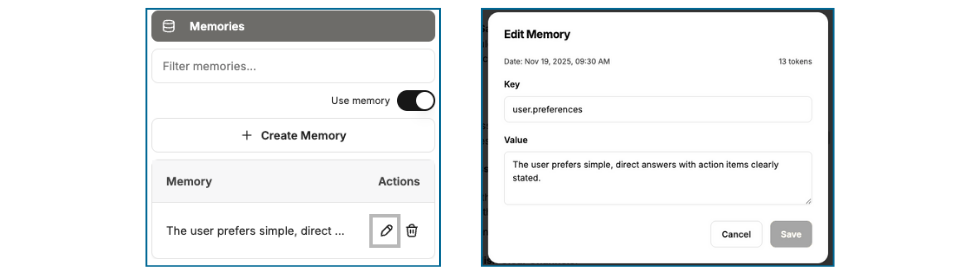
The AI Playground now has a smart Memories system for context across conversations. This allows all available AI models to recall user preferences, important facts, and context from other conversations (such as details you’ve shared about your role, recurring patterns, or your writing style).
The new Memories capability is turned on by default, but can be toggled off from the Memories menu in the right-side panel. Memories can be added/updated manually in the Memories menu, and in some cases, the system will add memories on your behalf based on conversation.
How to use:
- To have the AI Playground create a memory for you, try something like this in a prompt: "From now on, I want you to remember that I like simple, direct answers with action items clearly stated."
- Now, in the Memories menu in the right-side panel, you’ll see a new Memory.
- Click the pencil icon to edit/view the new Memory.
- Now you can view or edit/save the Memory. Noticing the Key and Value pairing format can help you create custom Memories in the panel manually, as well:
Launch native Web Search from the prompt bar
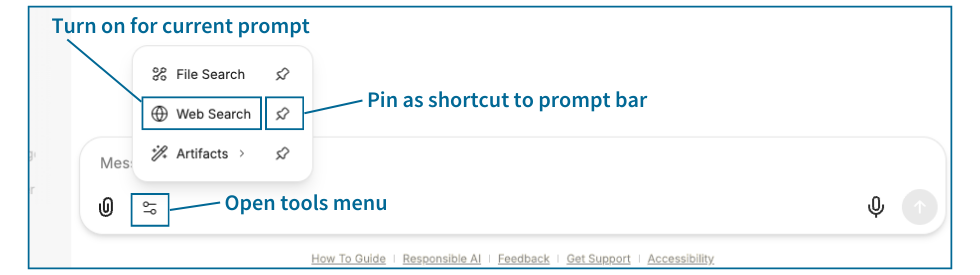
AI-powered Web Search is now built into the prompt bar and can be used with the available AI models.
How to use:
- Open the Tools menu on the prompt bar.
- Select Web Search.
- A "Search " indicator will appear in the prompt bar to show it is active.
- Once you enter your prompt, linked online sources will be included in the response to your prompt.
- (Optional) To add a shortcut for Web Search to the prompt bar, click just the pushpin icon next to Web Search in the Tools menu.
Use the improved Artifacts from the prompt bar
Artifacts is also now built into the prompt bar and allows for more control on when to render outputs on screen.
How to use:
- Open the Tools menu on the prompt bar.
- Select Artifacts. (Optionally, choose either "Include shadcn/ui components instructions" or "Custom Prompt Mode" from the tool’s flyout menu.)
- An "Artifacts" indicator will appear in the prompt bar to show it is active.
- (Optional) To add a shortcut for Artifacts to the prompt bar, click just the pushpin icon next to Artifacts in the Tools menu.
Give feedback on responses to improve results
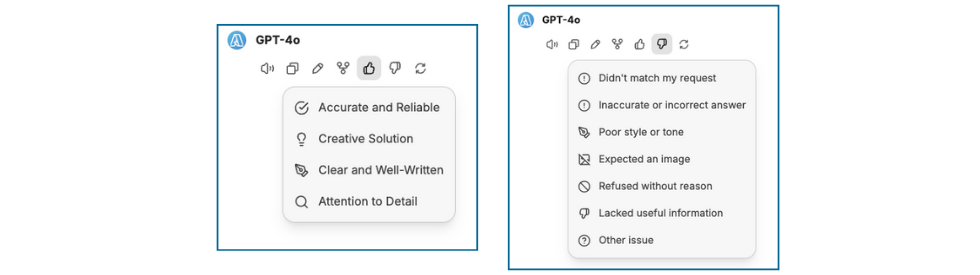
A new chat rating system allows users to provide feedback on AI responses. Your feedback is stored in the conversation metadata, so that conversation is better tailored to you. (Your feedback does not train or fine tune the models in the AI Playground, and ratings do not affect saved user memories.)
Aggregated ratings data also informs the Stanford AI Playground team about which models are working well or not.
How to use:
- On any response within the AI Playground, choose the thumbs up or thumbs down icon for specific feedback options.
- Select the best choice.
Take advantage of conversation search improvements
The latest updates to the AI Playground re-enable conversation search, due to search processing improvements.
How to use:
- In the left-side panel, at the top of the panel, locate the search bar above the conversation list.
- Type the word or phrase you are looking for to find results.

Use File Search for efficient data retrieval
The File Search tool is now built into the prompt bar. With the Upload for File Search option (from the Attach Files menu), the File Search tool enables semantic retrieval of data in files in an efficient way. File Search stores the uploaded document in a way that the AI can search and fetch relevant pieces when needed, rather than reading it all at once. This is ideal for large files or when you need to have a lengthy conversation about a file.
How to use:
- Open the Attach Files menu (paperclip icon) in the prompt bar. Select Upload for File Search and upload a file to include in your prompt. (Or, insert a file from your already uploaded files from the Attach Files menu in the right-side panel.)
- Now, open the Tools menu from the prompt bar.
- Select File Search.
- (Optional) To add a shortcut for File Search to the prompt bar, click just the pushpin icon next to File Search in the Tools menu.

Note: Even though these tools and options are designed to keep responses limited to the content of the provided file(s), hallucinations can still occur. Be sure to verify responses.
That’s not all
In addition to the new File Search capabilities, the normal attachment feature has also been updated. Now you can upload files as text, making it easier to pull the content of uploaded documents directly into your conversations. This update also adds enhanced OCR support using Mistral’s OCR API, so that images and PDFs can be converted to text automatically.
If you use LaTeX typesetting format for mathematical or technical prompts and responses, you’ll also notice improved formatting of responses that include combined LaTeX typesetting and standard typesetting together.
You can find out about the other tools and features of the AI Playground in the AI Playground Quick Start Guide. Find recently-released features in section 10. Try new features and in the Release Notes.
More help
- To get started, launch the AI Playground.
- For detailed information, use the AI Playground Quick Start Guide and FAQs.
- To share and learn from the Stanford community on the AI Playground, join the #ai-playground Slack channel.
- For technical questions or support, send a Help request.
- To share your feedback with the team, use the feedback form.
DISCLAIMER: UIT News is accurate on the publication date. We do not update information in past news items. We do make every effort to keep our service information pages up-to-date. Please search our service pages at uit.stanford.edu/search.
What to read next:

Action Required: Upcoming Upgrades and Changes to Stanford VPN

Google Drive Files Become Unavailable 180 Days After Owner’s Account Is Suspended