University IT
Spot (and Save) Google Drive Files “Owned” By Colleagues No Longer at Stanford
Starting May 20, 2026, you'll see new visual indicators on files owned by colleagues who've left Stanford. Here's how to prepare.
What’s happening
As part of a broader university initiative to secure data and manage cloud storage sustainably, we're introducing an updated lifecycle policy for Google Workspace files owned by people who are no longer affiliated with Stanford.
Why we’re doing this
We want to make sure you never lose access to important files. That’s why, you’ll start seeing visual indicators that help you identify files owned by colleagues who've left. This lets you know it’s time to move them to a shared drive or new owner so your work stays on track without disruption.
What’s changing: Labels on files, tags on account names
Two new visual indicators will roll out gradually starting May 20, 2026:
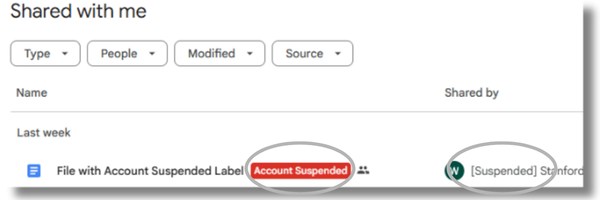
- [Suspended] tag on account names: When a colleague leaves Stanford and their My Drive becomes suspended, you'll see a [Suspended] tag before their name. This lets you see at a glance which accounts are no longer active.
- “Account Suspended” labels on files: An “Account Suspended" label will appear on files owned by people who no longer have an active Stanford Google account. You'll see this label next to the file name in Drive and at the top of the file when opened.
What you should do
While we have no immediate plans to delete these files, we strongly encourage you to act now to protect any files you rely on that are stored in suspended accounts.
- Search for affected files. Look for files shared with you that have an “Account Suspended” label, or search by owner to find files in suspended accounts.
- Choose your solution. If you find a file you need to keep:
- Move it to a shared drive (recommended): This is the best way to prevent future loss. Files in a shared drive are owned by the university, ensuring they remain accessible to your team regardless of individual transitions.
- (On a computer) Right-click the file and select Organize > Move to place it in a shared drive.
- (On a mobile device) In the Google Docs app, tap the three-dots icon (...) next to the file name in the document list and select Move, then navigate to the shared drive.
- Make a copy: You’ll become the new owner of the file, but you may need to reshare it manually with collaborators.
- (On a computer) Right-click the file and select Make a copy.
- (On a mobile device) In the Google Docs app, tap the three-dots icon (...) next to the file name in the document list and select Make a copy.
- Move it to a shared drive (recommended): This is the best way to prevent future loss. Files in a shared drive are owned by the university, ensuring they remain accessible to your team regardless of individual transitions.
Need more details? We’ve prepared a guide with step-by-step instructions to help you find impacted files and implement a solution that works for you and your teams. Visit How to Retain Google Drive Files When Collaborators Leave the University to learn more.
Get support
For questions or assistance, please submit a Help request to the Google Drive team.
DISCLAIMER: UIT News is accurate on the publication date. We do not update information in past news items. We do make every effort to keep our service information pages up-to-date. Please search our service pages at uit.stanford.edu/search.
What to read next:

Action Required: Upcoming Upgrades and Changes to Stanford VPN
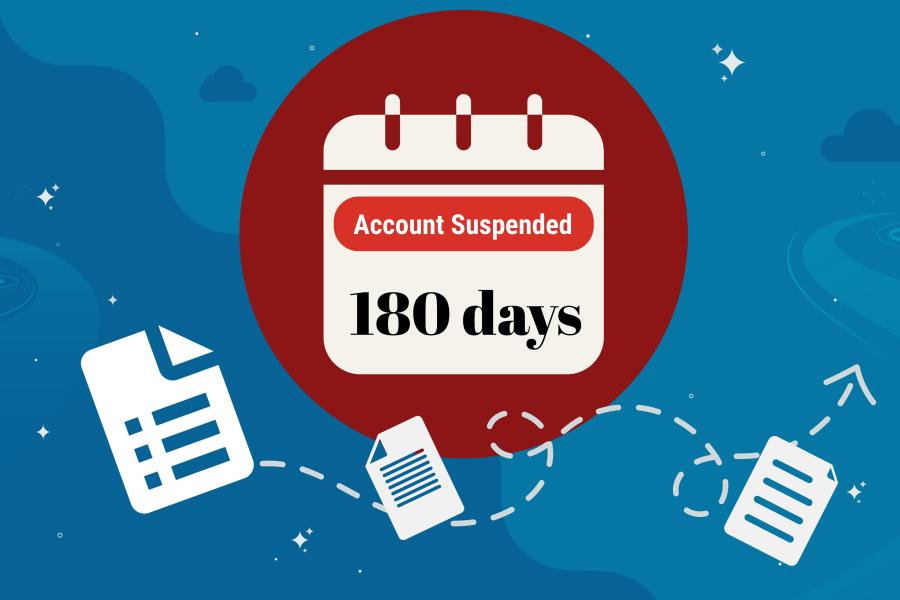
Google Drive Files Become Unavailable 180 Days After Owner’s Account Is Suspended