 University IT
Secure Research Lab Network "Menu" of available services
Secure Research Lab Network (SRLN) firewall zones do not allow inbound or outbound access by default, and it can be difficult to determine how to properly allow access to websites and services outside your Network. To make things easier, we have prepared a "menu" of services that Networks commonly use. Instead of having to guess and test which rules are needed for a service, you can simply "order off the menu" with one firewall request.
At this time, ten menu items are available. The menu was last updated on May 5, 2026.
How to order
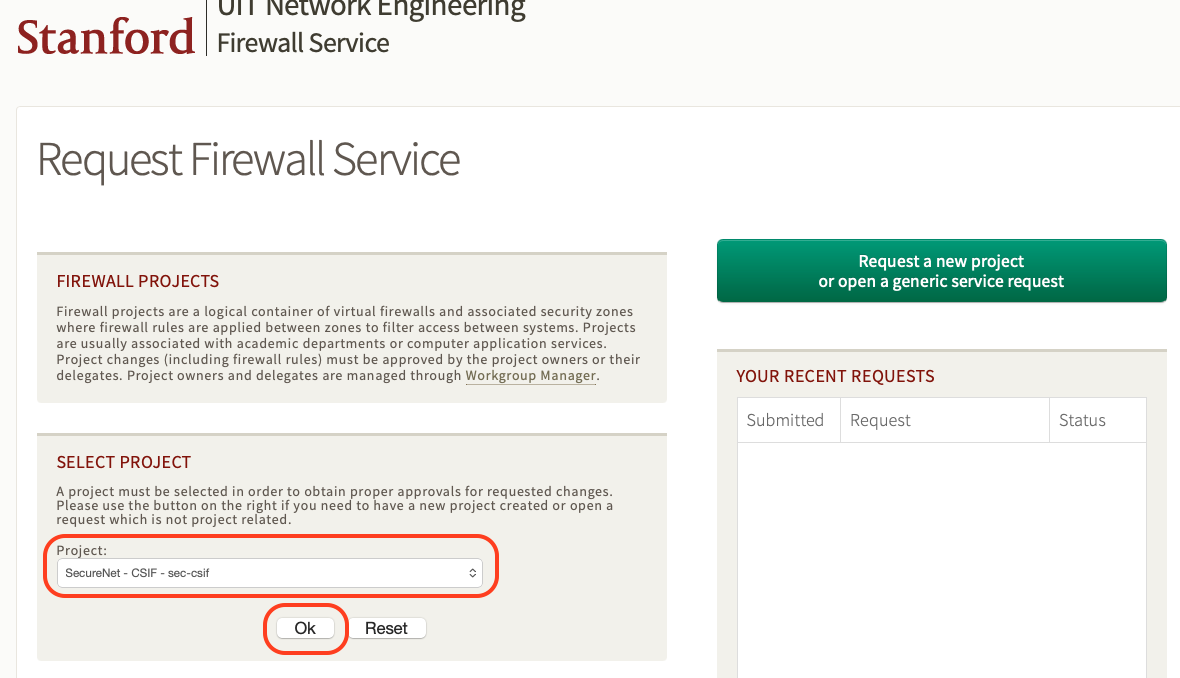
- To order an item off of the menu, go to the Request Firewall Service page, select your network's firewall project, and click "Ok". Tip: Your firewall project's name starts with "SecureNet".
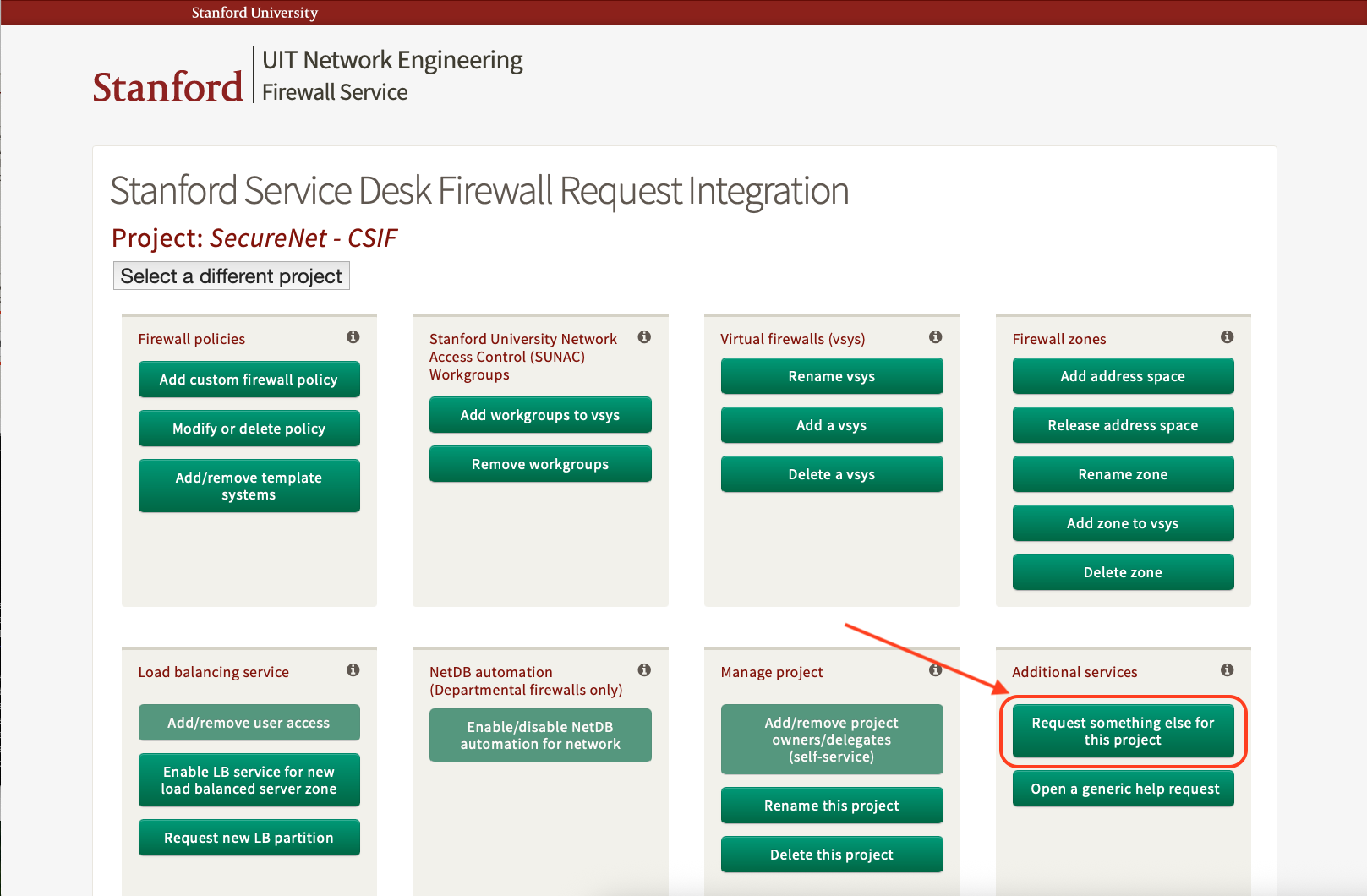
- Look for the section “Additional Services”, then click on "Request something else for this project".
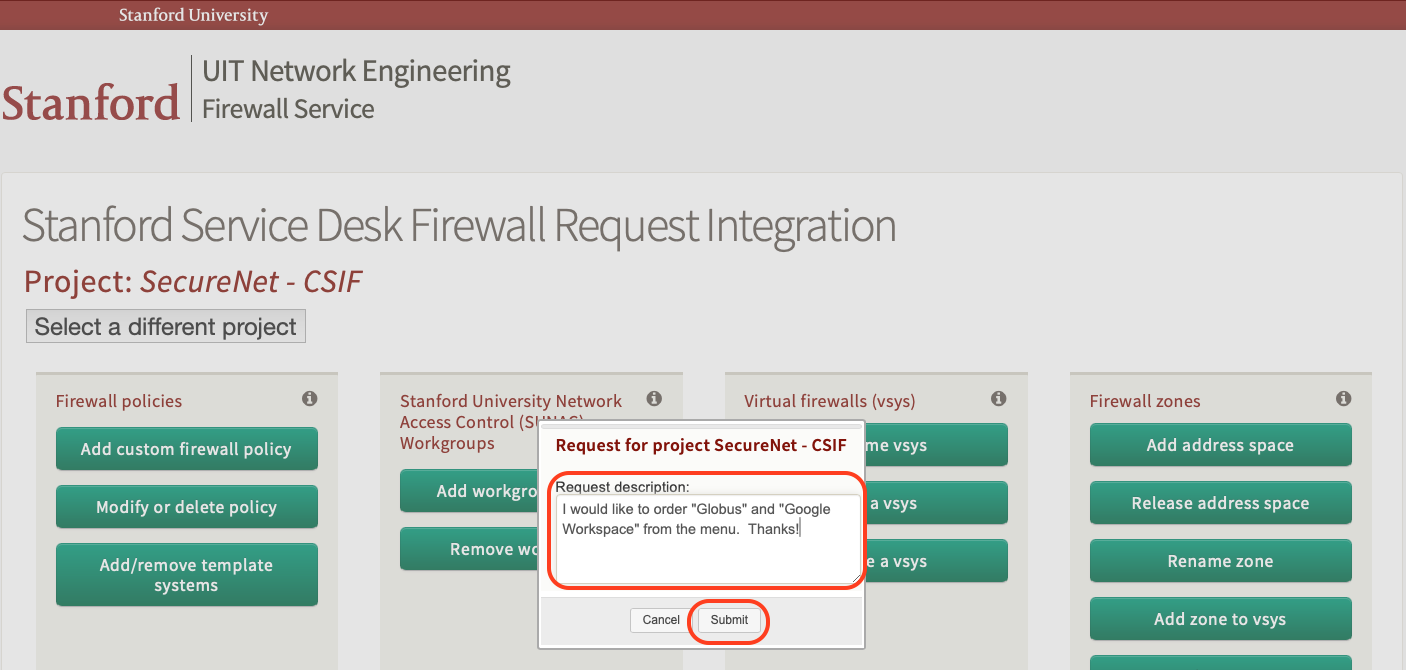
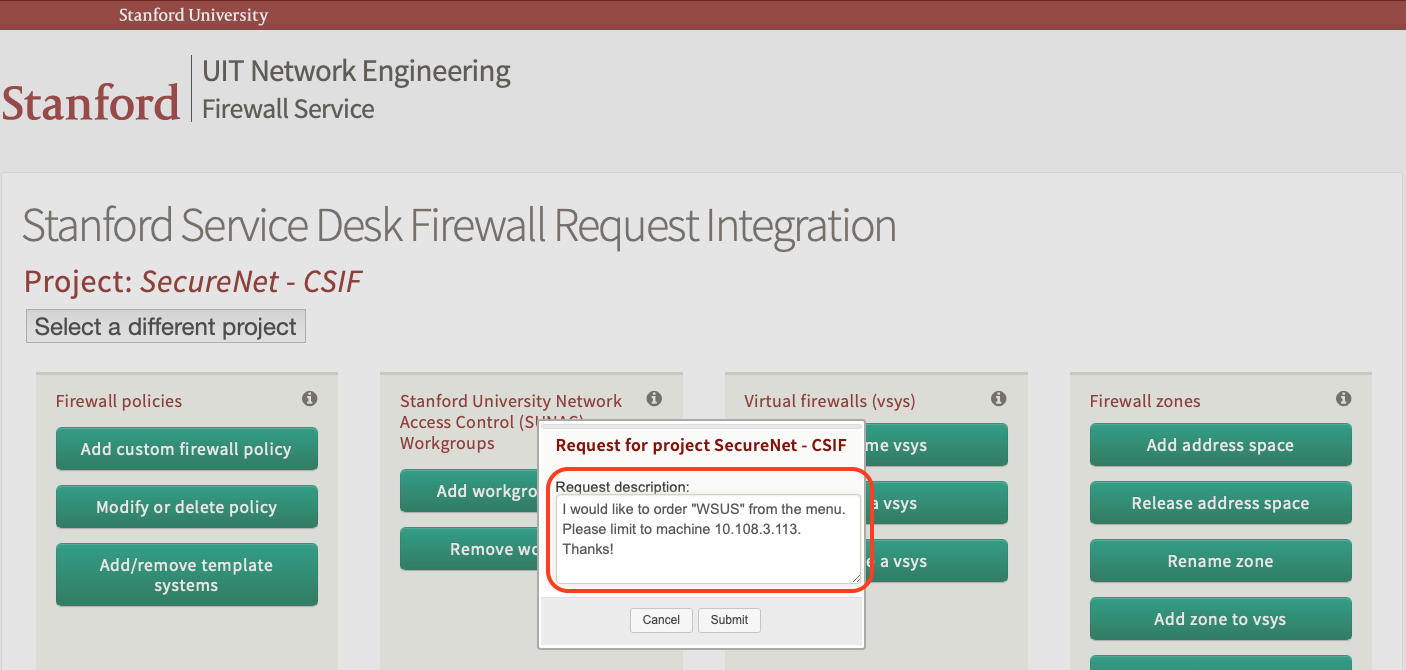
- In the text box, say what you would like to order from the menu, then click the "Submit" button.
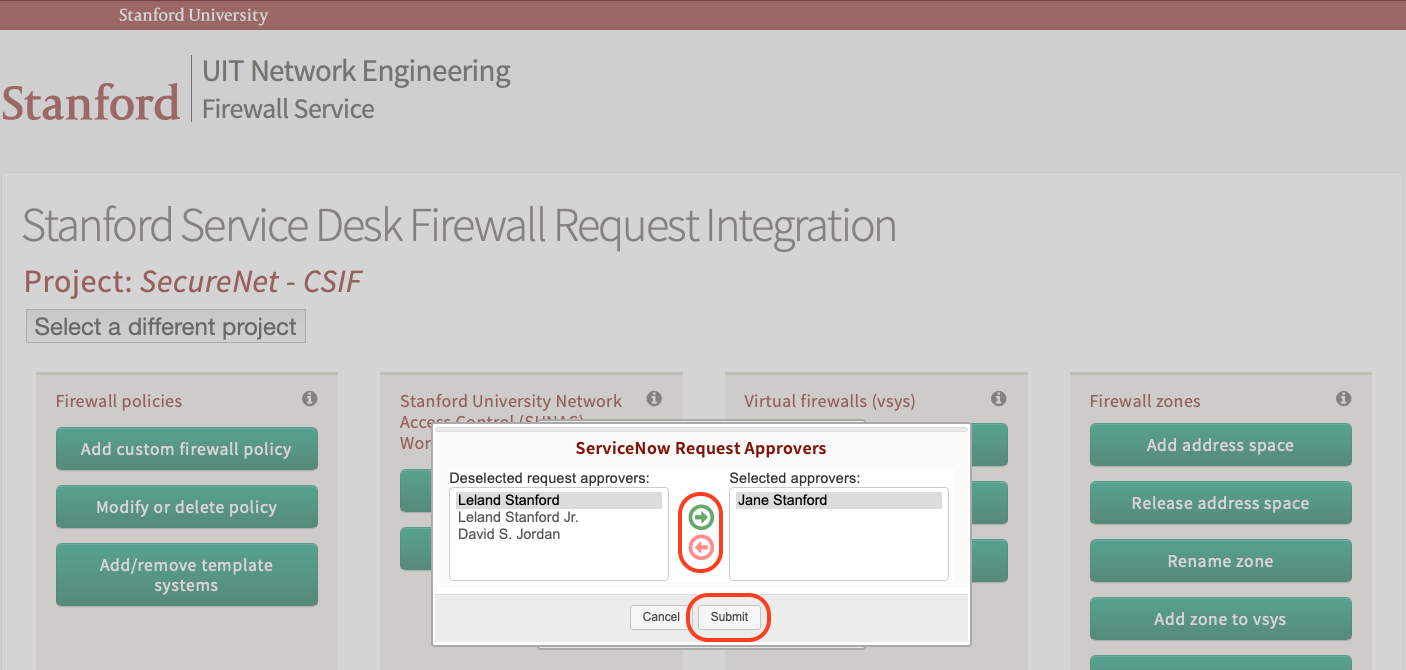
- Finally, select the people to be asked to approve the request, then click the "Submit" button. All selected approvers will be emailed. Tip: If you are an approver, just click the "Submit" button without making any changes; the request will auto-approve, and no emails will be sent.
A Help ticket will be automatically created to track the request. You will receive an email when the menu item has been added to your network.
Your rule names
When a menu item is implemented for your SRLN firewall zone, the rule names will differ slightly from what appears below. For example, if you order TeamViewer from the menu, the rule name will not be "teamviewer"; it will be "teamviewer-" plus your zone name. By creating a unique rule for your zone, you can customize it.
Limiting access
When you order a service from the Menu, all machines in your SRLN zone will be granted access to it. You can limit this, if you wish.
- To limit access when ordering from the menu, ask for the menu item to be limited to specific machines, and provide the machine IP addresses.
- To limit access afterward, use the Self-Service Automation Tool to change the
src-addressfield: Remove "any" (if present), and add the IP addresses of machines which should have access. For the change to work, you must update all rules for a service and not change any other fields. If you do not know how to use the Self-Service Automation Tool, you can request a change by following the instructions from the How to Order section at the start of this document: Instead of asking for something new, ask for a change. For example, you can write something like this:
I have already ordered Globus from the menu. Could you please change it to only allow access from machine 10.108.3.113? Thanks!
- Submit the change as normal, and once it is approved, the Firewall engineers will help you.
The "Menu"
The following menu items are available:
Active directory
Also Known As: AD, WIN.STANFORD.EDU, Kerberos (Active Directory), LDAP (Active Directory), NTP (Active Directory)
Number of Rules: 2, both of which are required:
- ad-app
- ad-port
Rule Direction: Outbound
Customizations Available: You can limit which machines can access Active Directory; see the Limiting Access section above.
This menu item provides access to Stanford's Active Directory infrastructure. That includes all Stanford Active Directory domains, including WIN.STANFORD.EDU, IT.WIN.STANFORD.EDU, and others. The menu item also provides access to AD-specific Kerberos, LDAP, and NTP services.
This menu item does not provide access to Azure, Entra (Azure Active Directory), or OneDrive.
Globus
Also Known As: Globus Connect Personal
Number of Rules: 4, all of which are required:
- globus
- globus-2
- globus-3
- globus-1
Rule Direction: Outbound. Although Globus users initiate transfers from the outside, the initial connection is initiated from the inside.
Customizations Available: You can limit which machines can access Globus; see the Limiting Access section above. To limit transfers to specific remote Endpoints, change the dst-address field of rule "globus-1": Replace "any" with the list of IP addresses of allowed remote Endpoints.
This menu item enables Globus Connect Personal. It allows connecting to the Globus website, downloading the software, configuring it, and using it. It also allows transfer of data from your Endpoint to any other Endpoint (unless otherwise limited, see Customizations Available, above).
This menu item does not allow uploading or downloading files from remote Endpoints over HTTPS. This menu item does not cover Globus Connect Server installations.
Google Workspace
Also Known As: Calendar, Chat, Docs, Drive, Forms, Gmail, Meet, Play, Sheets, Slides
Number of Rules: 3, all of which are required:
- google-workspace-1
- google-workspace-2
- google-workspace-url
Rule Direction: Outbound
Customizations available: You can limit which machines can access Google Workspace; see the Limiting Access section above. Machines that can access Google Workspace will be able to access all Google Workspace services, under Personal and Stanford Google accounts.
This menu item allows access to Google Workspace products. If you enable this, Google Search might also be accessible, but it does not give you the ability to click through to search results.
This does not provide access to Google Cloud.
Exercise caution when downloading things from Google Drive.
LogMeIn rescue
Number of Rules: 1
- loginmerescue
Rule Direction: Outbound. Although LogMeIn users access your PC from outside, the initial connection is made from inside.
Customizations available: You can limit which machines can access LogMeIn; see the Limiting Access section above.
This menu item allows access to LogMeIn Rescue. You will be able to run the LogMeIn Rescue software so that remote folks can see & control your machine.
You are responsible for monitoring vendors' access to your machine. Verify vendor identity before downloading LogMeIn software or visiting LogMeIn websites.
Office 365 and OneDrive
Also Known As: Excel, Office, Microsoft 365, OneDrive, OneNote, PowerPoint, Word
Number of Rules: 2
- office365-1-EDL
- office365-1-URL
Rule Direction: Outbound
Customizations available: You can limit which machines can access Office 365; see the Limiting Access section above.
This menu item provides access to Microsoft Office 365 products, including OneDrive. You will be able to access things within Stanford's "tenant", but you might not be able to access content owned by non-Stanford Microsoft users.
Exercise caution when downloading things from OneDrive.
Microsoft RDP
Also Known As: Remote Desktop Connection, Remote Desktop Protocol
Number of Rules: 1
- rdp
Rule Direction: Inbound
Additional Requirements: When requesting this menu item, you will need to provide a workgroup name: Only users in the designated workgroup will be able to connect.
This menu item allows access to connect to your machines via RDP.
RDP access on your Secure Research Lab Network is managed using the Network Access Control (SUNAC) service. For this to work, remote users must be using the Eduroam wireless network when on-campus, and the VPN when off-campus.
You are responsible for maintaining the membership of the designated workgroup.
Remote PC
Number of Rules: 1
- RemotePC
Rule Direction: Outbound. Although Remote PC users access your PC from the outside, the initial connection is initiated from the inside.
Customizations available: You can limit which machines can access Remote PC; see the Limiting Access section above.
This menu item allows access to Remote PC.
You are responsible for maintaining the security of your Remote PC account.
TeamViewer
Number of Rules: 1
- teamviewer
Rule Direction: Outbound. Although TeamViewer users access your PC from the outside, the initial connection is initiated from the inside.
Customizations available: You can limit which machines can access TeamViewer; see the Limiting Access section above.
This menu item allows access to TeamViewer.
You are responsible for maintaining the security of your TeamViewer account.
Windows Server Update Services (WSUS)
Also Known As: Microsoft Update, Windows Update, Windows Software Update Service
Number of Rules: 2, both of which are required:
- wsus-ms-update
- wsus-ms-update-SU
Rule Direction: Outbound
Customizations available: You can limit which machines can access WSUS; see the Limiting Access section above.
This menu item allows access to Windows Update, also known as Microsoft Update. It allows access to the on-campus update server, as well as Microsoft's update server.
Ordering this service will mean that machines in your network will start seeing Windows updates, and may apply them automatically. You should consider limiting which machines can access WSUS; see the Limiting Access section above. You might also want to enable Active Directory, and use that to control which machines receive updates.
Zoom
Number of Rules: 3, all of which are required:
- zoom1
- zoom2
- zoom3
Rule Direction: Outbound
Customizations available: You can limit which machines can access Zoom; see the Limiting Access section above.
This menu item allows access to Zoom. Machines will be able to access Stanford and non-Stanford Zoom meetings and webinars.
You are responsible for monitoring vendors' access to your machine. Verify vendor identity before allowing remote control.
Default rules
All Secure Research Lab Networks get access to the following services:
- Campus DNS and DHCP
- Campus NTP
stanford.eduKerberos- Stanford LDAP — Active Directory is not included in the default rules, but can be requested as a menu item
- Stanford Login, including Duo
- BigFix — Both BigFix for Endpoints and BigFix for Servers are accessible. You will still need to install the BigFix client software on your machine.
- CrowdStrike — You will still need to install the CrowdStrike Falson Sensor software on your machine.
- Microsoft License Activation servers — You will not need a Multiple Activation Key (MAK) for Secure Research Lab Network machines.
- Qualys — Campus-based Qualys scanners will be able to scan your machines. If this causes a problem for your machines, let us know by submitting a Vulnerability Scanning (Qualys) help ticket.
The default rules also allow access to the following websites:
- stanford.ilabsolutions.com — iLab
- content.ilabsolutions.com — iLab
- dnn506yrbagrg.cloudfront.net — iLab
- qagpublic.qg2.apps.qualys.com — Used for the Qualys Cloud Agent software
- cask.qg2.apps.qualys.com — Used for the Qualys Cloud Agent software
- fonts.googleapis.com — Google Fonts
- fonts.gstatic.com — Google Fonts
- cdnjs.cloudflare.com — Common JavaScript frameworks
The default rules also allow OCSP, and block use of QUIC. This is done so that the Palo Alto Networks firewalls can allow access to individual websites.
