 University IT
PDF Remediation Platform (PREP) Frequently Asked Questions
When do I use PREP’s image description generator?
PREP’s image description generator can generate a description of meaningful images using AI tools. Before using the tool, decide if the image is meaningful or decorative (decorative images do not require a text description). Once a description is created, review it to ensure accuracy and modify the description as needed. Please see Images and Alt Text for more details on providing text descriptions for images.
How many headings should I use in a PDF?
The document’s title should be a heading 1 (H1). There is usually only one H1 in a document. Subsequent sections in the document should be set at heading 2 (H2) with further subsections underneath the H2 being identified as H3, H4, or H5. The document’s heading structure should be logical, and heading levels should not be skipped (e.g., H2 to H4).
What should I do with a document that has a running header/footer or a logo on each page?
The first time the header/footer or logo appears, it should be included in the reading order using the zoning function. This ensures that various assistive technologies can then read the content. However, when that same content is repeated on the subsequent pages, it should be ignored and not included in the reading order. In PREP, if you do not zone the content, it will be ignored by assistive technologies. Use the Preview features to verify your document zones and reading order.
How do I download the newly accessible PDF?
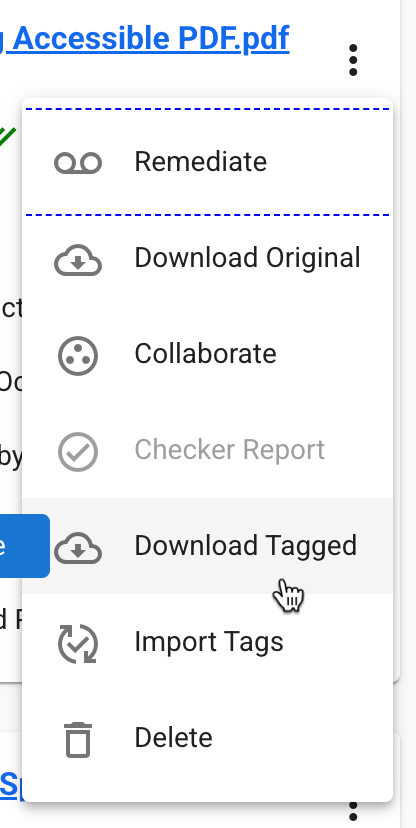
On the home screen, you can select the three dots next to the document and choose “Download Tagged.” A PDF will automatically download.
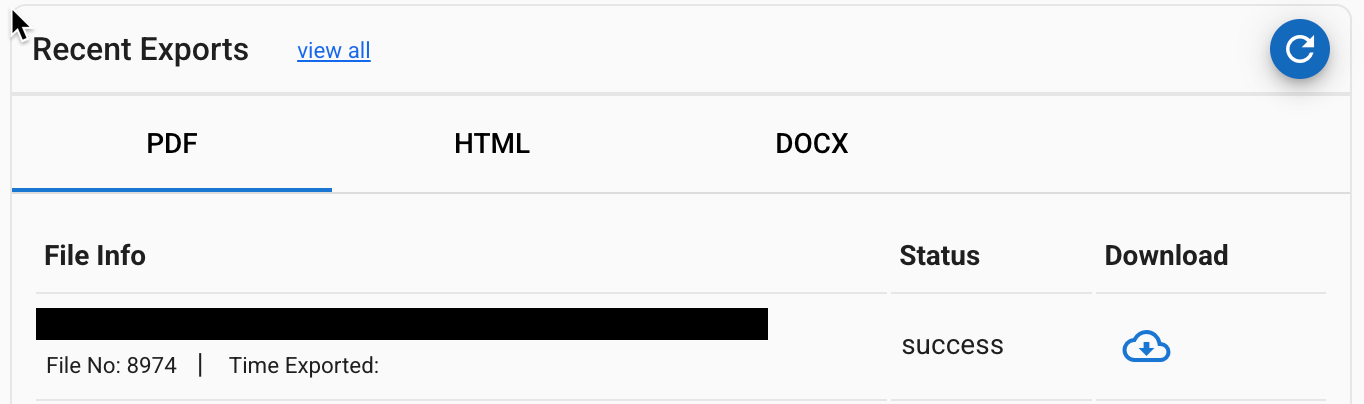
If you try to download the PDF in the tag editor, you will be taken back to the homescreen. You should be able to select the cloud icon from the “Recent Exports” section. If the document is not there, select the “View All” option to access all the downloadable documents.
How do I instruct PREP to use previously remediated tags from my PDF?
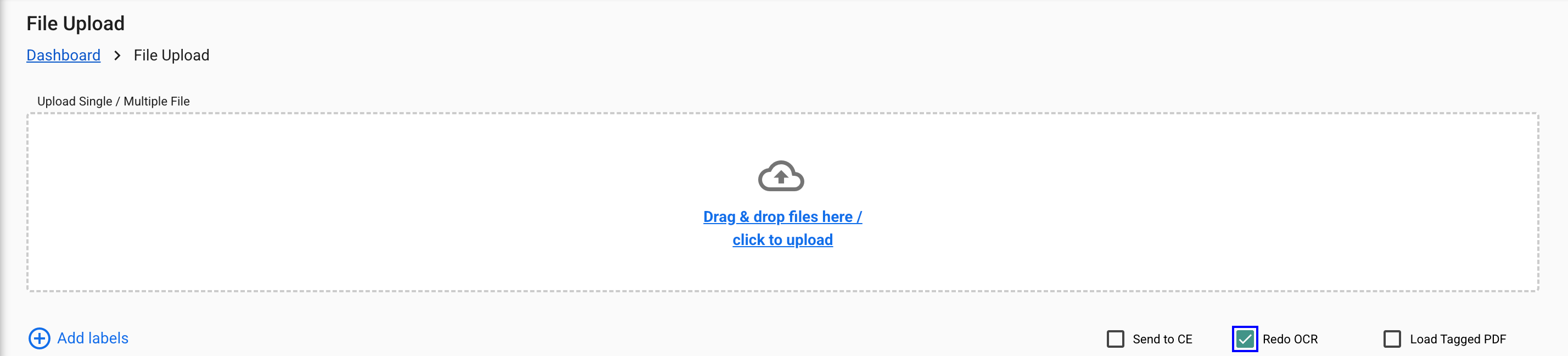
When uploading the document, select the “Load Tagged PDF” option to use the tags included in the document.

I am uploading an image PDF, and no text is displayed. What should I do?
When uploading the document, select the “Redo OCR” option to have PREP redo the optical character recognition (OCR) for the document. The text should then appear.
How can I check the accessibility of a document?
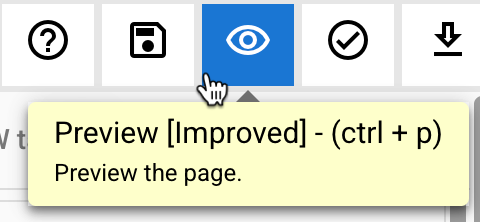
Select the “Preview” icon to view a preview of the document in the order it will be read by assistive technology. This will also help you identify items such as heading levels. Ensure that the reading order and tag structures appear logical.
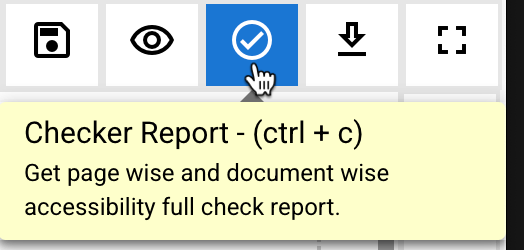
After you have implemented the changes, perform a full check of the document’s accessibility by selecting the “Checker Report” option. The automatic checker will run a wide range of checks to ensure the document is, in fact, accessible. However, it will not check certain items, such as the reading order, which requires a human to review the document.
Can I apply the tags I created in PREP to another similar document, such as a Newsletter?
Yes, to apply tags from a similar document:
- Locate the newly uploaded PDF on the PREP platform’s homepage, and choose the three dots next to the document’s title.
- Choose the “Import Tags” option from the menu.
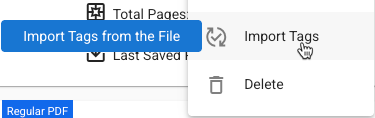
- Select the previously remediated PDF that you want to import the tags from. PREP will apply the tags from the previously remediated PDF to the new PDF. You can open the new PDF in PREP to review the structure and make any necessary additional changes.
Should I always use PREP to create an accessible PDF?
PREP is the preferred tool for PDFs with no source file. If the document is lengthy or complex, consider using a vendor to review and remediate it. Visit the Document Accessibility Vendors page for more information.
If you have access to the source file, such as a Microsoft Word Document or a Google Document, using the source file is recommended. Explore our digital accessibility guides for walkthroughs of how to remediate Microsoft Office and Google Workspace documents.
Consider signing up for Accessible Training Modules to get access to a third-party platform called Deque University, which offers a wide range of courses on document and web accessibility. There are courses specifically designed for Microsoft Office and Google Workspace.
I am confused about what digital accessibility means and how to structure the document in PREP. What should I do?
Visit our digital accessibility concepts to learn more about foundational accessibility concepts and sign up for Accessible Training Modules to get access to Deque University. Deque University is a third-party platform that offers courses on foundational accessibility concepts, such as Fast Track to Accessibility for Any Role (Non-Technical).
