 University IT
How to Add Stanford Unlock to Your Phone
This page walks you through adding Stanford Unlock to your mobile wallet, so your phone can open doors, unlock the gym, and provide access to Cardinal Print, Cardinal Dollars, and meal plans.
Please note that it may take up to 24 hours for your Stanford Unlock access to take effect.
How to add Stanford Unlock to your iOS device
Open the Stanford Mobile application
- Launch the Stanford Mobile app. If you don’t have the Stanford application on your device, download it from the Apple App Store.
- If you already have the app, ensure it's updated by opening the App Store, searching for "Stanford Mobile," and tapping Update if one is available.
- Navigate to the "Me" screen. If you are already signed in, you will see your Mobile ID. Note: The screen will include a “Tap to Unlock” button if you have Mobile Key.
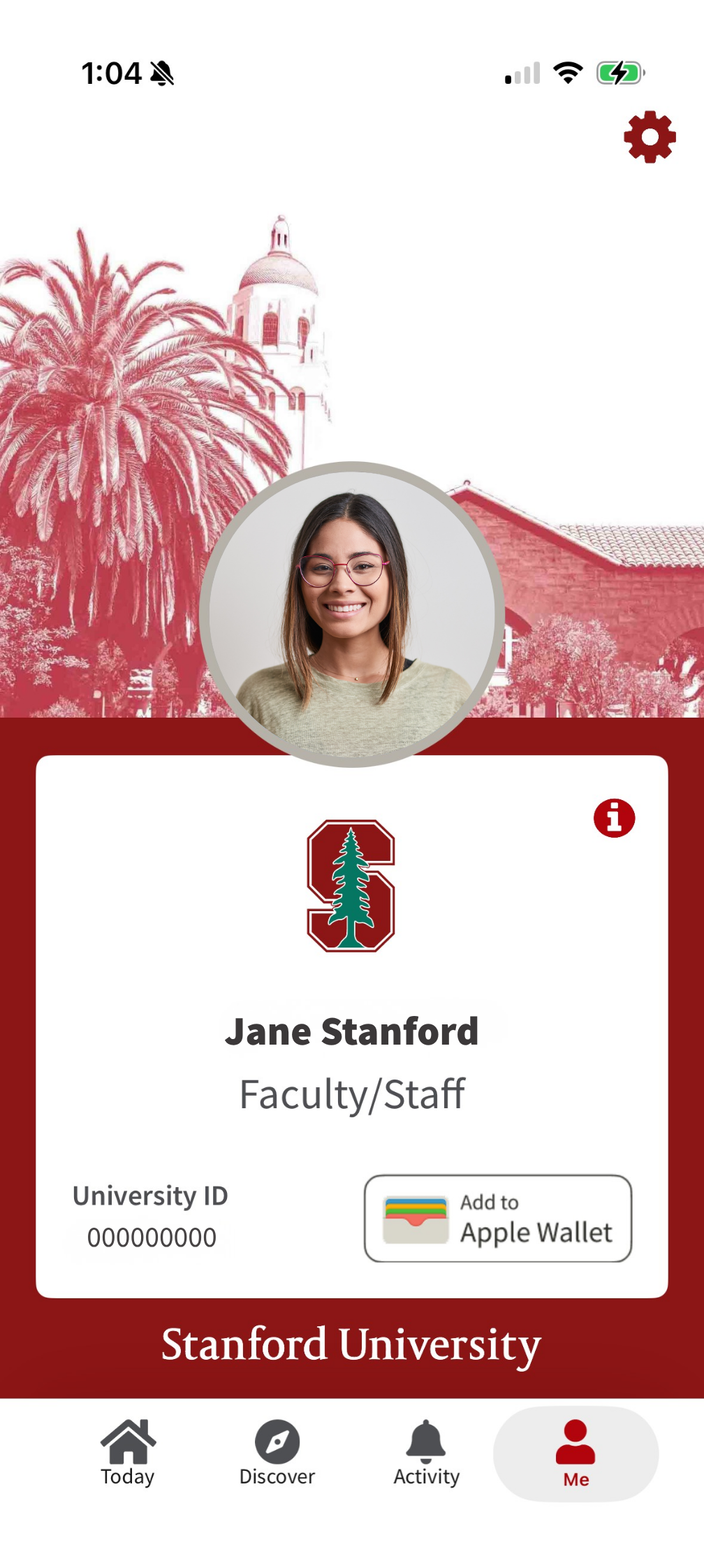
- If you are not already signed in, sign in to Stanford Mobile using your SUNet ID.
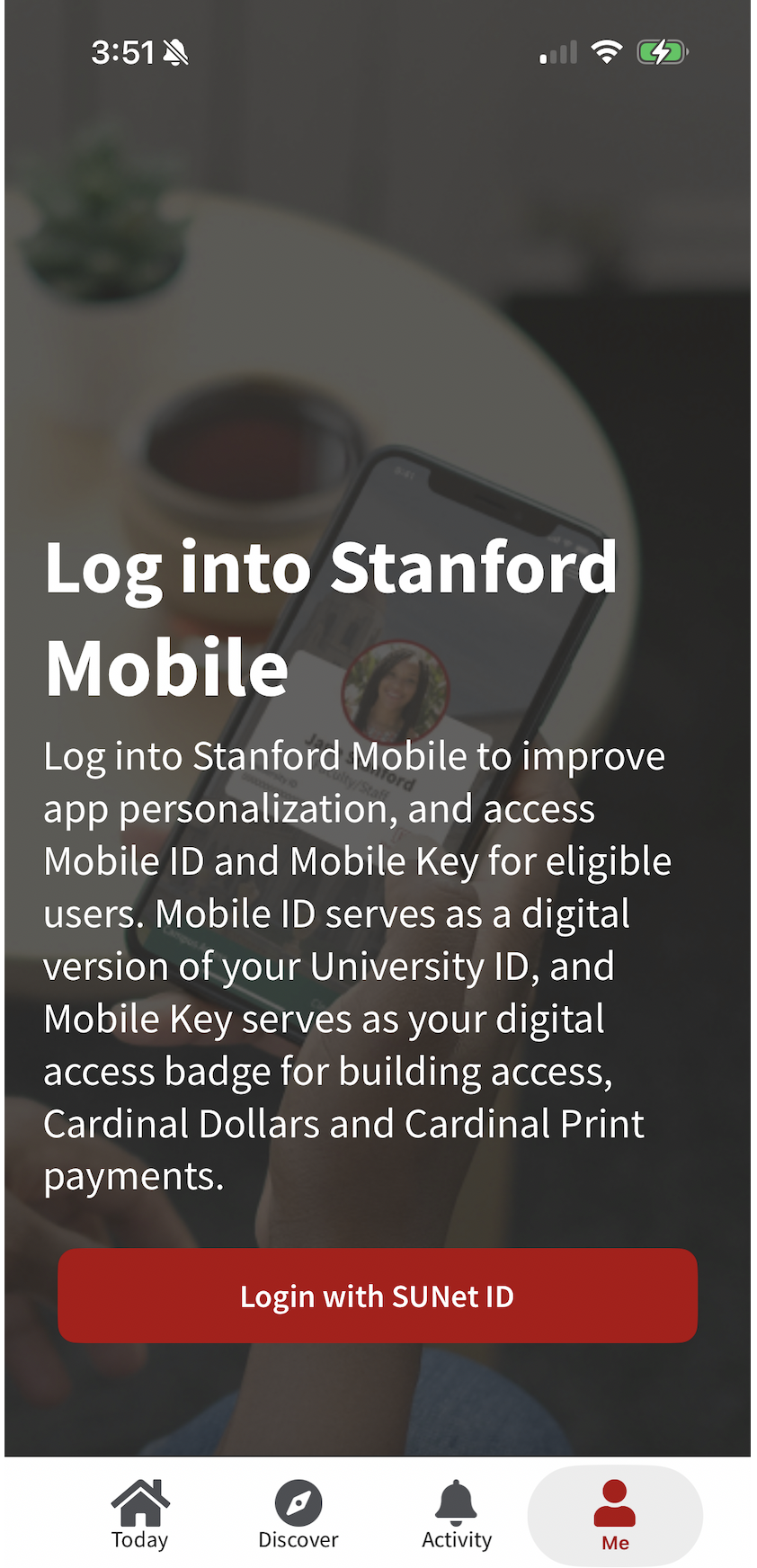
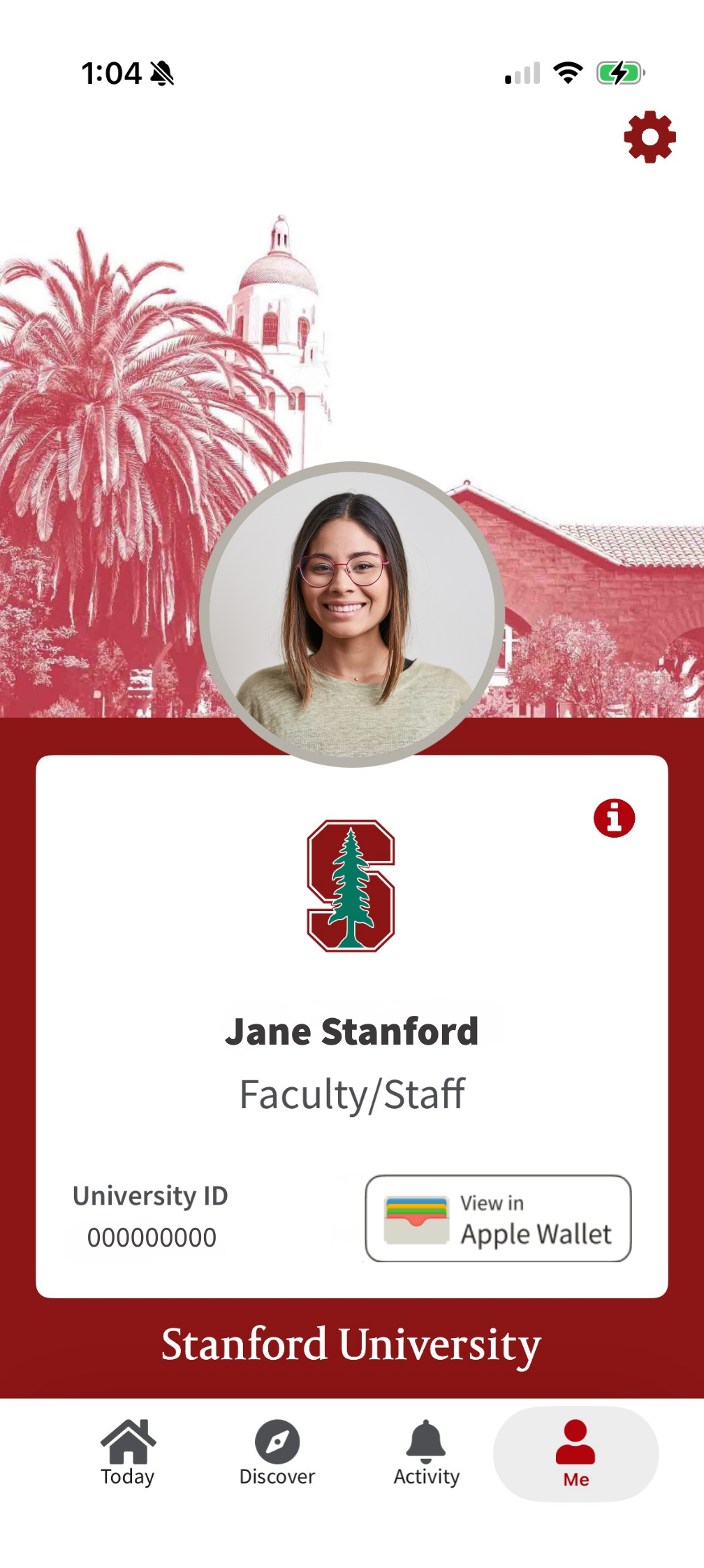
- Verify that your Mobile ID is visible on the "Me" screen, including your photo, affiliation, University ID number, and the "Add to Apple Wallet" button.
- If these details are not visible, you are not eligible for the Mobile ID or Stanford Unlock.
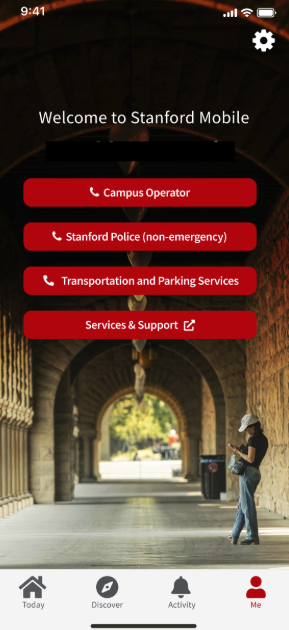
Add the Stanford Unlock Pass
The Stanford Unlock pass is limited to one device only. Activating it on a new device will remove the feature from any other devices.
- Tap the "Add to Wallet" button.
Select "I agree" to the data sharing and permissions to use Apple Wallet. This is a required functionality.
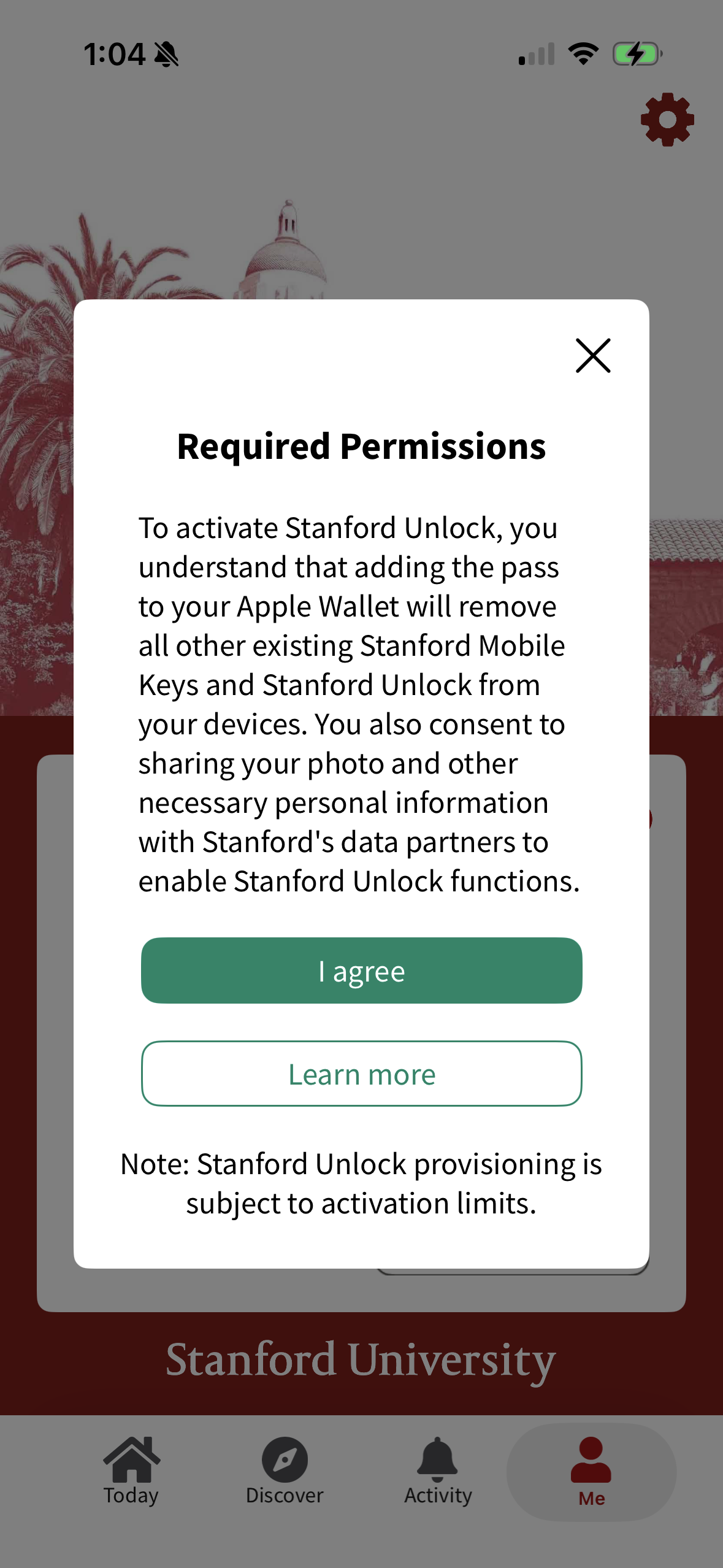
Note: Canceling the process at this stage will not remove any existing Mobile Key; however, Mobile Key will eventually be deprecated.
Activation and troubleshooting
The activation process will begin and may take several minutes to complete the seven steps.
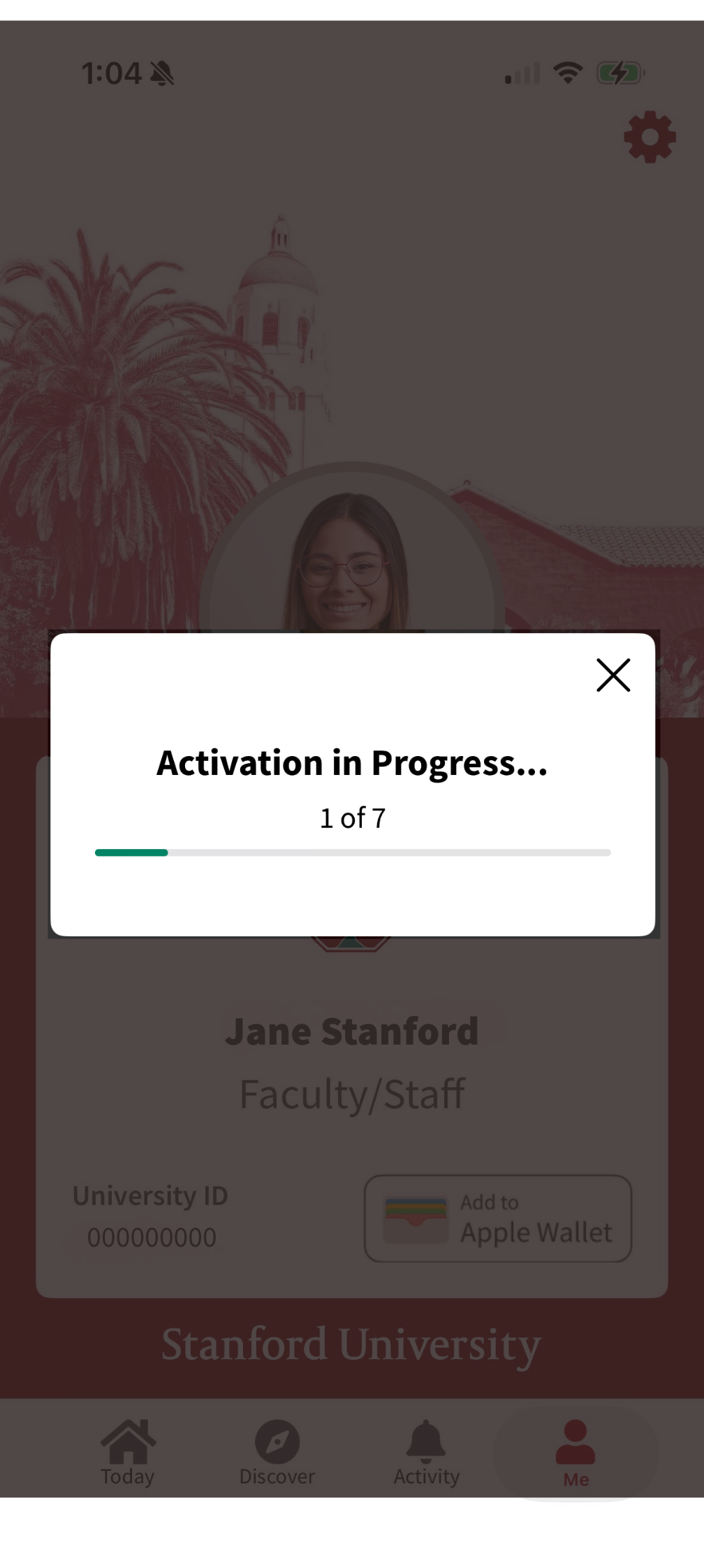
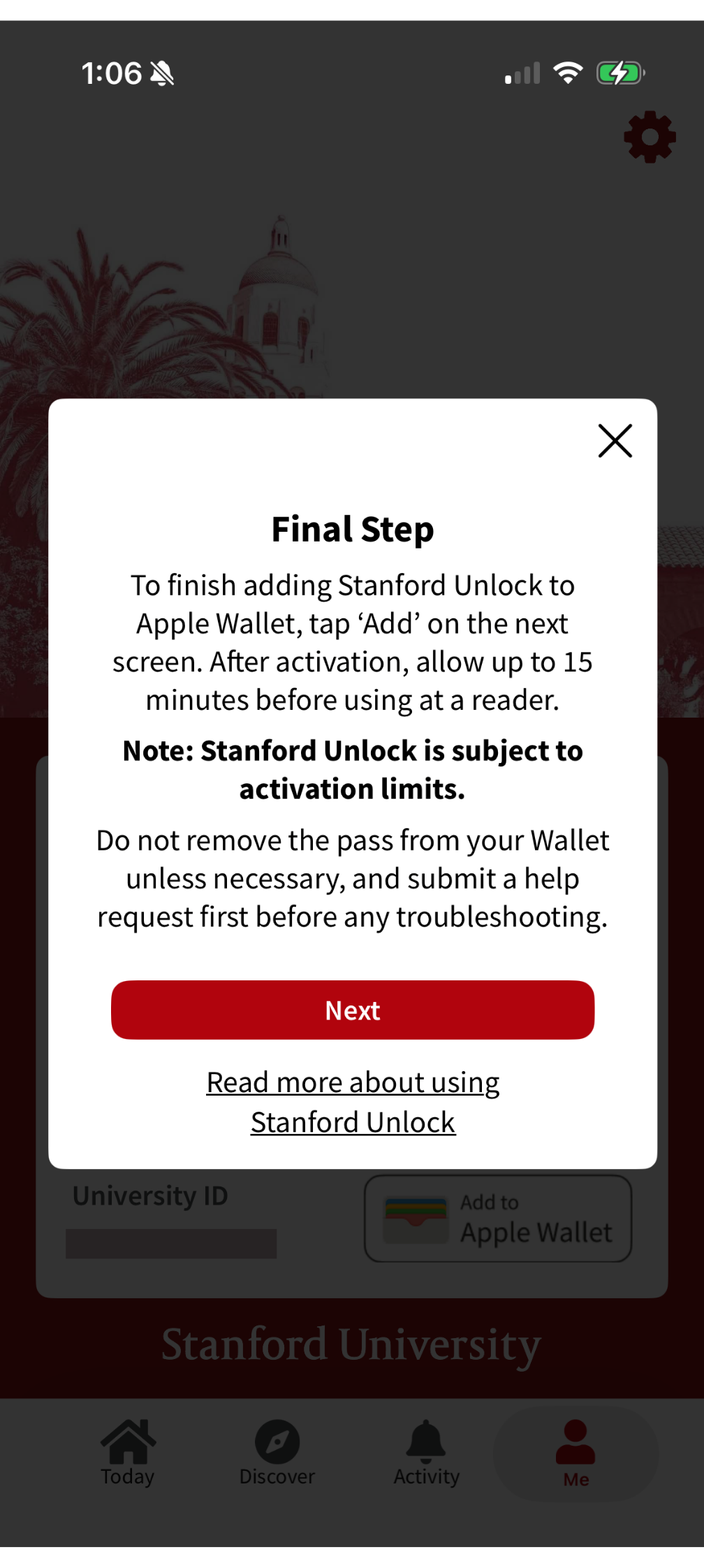
- In the final step, tap "Next" to open the Apple Wallet app to finalize adding the pass to your Wallet.
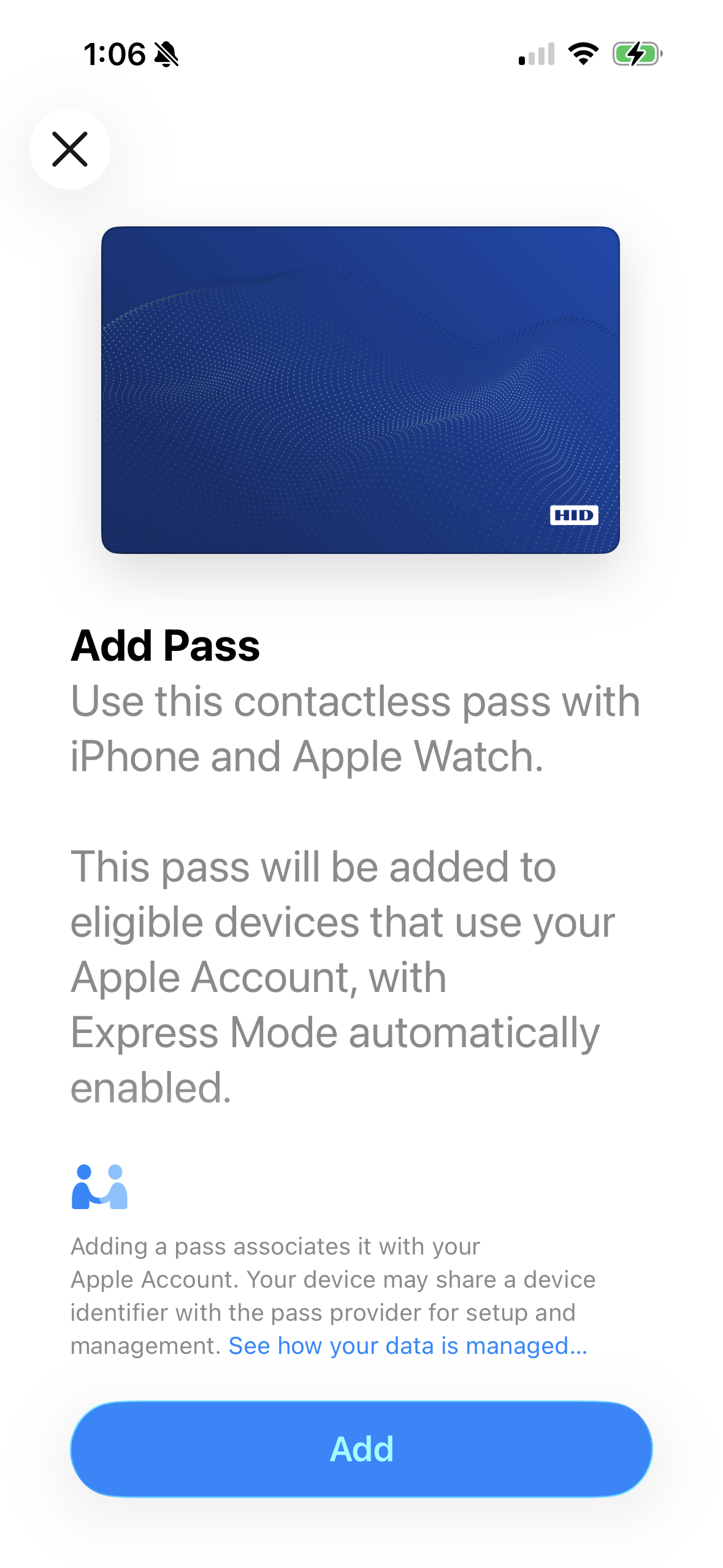
- On the Apple app screen, tap "Add" to complete adding the pass to your account and Wallet app. Please note: Apple's documentation describes the contactless pass as compatible with both iPhone and Apple Watch, but Stanford Unlock does not currently support wearables, including Apple Watch.
Express Pass
If "Express Pass" appears on iOS, read the description to understand how it works, then tap "Done." Please note: While Apple states the contactless pass works for both iPhone and Apple Watch, wearables, including watches, are not supported at this time.
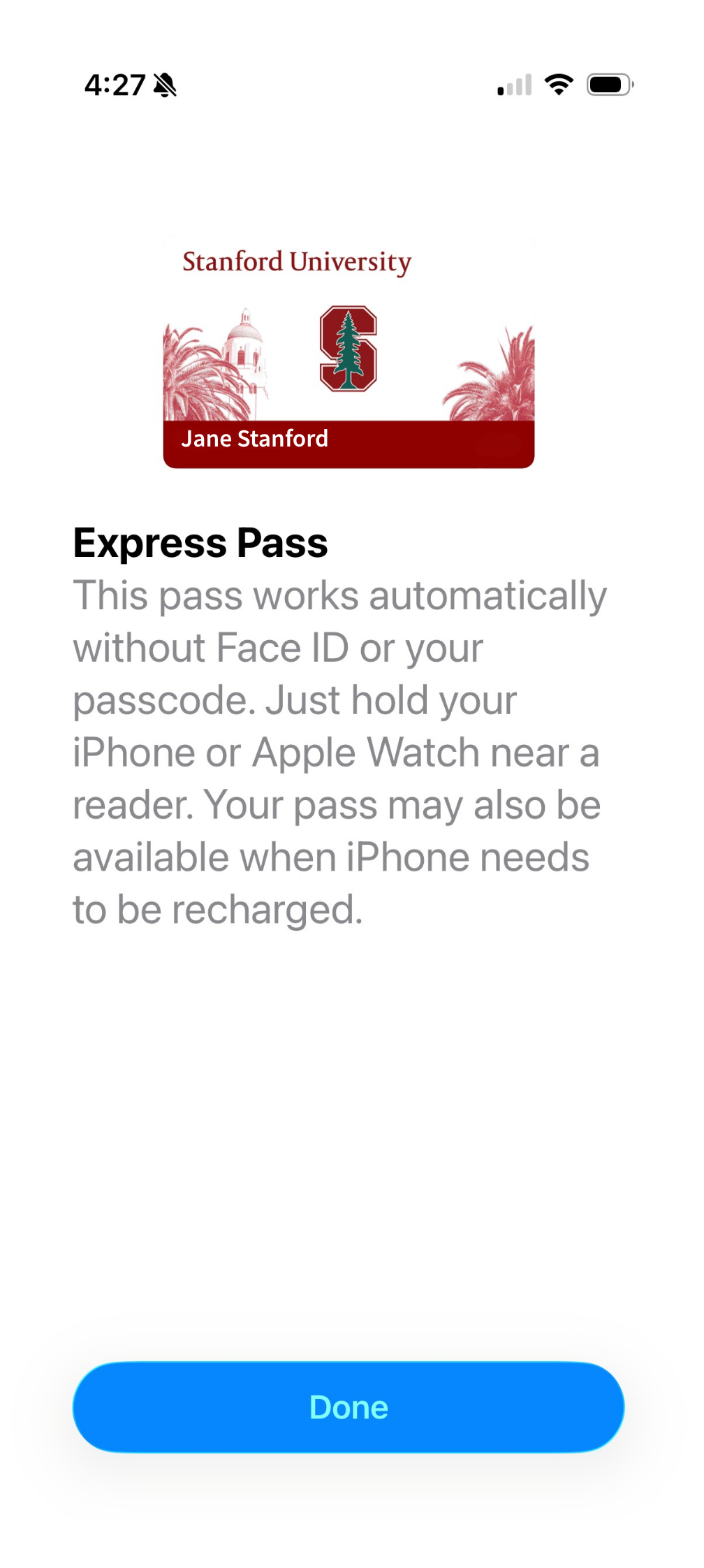
View Apple’s support documentation on Express Mode for more details.- If you do not wish to use "Express Pass" mode on your Stanford ID pass, you can open the pass in your Wallet app, tap the (i) icon, and disable "Express Mode."
Confirmation
- The pass is now added to your Wallet. Stanford Unlock takes up to 24 hours to activate for use.
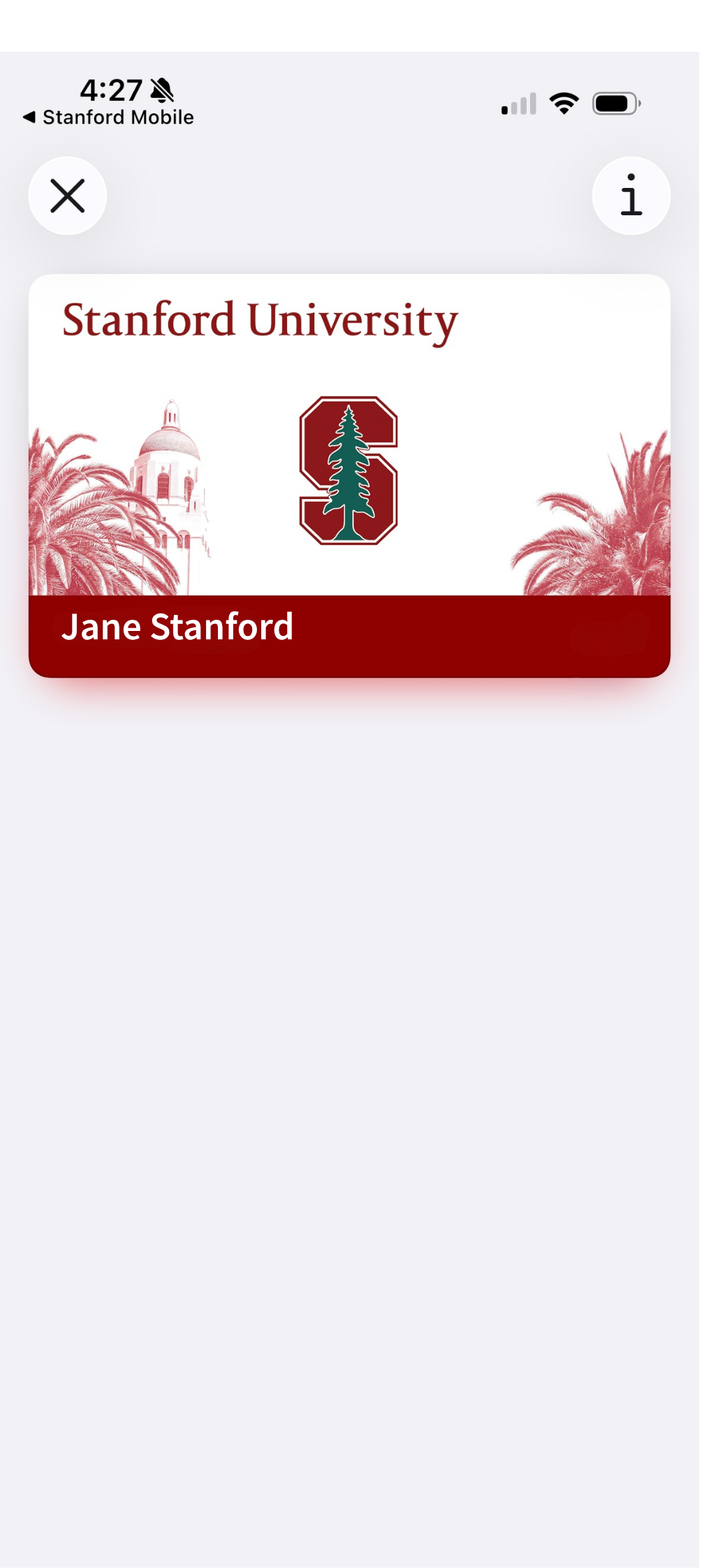
Select “View in Apple Wallet” on the Me screen in Stanford Mobile to view your Stanford Unlock pass in your Apple Wallet app.
Note: Stanford Unlock is subject to activation limits. If you repeatedly and frequently activate Stanford Unlock on the same or multiple devices, you may be restricted from using Stanford Unlock.
How to add Stanford Unlock to your Android device
Open the Stanford Mobile application
- Launch the Stanford Mobile app. If you don’t have the Stanford application on your device, download it from Google Play.
- If you already have the app, ensure it's updated by opening Google Play, searching for "Stanford Mobile," and tapping Update if one is available.
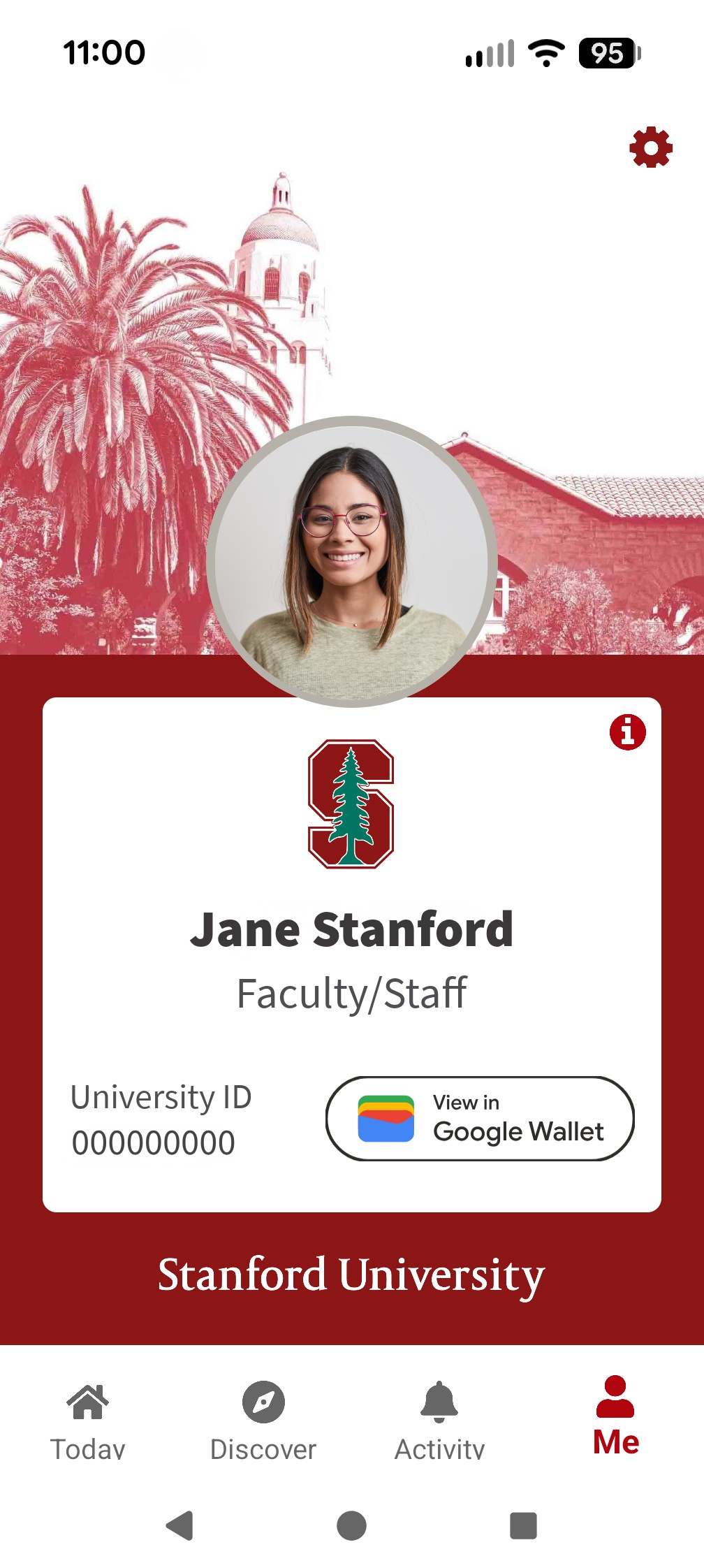
- Navigate to the "Me" screen. If you are already signed in, you will see your Mobile ID. Note: The screen will include a “Tap to Unlock” button if you have Mobile Key.
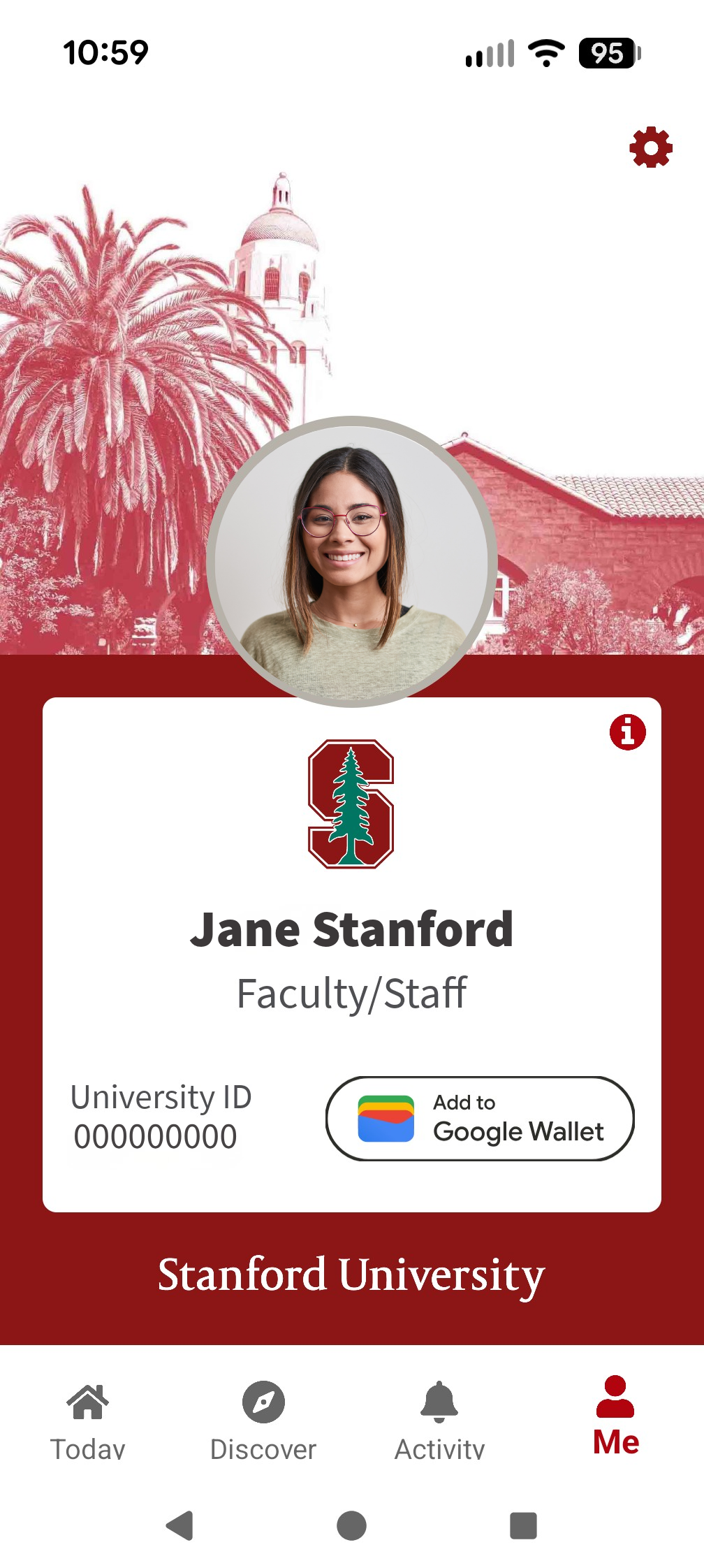
- If you are not already signed in, sign in to Stanford Mobile using your SUNet ID.
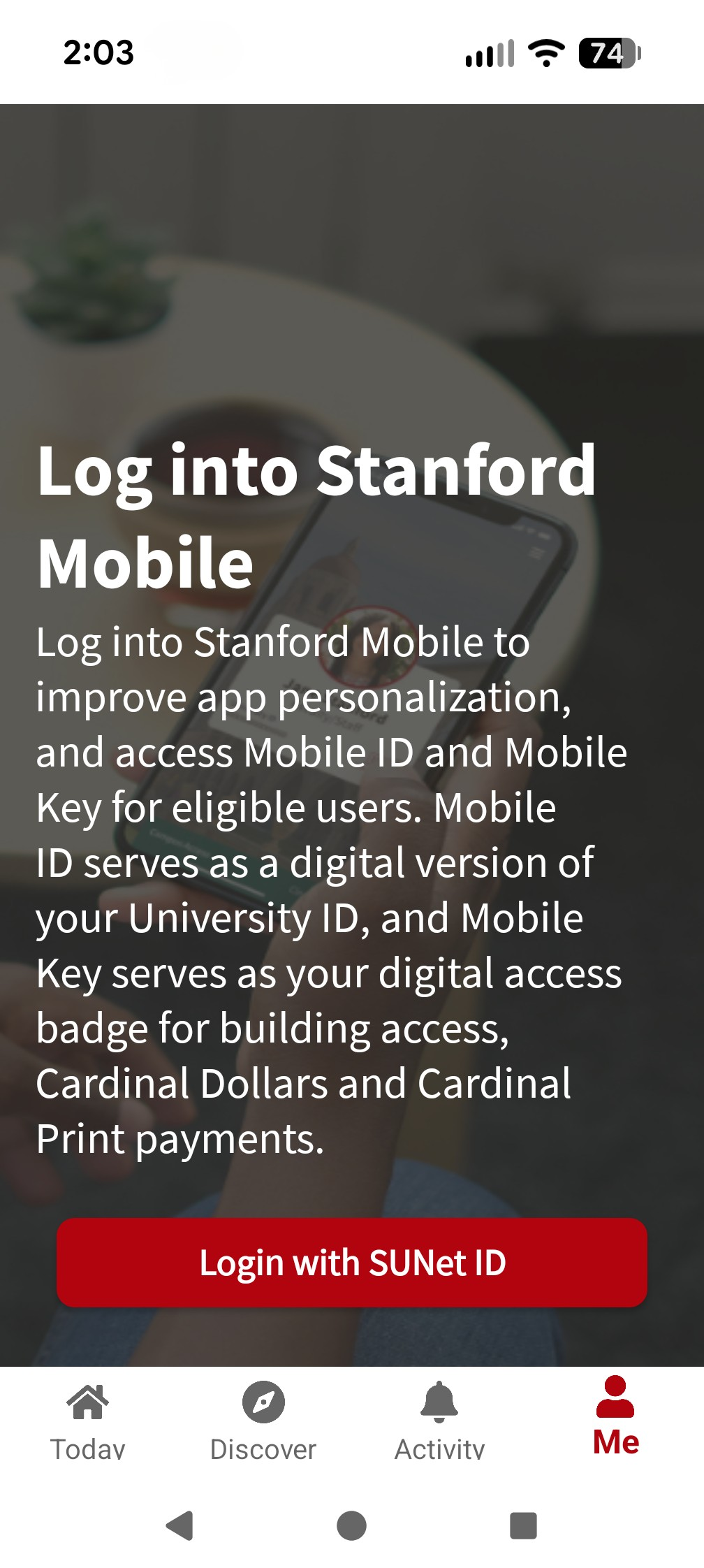
- Verify that your Mobile ID is visible on the "Me" screen, including your photo, affiliation, University ID number, and the "Add to Google Wallet" button.
- If these details are not visible, you are not eligible for the Mobile ID or Stanford Unlock.
Add the Stanford Unlock Pass
The Stanford Unlock pass is limited to one device only. Activating the pass on a new device will remove the feature from any other devices.
- Tap the "Add to Wallet" button.
- Select "I agree and consent" to the data sharing and permissions to use Google Wallet. This is a required functionality.
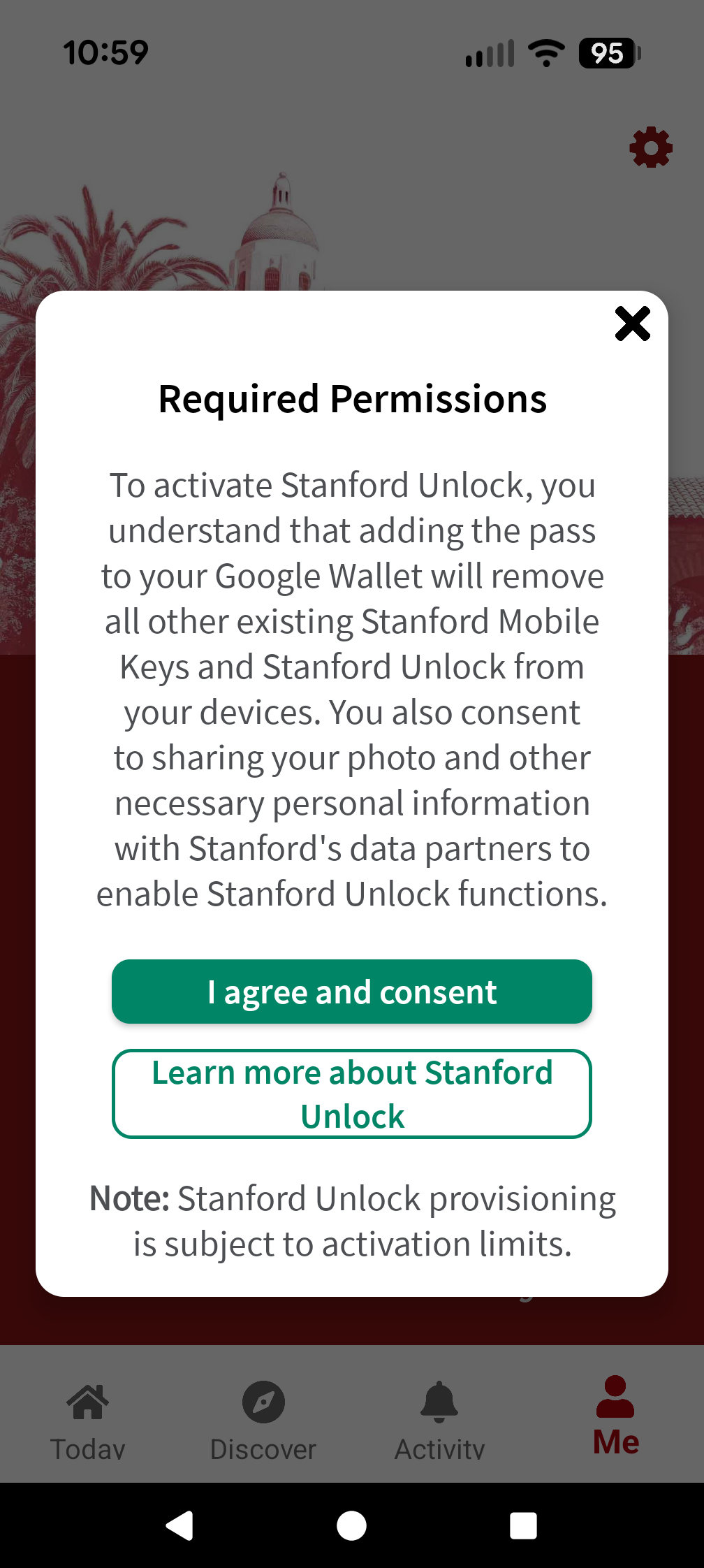
Note: Canceling the process at this stage will not remove any existing Mobile Key; however, Mobile Key will eventually be deprecated.
Activation and troubleshooting
The activation process will begin and may take several minutes to complete the seven steps.
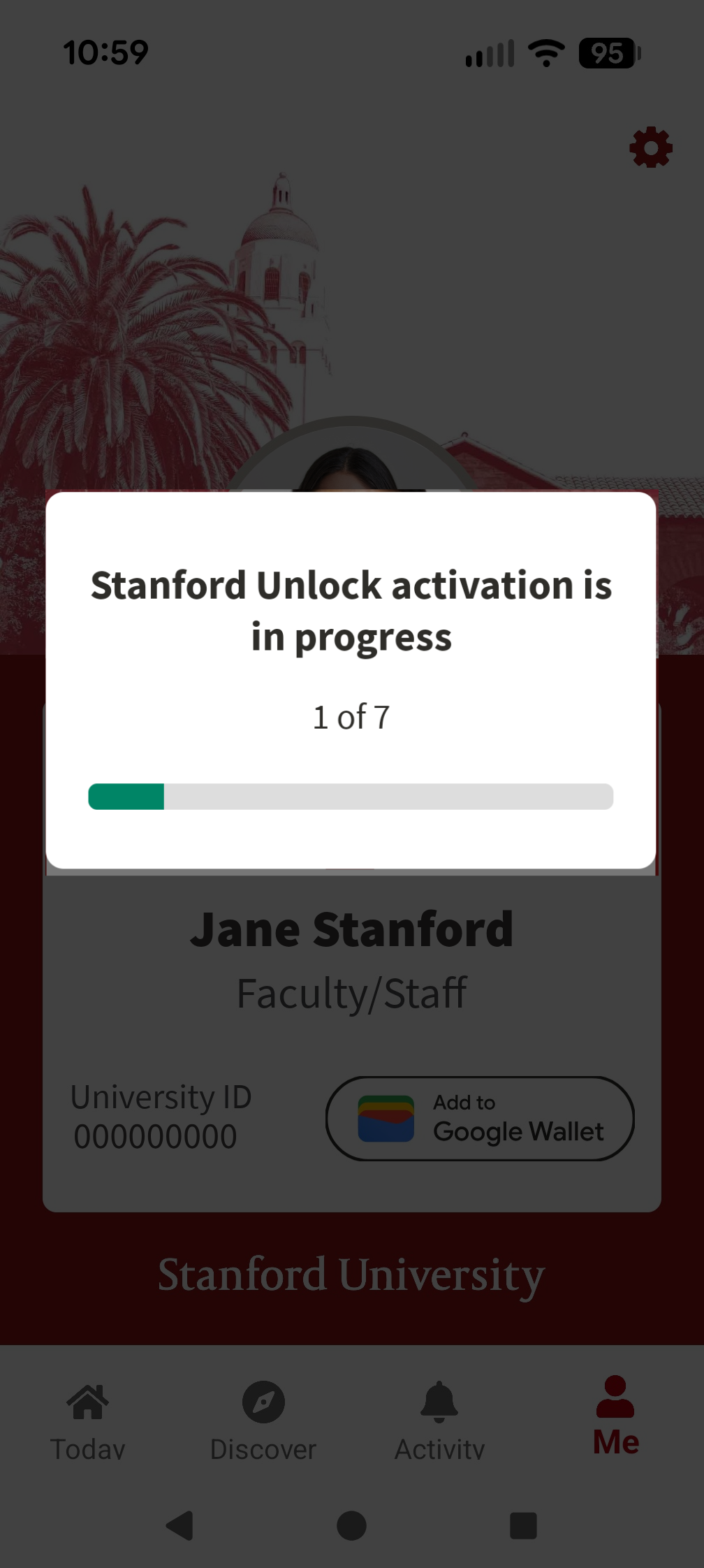
- In the final step, tap "Next" to open the Google Wallet app to finalize adding the pass to your Wallet.
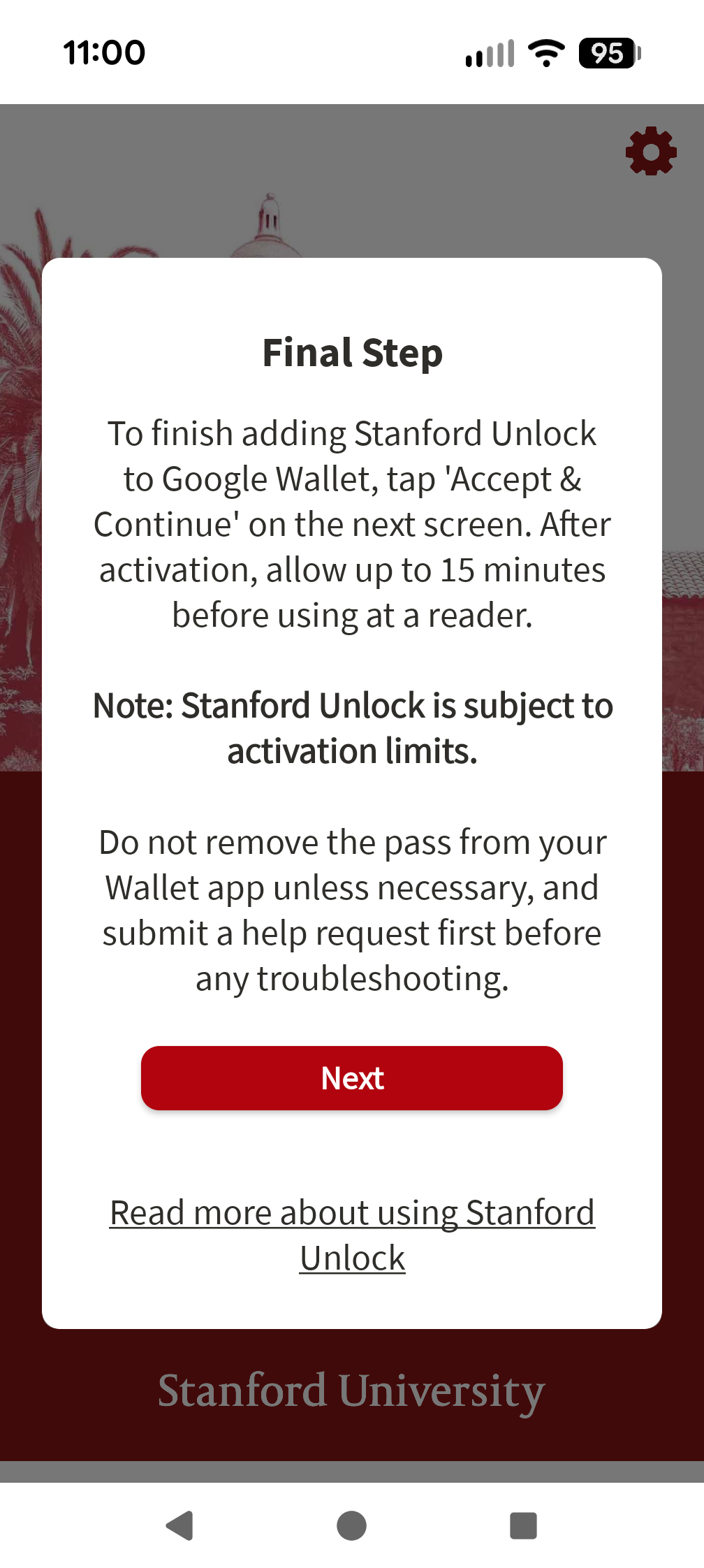
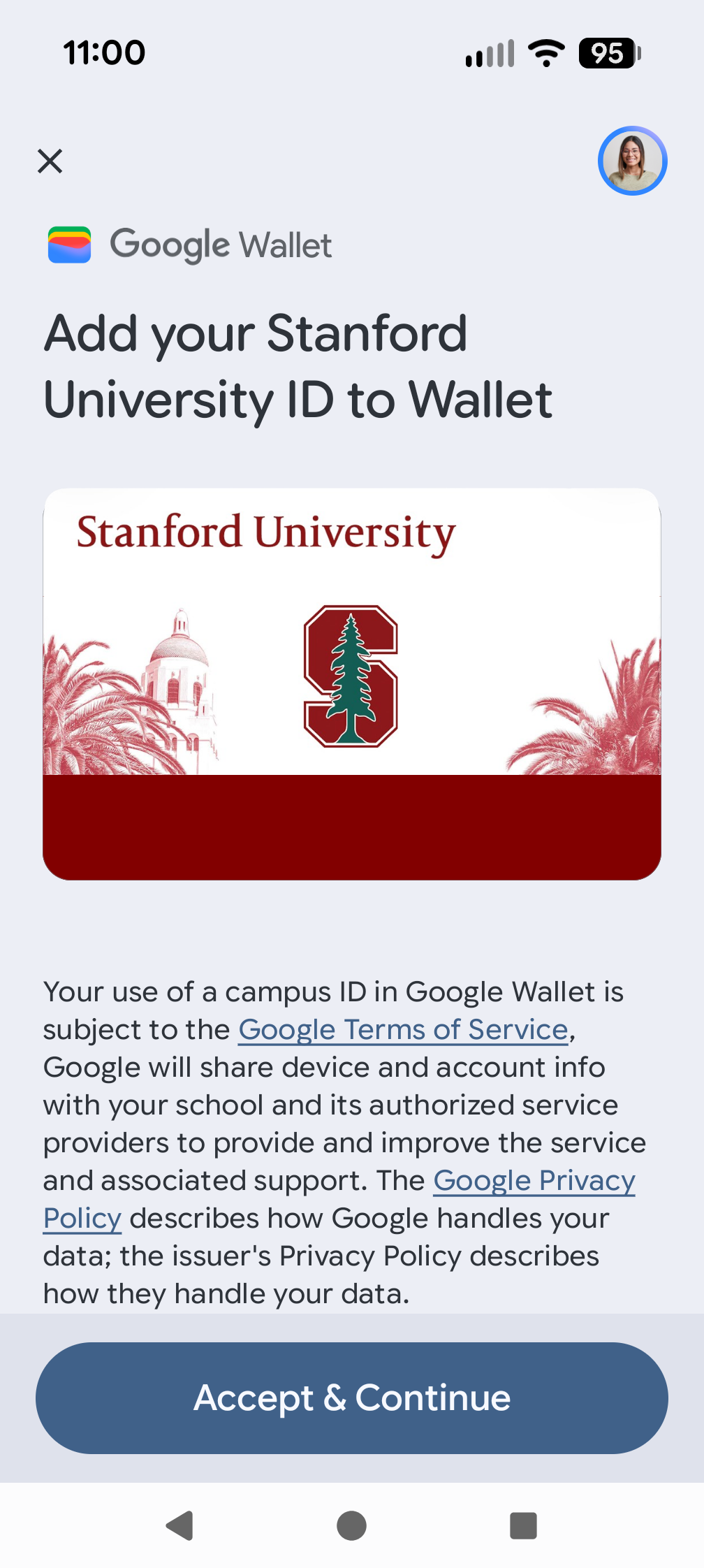
On the Google Wallet app screen, tap "Accept and continue" to complete adding the pass to your account and Wallet app.
Note: Before this step, ensure you're signed into a non-Stanford Google account. Google Pay, a required feature in Google Wallet, is disabled for all @stanford.edu accounts. You need a personal Google account to add a Wallet Pass to Google Wallet. If you'd rather not use your personal account, you can create a separate one dedicated to your Stanford Wallet Pass at accounts.google.com/signup. This keeps your personal account separate while still meeting the requirement.
How to confirm you're using a non-Stanford account:
- Open the Google Wallet app and tap your profile photo/icon in the top-right corner. The email address shown should not end in @stanford.edu.
- Alternatively, go to your phone's Settings > Accounts (or Google > Manage your Google Account) and check which account is currently active/default for Google Wallet.
- If @stanford.edu is the only account listed or currently active, tap "Add account" (or switch accounts) and sign in with your personal or newly created Google account before proceeding.
Note: Stanford University ID is inaccurate. Stanford Unlock will NOT serve as a digital university identification card. The Mobile ID within the Stanford application will remain the only approved digital University ID.
- If you experience any errors, contact the Card Office for assistance.
Confirmation
The pass is now added to your Wallet. Stanford Unlock takes up to 24 hours to activate for use.
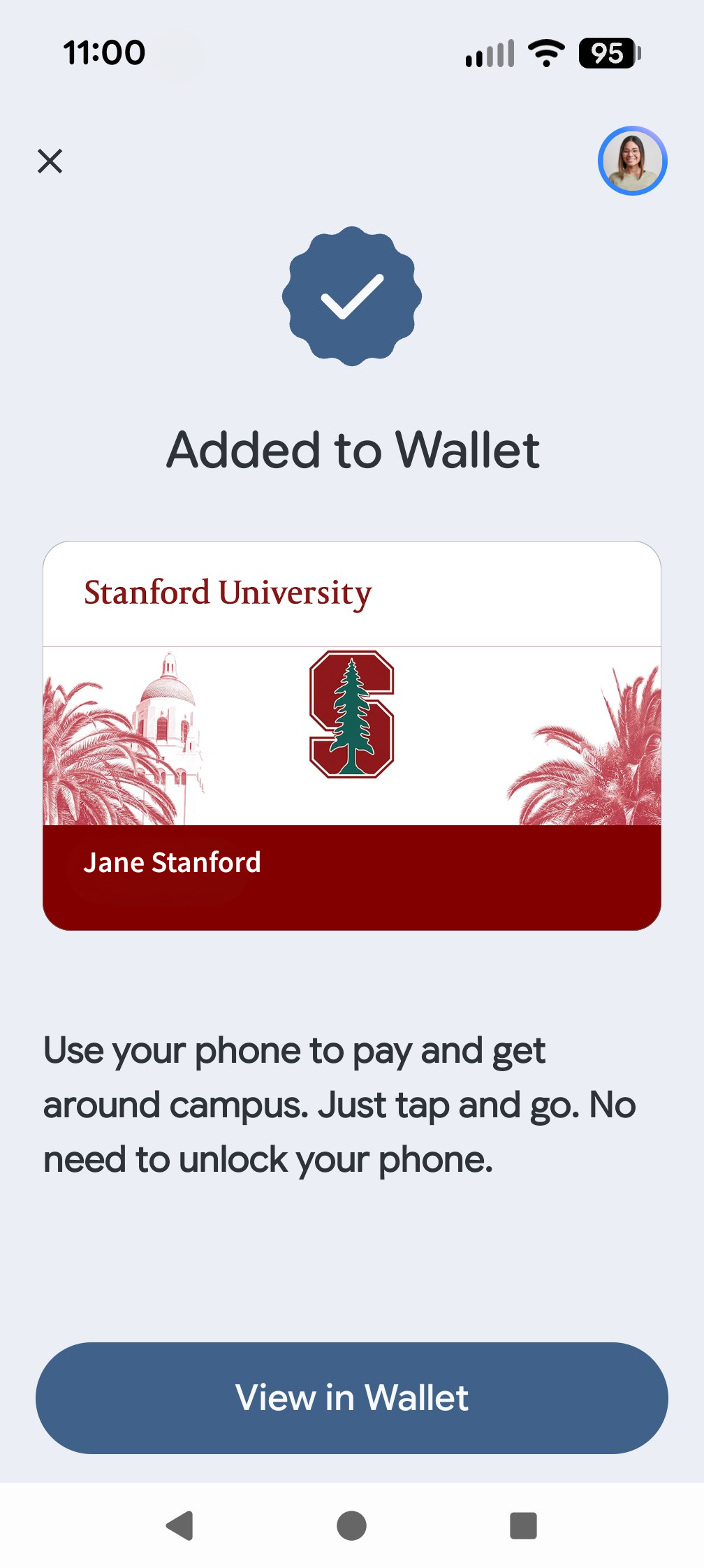
Select “View in Google Wallet” on the Me screen in Stanford Mobile to view your Stanford Unlock pass in your Google Wallet app.
Note: Stanford Unlock is subject to activation limits. If you repeatedly and frequently activate Stanford Unlock on the same or multiple devices, you may be restricted from using Stanford Unlock.
