 University IT
Stanford Unlock
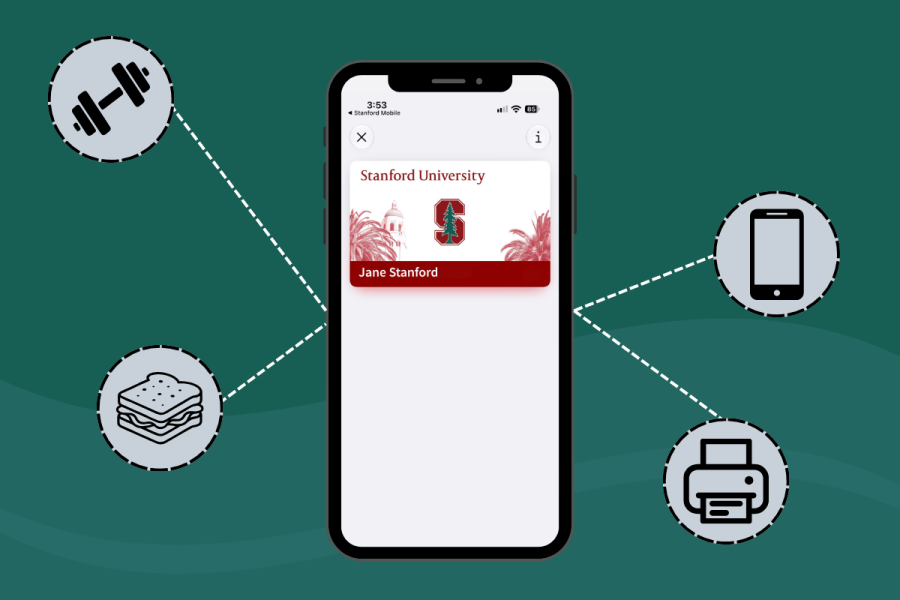
Introducing Stanford Unlock: Get Access To Buildings and Resources From Your Mobile Wallet
Mobile Key will transition to Stanford Unlock as the only approved digital access credential for campus. This transition ensures continued secure, digital access to buildings and services across campus. Users can continue using their existing Mobile Key until the transition is complete in December 2026. If you do not have an existing Mobile Key, you can activate a Stanford Unlock.
Students, faculty, and staff can use the free Stanford Unlock via the Apple Wallet or Google Wallet app to conveniently, safely, and securely open doors around campus, use Cardinal Dollars, access libraries and gyms, print at Cardinal Print stations, and more.
Your Stanford Unlock pass works everywhere your physical ID card does, simply by tapping your mobile device on a reader.
Note: Stanford Unlock will NOT serve as a digital university identification card. The Mobile ID within the Stanford application will remain the only approved digital University ID.
Stanford Unlock does not provide access to Stanford Medicine facilities, including the School of Medicine, Clark Center, and Stanford hospitals; you need a physical hospital badge to access these spaces.
Visit the How to Add Stanford Unlock to Your Phone webpage to get started. It may take up to 24 hours for your Stanford Unlock access to take effect after activation.
Students
Stanford Unlock can be used to access exterior residence hall entrances. Students have two options for residence hall access: their physical student ID card or Stanford Unlock. For security reasons, students must choose one access method. If they choose to use Stanford Unlock, their physical card will no longer work at exterior residence hall entrances.
Stanford Unlock in Apple Wallet
What functionality is available with Stanford Unlock in Apple Wallet?
Stanford Unlock in Apple Wallet works similarly to your physical ID card, including:
- Door and elevator access
- Library and gym access
- Cardinal Print
- Cardinal Dollars
- Meal plans
- Exterior residential access (students)
Note: Stanford Unlock will NOT serve as a digital university identification card. The Mobile ID within the Stanford application will remain the only approved digital University ID.
Who is eligible to add Stanford Unlock to Apple Wallet?
Stanford Unlock in Apple Wallet is available to currently enrolled students and active faculty and staff, including fixed-term employees, postdocs, and emeritus faculty and staff. Stanford University faculty and staff with dual affiliation with the hospital are also eligible.
The following are not eligible: contractors, agency employees, HHMI affiliates, visiting scholars, Stanford Hospital employees, courtesy cardholders, recreation cardholders, alumni, Executive Education program cardholders, Graduate Medical Education cardholders, and temporary or casual employees.
What are the device requirements for Stanford Unlock in Apple Wallet?
- An iPhone running iOS 15 or later with Apple Wallet installed
- An Apple Account signed into iCloud
- The Stanford Mobile app
Can I use my Stanford Unlock on my smartwatch?
No. Wearables such as smartwatches are not supported at this time.
What happens to my Stanford Unlock in Apple Wallet if I get a new iPhone?
First, remove your Stanford Unlock from your old device before adding it to your new iPhone. Open Stanford Mobile on your new device and follow the steps to add your Stanford Unlock to Apple Wallet.
Can I use Stanford Unlock in Apple Wallet without cellular connectivity?
Stanford Unlock in Apple Wallet can be used even if your iPhone does not have network connectivity because your pass is stored on your device.
How do I remove Stanford Unlock from Apple Wallet?
You can remove it directly from your Apple Wallet. Once removed, you won't be able to access buildings, elevators, gyms, or libraries using that device until you re-add it (if you haven't reached your activation limit).
How much does Stanford Unlock cost?
Stanford Unlock for Apple Wallet is free.
Can I use Stanford Unlock when my phone is locked?
Apple devices can enable Express Mode for Stanford Unlock in the Apple Wallet app. With Express Mode, you can use compatible cards, passes, and keys in the Wallet app with just a tap, without unlocking your phone. Learn more on the Apple Support webpage.
Can I use my Stanford Unlock even if my iPhone battery has run out?
Yes, if you already had Express Mode turned on for the pass, and your phone ran out of battery on its own without you manually powering it down. Note that this only works on iPhone models that have the "Power Reserve" feature.
What happens if I mark my device as lost in Apple's Find My app?
Your Stanford Unlock will be automatically marked as suspended, disabling it.
I have Stanford Unlock, and I am tapping my phone on a reader but it doesn't seem to be responding.
The Stanford Unlock pass should be fully active within 24 hours of being added to your Apple Wallet. It may work sooner at some locations, but for a reliable experience, plan to use it starting the next day.
If you are still experiencing issues with access after 24 hours, please try the following:
- Turn on NFC: Check your phone's settings and make sure NFC is enabled. Without it, the phone won't communicate with the contactless reader.
- Hold your phone close to the reader: Get your phone within 0–2 inches of the contactless reader. Too much distance is one of the most common reasons a tap doesn't register.
- Find your phone's NFC antenna location: iPhones typically have the NFC antenna at the top edge, just above the rear camera.
- Try different positions on the reader: Since antenna placement varies, move your phone around on the reader until you find the spot where it consistently reads. Once you find it, use that position going forward.
If your pass is still not working after following these steps, please submit a Help request.
Note that Stanford Medicine readers are operated by the hospital system and do not support Stanford Unlock. This includes Clark Center, School of Medicine buildings, and all other Stanford Hospital and School of Medicine buildings.
Stanford Unlock in Google Wallet
What functionality is available with Stanford Unlock in Google Wallet?
Stanford Unlock in Google Wallet works similarly to your physical ID card, including:
- Door and elevator access
- Library and gym access
- Cardinal Print
- Cardinal Dollars
- Meal plans
- Exterior residential access (students)
Note: Stanford Unlock will NOT serve as a digital university identification card. The Mobile ID within the Stanford application will remain the only approved digital University ID.
Who is eligible to add Stanford Unlock to Google Wallet?
Stanford Unlock in Google Wallet is available to currently enrolled students and active faculty and staff, including fixed-term employees, postdocs, and emeritus faculty and staff. Stanford University faculty and staff with dual affiliation with the hospital are also eligible.
The following are not eligible: contractors, agency employees, HHMI affiliates, visiting scholars, Stanford Hospital employees, courtesy cardholders, recreation cardholders, alumni, Executive Education program cardholders, Graduate Medical Education cardholders, and temp or casual employees.
Can I use my Stanford Unlock in Samsung Wallet?
Unfortunately, no. Stanford Unlock is only compatible with the Google Wallet app for Android devices. If you have a Samsung Android phone, you can download the Google Wallet app from the Google Play Store and then add your Stanford Unlock to the Google Wallet app.
What are the device requirements for Stanford Unlock in Google Wallet?
- Android: Android OS 13+ with NFC hardware and Google Wallet app installed.
- Samsung: must have Google Wallet downloaded on mobile device. Stanford Unlock is not currently available in Samsung Wallet.
What happens to my Stanford Unlock in Google Wallet if I get a new phone?
First, remove your Stanford Unlock from your old device before adding it to your new Android mobile device. Open Stanford Mobile on your new device and follow the steps to add your Stanford Unlock to Google Wallet.
Can I use Stanford Unlock in Google Wallet without cellular connectivity?
Yes, because your pass is stored on your device.
How do I remove Stanford Unlock from Google Wallet?
You can remove it directly from your Google Wallet. Once removed, you won't be able to access buildings, elevators, gyms, or libraries using that device until you re-add it (if you haven't reached your activation limit).
Can I use my Stanford email to set up Google Wallet?
No. Google Pay, which is a required feature in Google Wallet, is disabled for all @stanford.edu accounts. A personal Google account is necessary to add Wallet Pass to Google Wallet.
If you prefer not to use your personal Google account, you have the option to create a separate Google account (e.g., a dedicated account just for your Stanford Wallet Pass) at accounts.google.com/signup. This keeps your personal account separate while still meeting the Google Wallet requirement.
Why doesn't Stanford Mobile detect Google Wallet on my Stanford-managed phone?
Stanford Mobile comes pre-installed on the work profile of Stanford MDM-managed devices. However, Google Wallet can't be installed on the work profile, and it can only be installed on the personal profile.
Because Android keeps work and personal profiles separate, Stanford Mobile on the work profile can't detect or interact with Google Wallet on the personal profile.
To use the "Add to Wallet" feature, users need to:
- Uninstall Stanford Mobile from the work profile.
- Install Stanford Mobile on the personal profile.
Once both apps are on the same profile, Stanford Mobile can detect Google Wallet and successfully add passes to it.
How much does Stanford Unlock cost?
Stanford Unlock for Google Wallet is free.
Can I use Stanford Unlock when my phone is locked?
Yes. To use Stanford Unlock while your phone is locked, disable "Require device unlock for use" on the Stanford Unlock within the Google Wallet app. Note that you will still need to have your phone's screen turned on, even if your phone is locked, for Stanford Unlock to work in Google Wallet.
I have Stanford Unlock, and I am tapping my phone on a reader, but it doesn't seem to be responding.
The Stanford Unlock pass should be fully active within 24 hours of being added to your Google Wallet. It may work sooner at some locations, but for a reliable experience, plan to use it starting the next day.
If you are still experiencing issues with access after 24 hours, please try the following:
- Turn on NFC: Check your phone's settings and make sure NFC is enabled. Without it, the phone won't communicate with the contactless reader.
- Hold your phone close to the reader: Get your phone within 0–2 inches of the contactless reader. Too much distance is one of the most common reasons a tap doesn't register.
- Find your phone's NFC antenna location: Android devices typically have it near the rear camera or the middle of the back, though some models place it at the top edge or near the microphone instead.
- Try different positions on the reader: Since antenna placement varies, move your phone around on the reader until you find the spot where it consistently reads. Once you find it, use that position going forward.
If your pass is still not working after following these steps, please submit a Help request.
Note that Stanford Medicine readers are operated by the hospital system and do not support Stanford Unlock. This includes Clark Center, School of Medicine buildings, and all other Stanford Hospital and School of Medicine buildings.

Copyright Stanford University. Stanford, California 94305.