 University IT
Intune Enrollment App for Stanford-owned Windows Devices
These instructions are for the School of Medicine community.
This enrollment option will only display on Windows devices that are eligible for this enrollment method.
You can enroll your Stanford-owned Windows device into Microsoft Intune using the Stanford enrollment app deployed via BigFix.
Launch the app
Ensure you've reviewed the information on Guided Intune Enrollment for Windows Devices (via BigFix) to understand how to prepare for the guided enrollment experience and launch the Stanford Intune Migration app.
Before you begin
- Backup your data: No issues are expected, but it's always a good idea to back up important data.
- Network connection: A reliable Wi-Fi network or wired connection will help ensure your enrollment goes smoothly.
- Save your work: Please ensure all your work is saved and applications are closed before starting the process.
What to know about profile migration
As part of setting up your device, Windows will create a new profile for your Stanford Microsoft sign in. Your profile is where your desktop, documents, downloads, and app settings live. You'll be asked an important question: do you want to migrate your existing Windows profile.
You have two options:
- Migrate Profile: If you select “Yes – Migrate Profile,” the enrollment app will move everything in your existing profile into your new Stanford profile. The migration runs silently in the background after the enrollment app closes. Do not use your computer while it's migrating. When it's finished, your device will restart automatically.
- Skip Profile Migration: If you select “No – Skip Migration,” your old profile remains untouched and a new, separate Stanford profile will be created. Your files and settings won't move automatically, so you'll need to manually move anything you want to keep.
Start Your Intune Enrollment
Follow the steps on Guided Intune Enrollment for Windows Devices (via BigFix) to launch the app. Once the app displays, follow the steps below to enroll your Windows device.
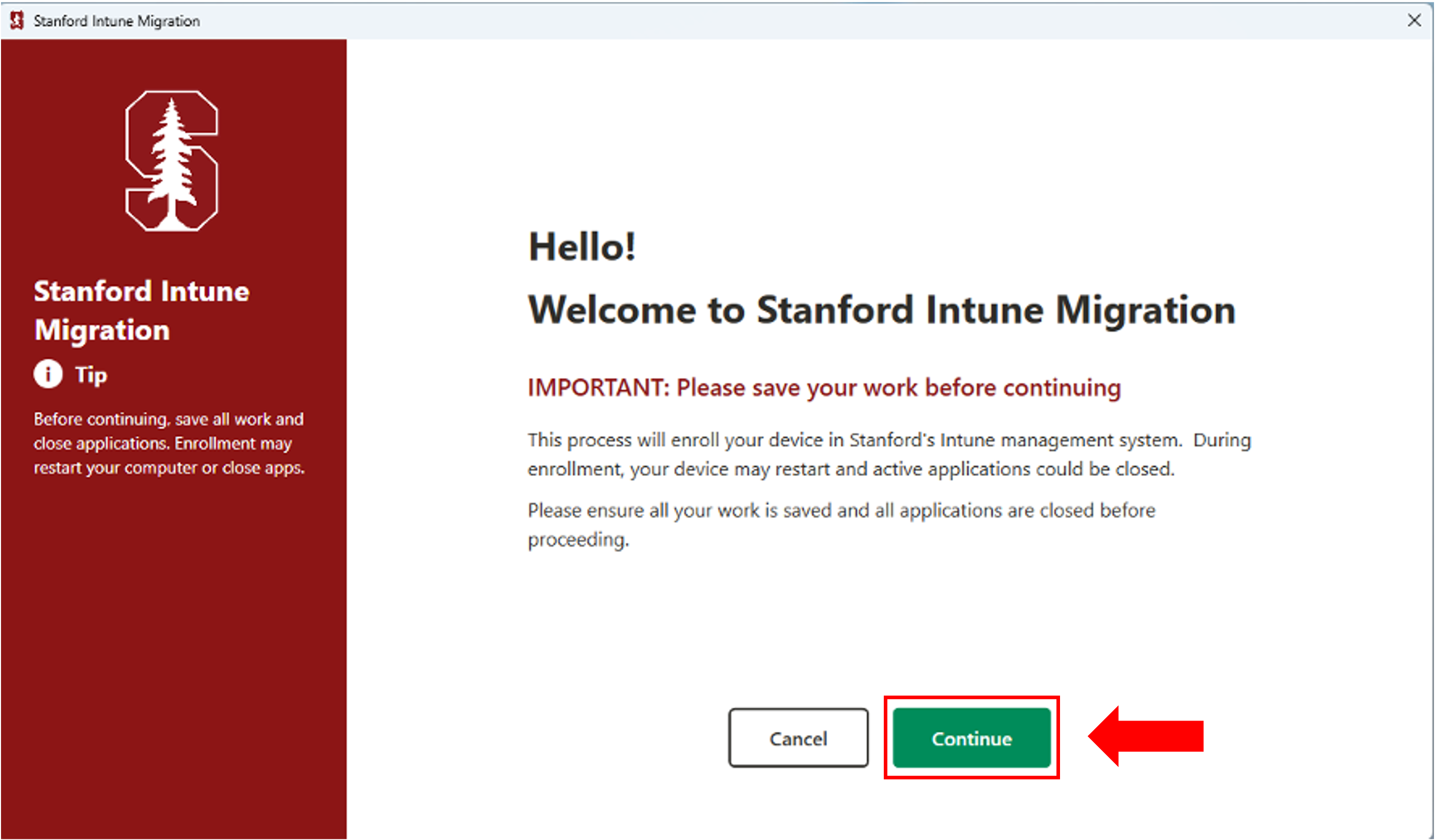
Once the app is launched, the Welcome page will appear. Carefully read the information on the Welcome page. Be sure to save your work. When you are ready, select Continue to proceed.
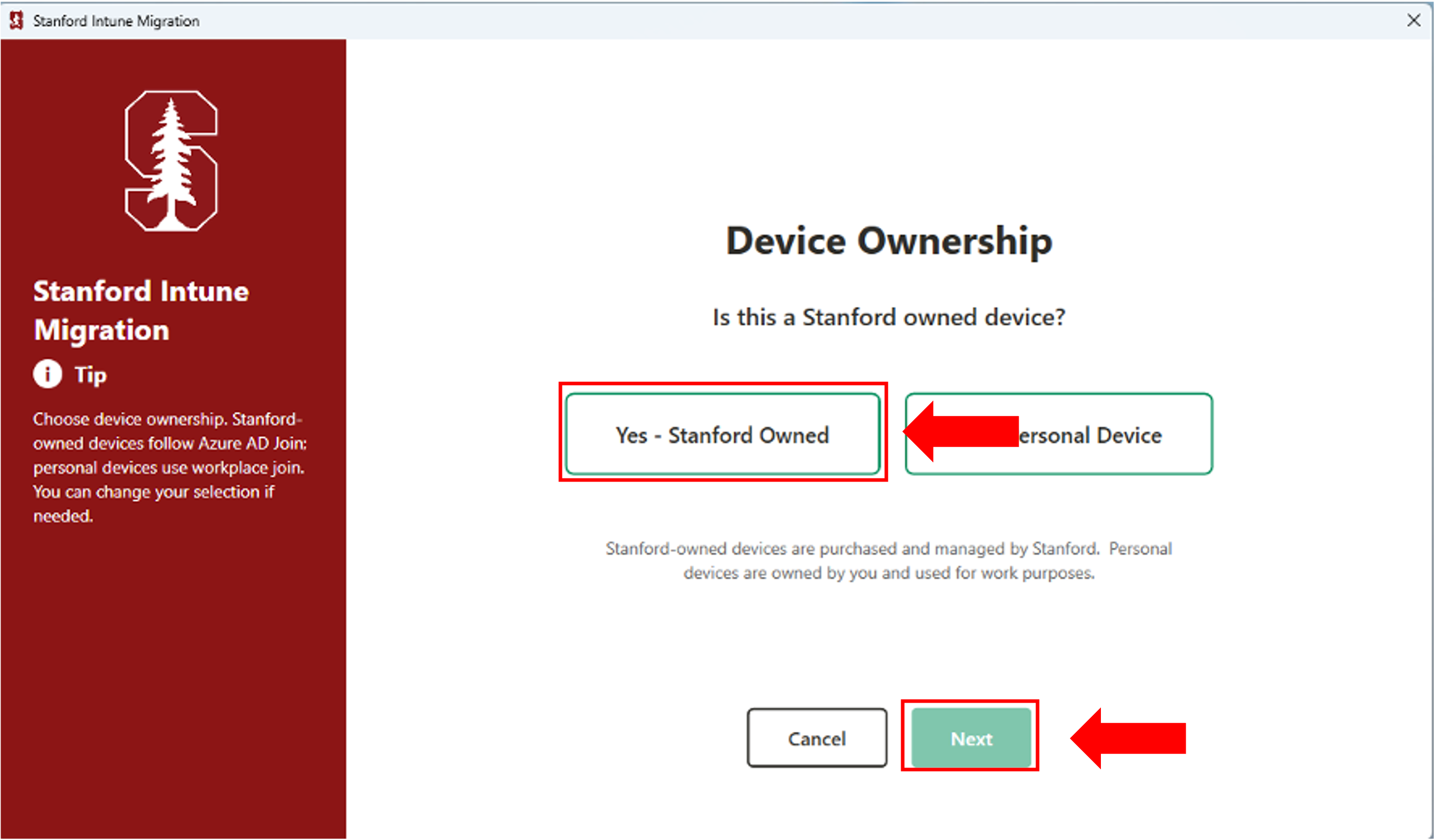
Indicate your device ownership type by selecting Yes- Stanford Owned then click Next to continue.
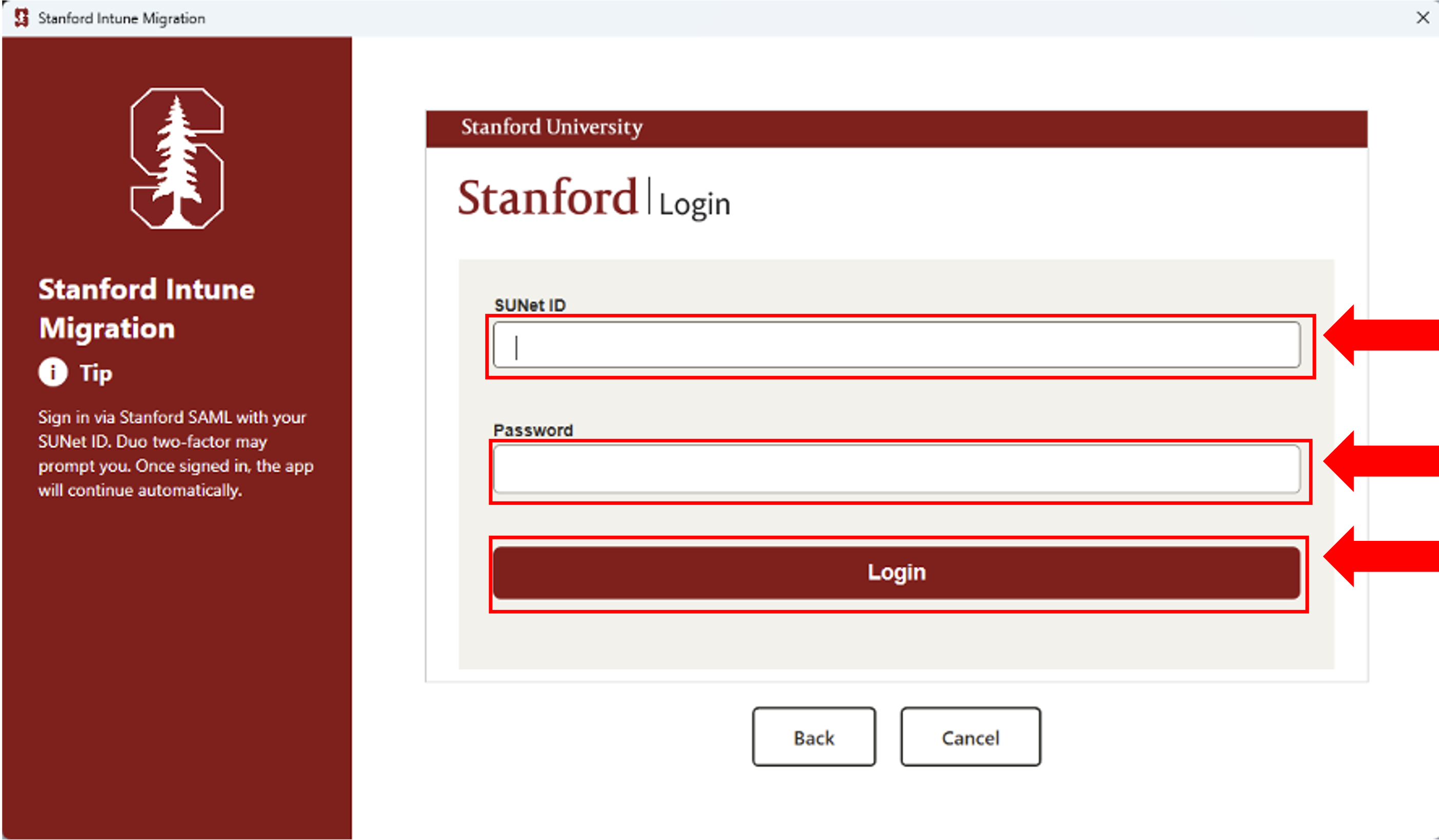
Seeing a "Cannot Continue" error? This usually means your account isn't set up as an administrator on this device. Please submit a Help request.- You'll see Stanford's Single Sign-On (SSO) login screen.
- Complete the SSO process by signing in with your credentials.
Complete Duo multifactor authentication.
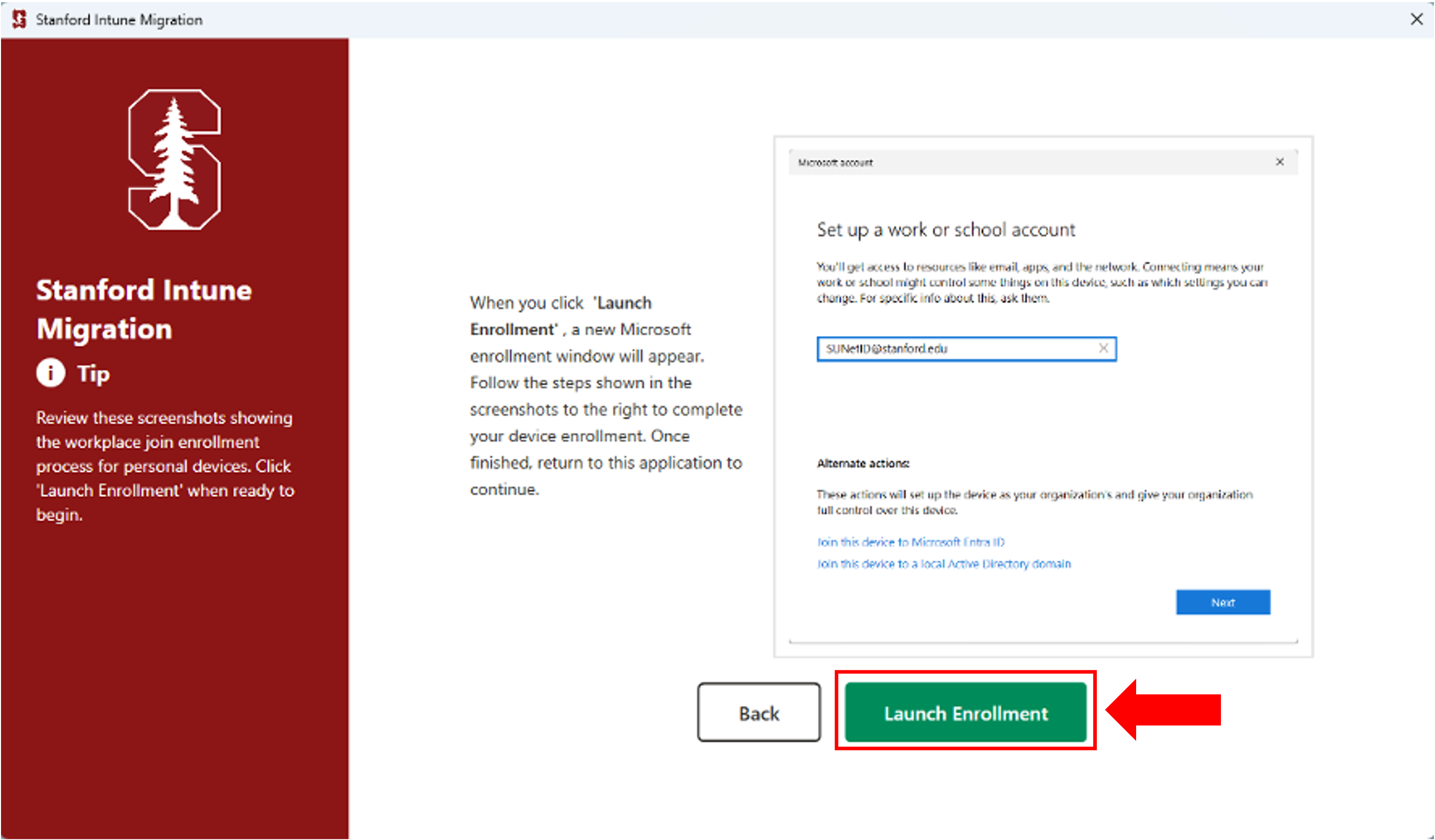
A new window will appear with your SUNet ID pre-filled. Review the next steps listed on the screen. Select Launch Enrollment to continue.
A new Microsoft window will appear. Select Next to continue.
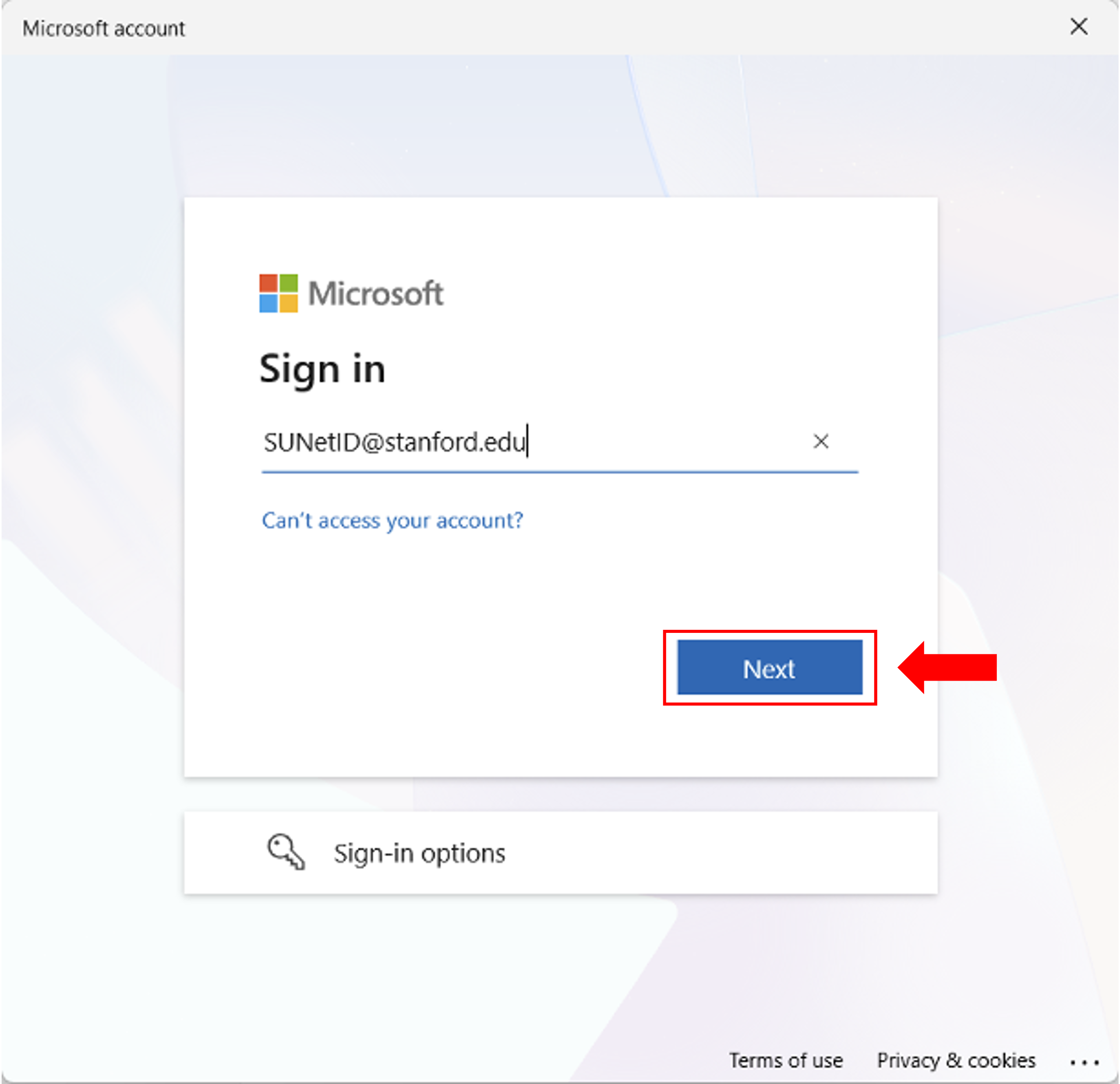
- Complete Microsoft authentication using one of the following methods:
- Username and password.
- Passwordless authentication using the Microsoft Authenticator app.
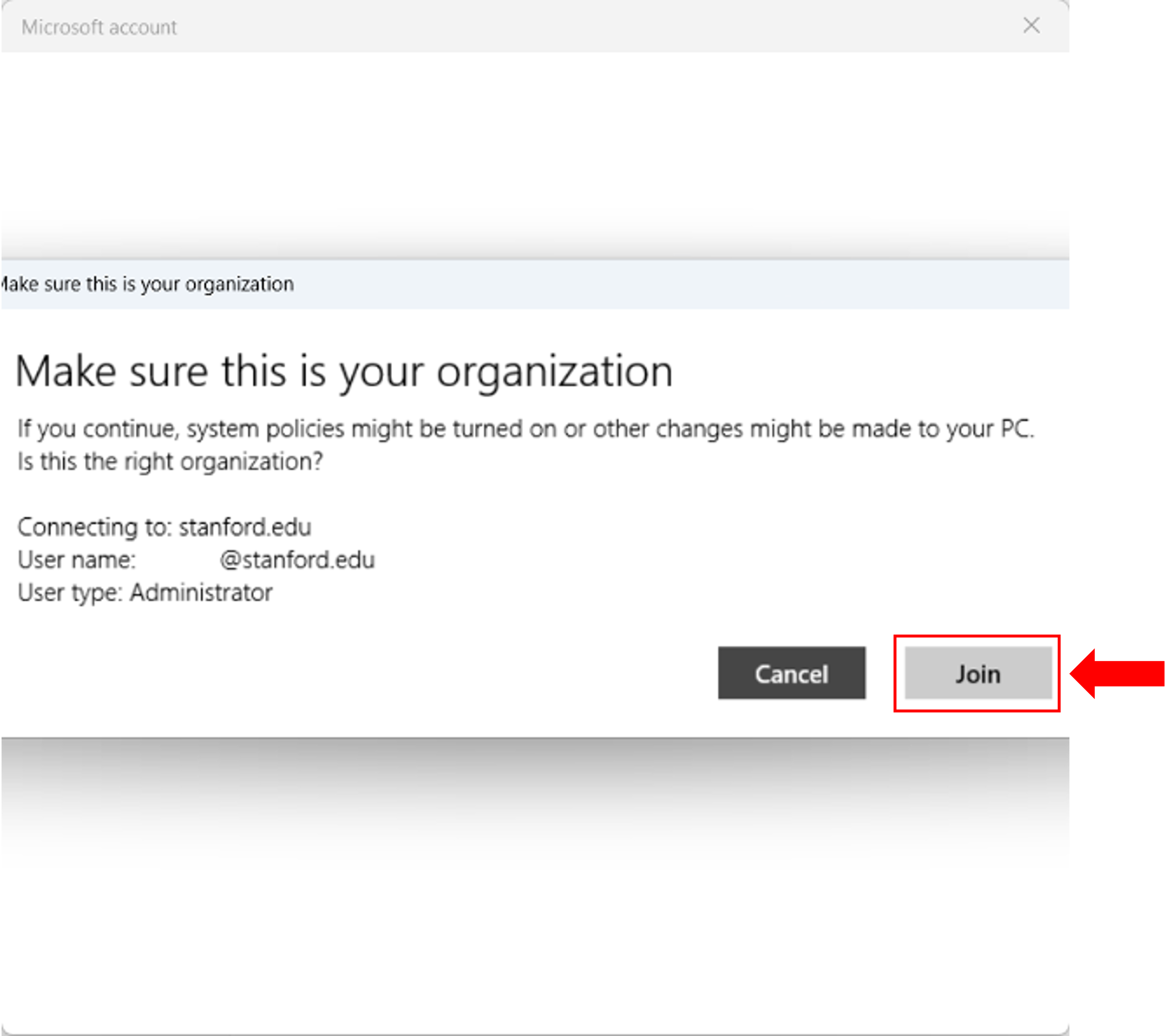
On the "Make sure this is your organization" page, select Join.
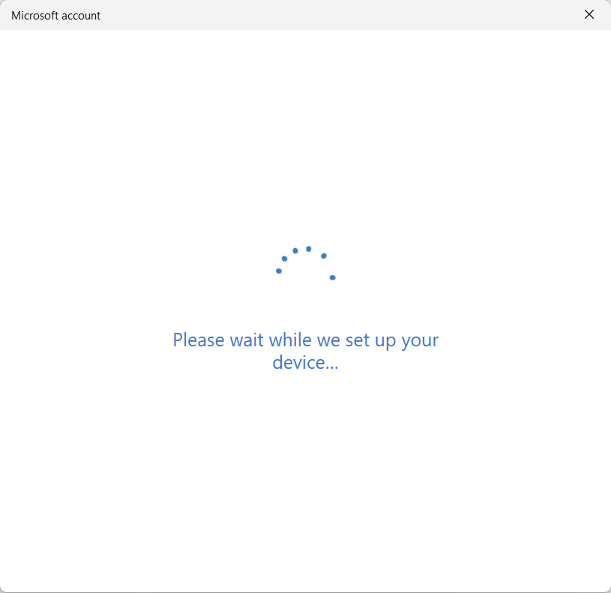
- The enrollment process will complete automatically.
- Click Done to return to the enrollment application.
Review the important information regarding user account profile migration. Decide if you'd like to proceed with the profile migration and select the appropriate steps.
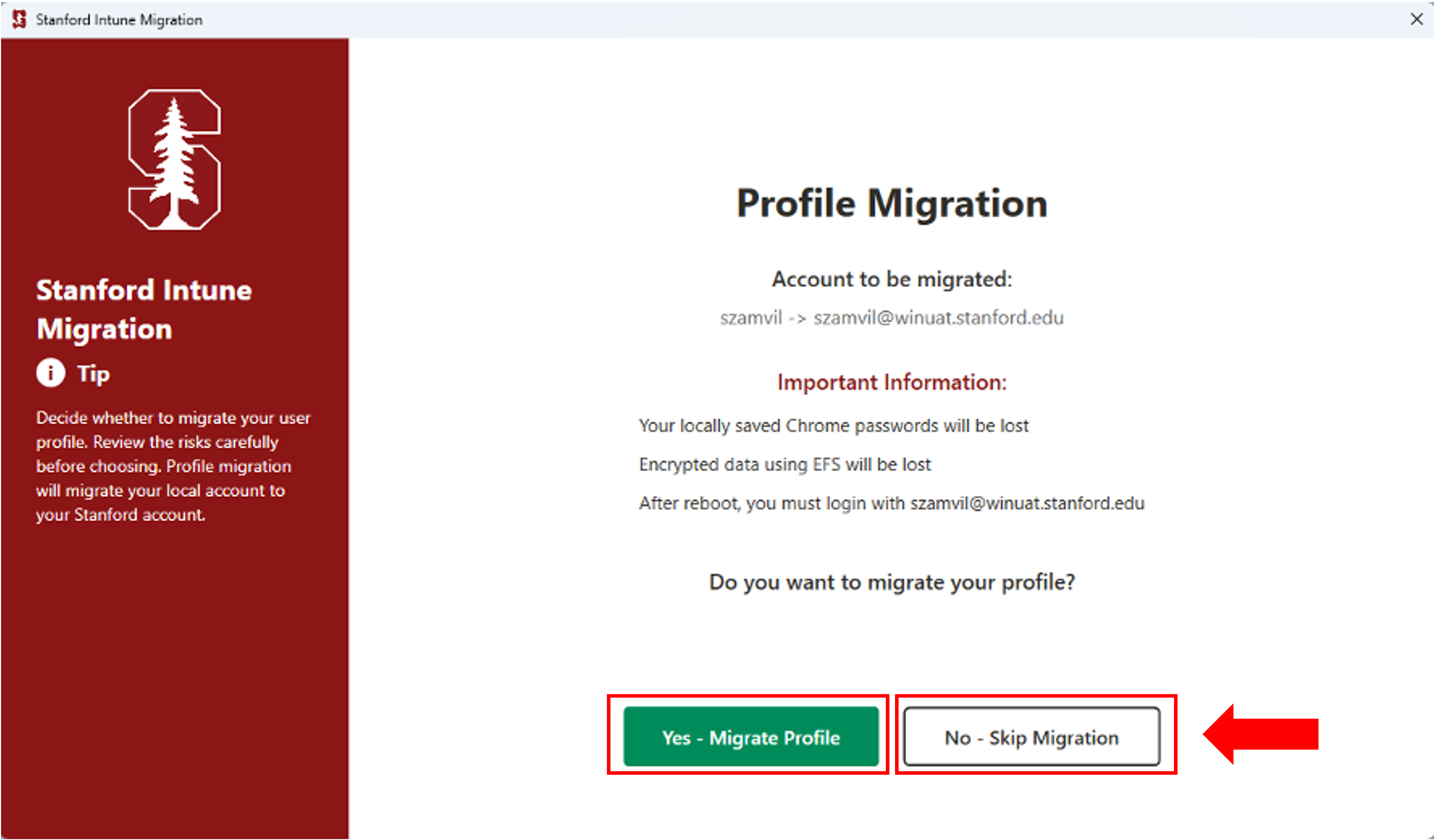
Option A: Migrate profile
(For more information on profile migration, scroll to the top of the page)
If you select Yes - Migrate Profile, the dialog will explain the migration process. The account migration runs silently once the Enrollment Application closes. Do not use your computer during this time. Your computer will restart automatically when migration is complete.
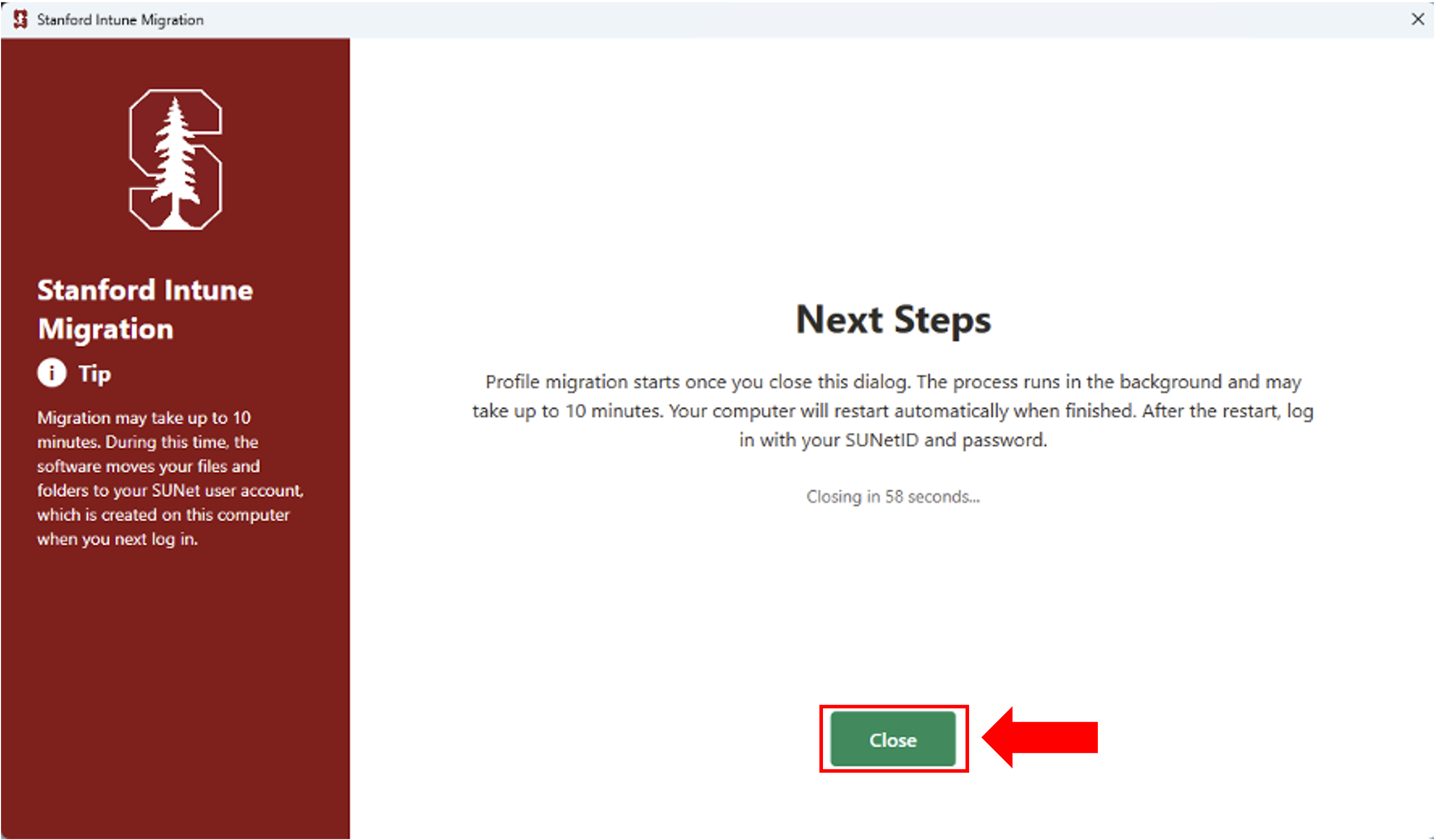
- After your computer restarts, sign in using your SUNet ID and password.
- If prompted, set up biometric authentication and a PIN during your next login.
Option B: Skip migration
If you select No- Skip Migration select either either the Close or Reboot Now.
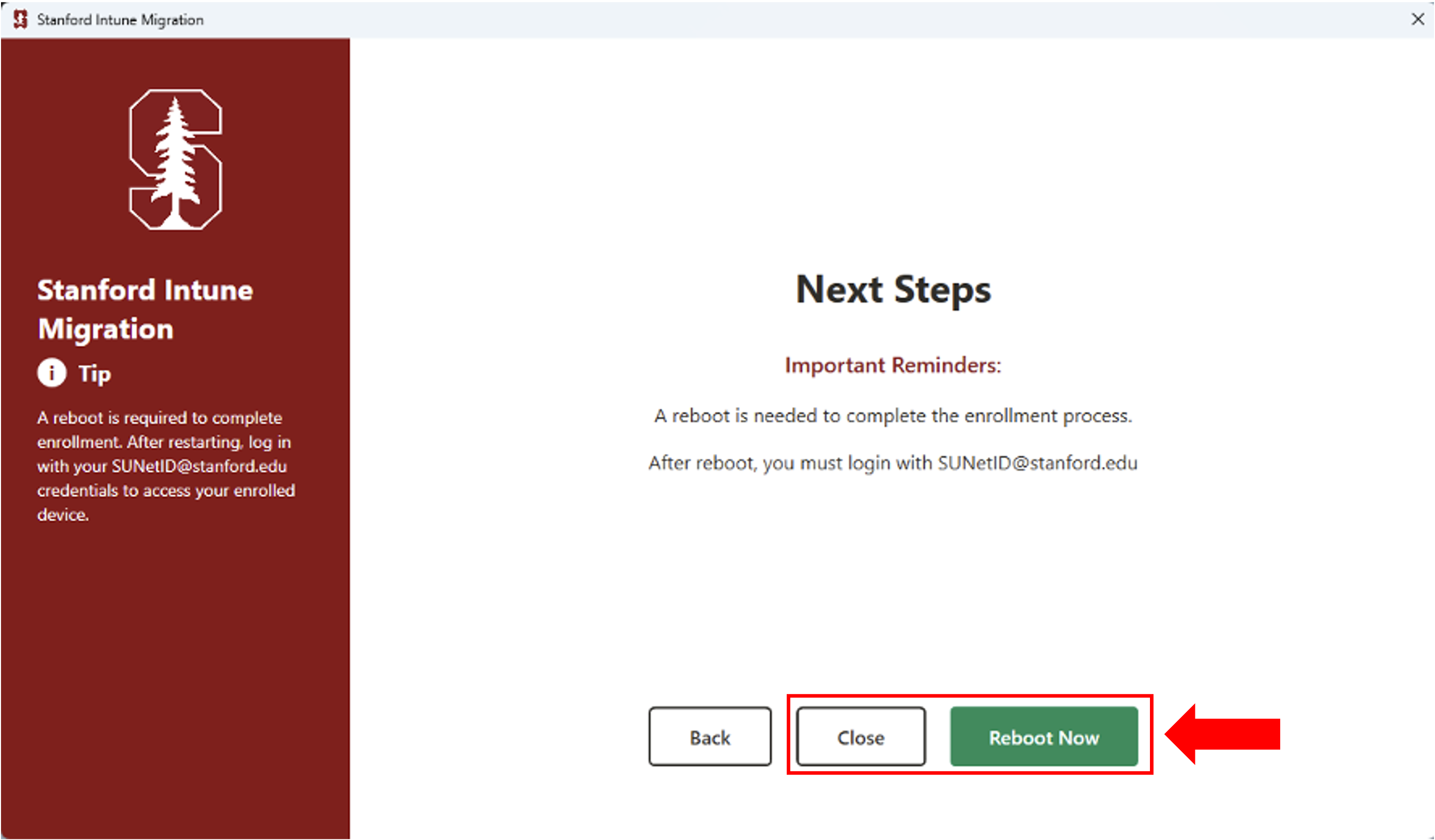
- After rebooting, select Other User on the login screen and proceed with the following sign in steps:
- Enter your full Stanford email address in the user field: sunet@stanford.edu.
- Enter your SUNet password in the password field.
- If prompted, set up biometric authentication and a PIN during your next login.
What's next
Wait at least one hour after completing enrollment, then verify your device's registration on the company portal web site.
See also
- How to Verify Windows/Android/Linux Device Setup on the Company Portal Website
- How to Check and Remediate Device Compliance on Windows
- How to Configure Firefox for Device Compliance for macOS and Window
Need more help?
- For answers to common questions, review the FAQs.
- If you need more assistance, contact your local IT support team.
