 University IT
How to Manually Enroll a Stanford-owned Windows Device in Intune
These instructions are for the School of Medicine community.
Note: Windows Home is not supported at Stanford and cannot be enrolled for compliance. If your device is running Windows Home, please contact your local IT support team for help upgrading to a supported edition of Windows or identifying an alternative compliant device. Learn more.
Follow these steps to connect your Stanford work account to your Windows device to manually complete the enrollment on a Stanford-owned device used for Stanford work.
Prerequisite: Set up your new Microsoft login
As a required first step, you must set up your new Microsoft login using an approved authentication method. Then wait 24 hours before manually enrolling your Windows device in Intune.
Before you begin
- Check your OS version: Confirm your device is running a supported operating system by visiting uit.stanford.edu/guide/sunset-schedule.
- Backup your data: No issues are expected, but it's always a good idea to back up important data.
- Network connection: A reliable Wi-Fi network or wired connection will help ensure your enrollment goes smoothly.
- Save your work: Please ensure all your work is saved and applications are closed before starting the process.
What to know about profile migration
A Windows profile is where your desktop, documents, downloads, and app settings live. When you manually enroll your device, Windows creates a new (Stanford Entra) profile, but doesn't merge it with your old one. Here's what to expect:
- You’ll sign in with your Stanford account and see a fresh profile.
- All your previous files/settings are still on your device under your old profile, but they won’t appear in the new one unless you move or sync them over.
Be sure to plan to move any files you need (Desktop/Documents/Downloads) into your new profile. And don't delete the old profile until you’ve verified everything you need has been moved.
Enroll in Intune
Follow these steps to enroll your Windows PC in Stanford Intune device management system.
- Open the Settings app (press Windows key + I).
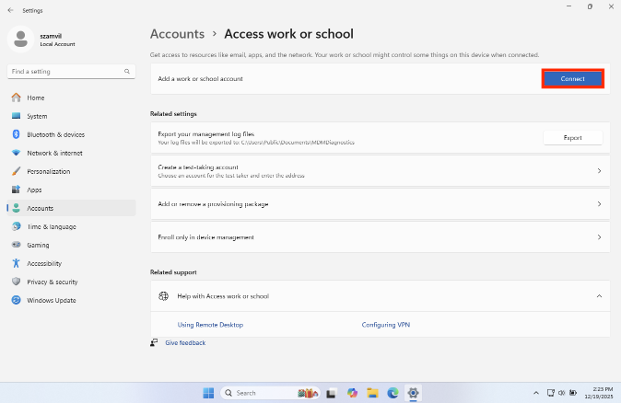
- Click Accounts.
- Select Access work or school.
- Click the Connect button.
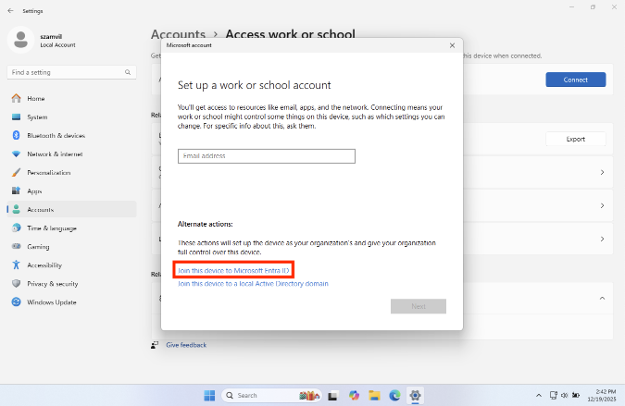
- Under "Alternate actions," click the blue link Join this device to Microsoft Entra ID.
- Enter your Stanford email address as <yoursunetid>@stanford.edu.
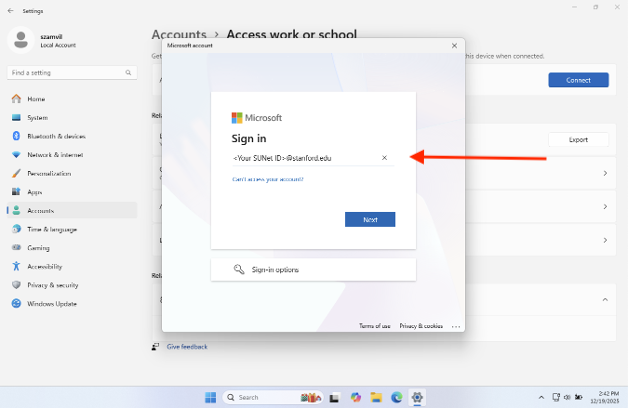
- Complete the sign-in process using your Stanford credentials.
- A new dialogue box will appear. Click Join to proceed.
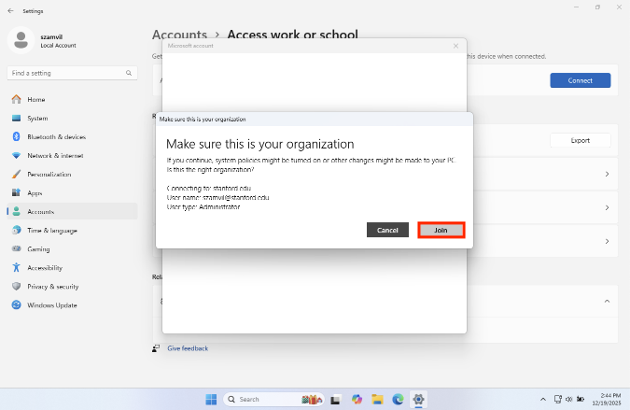
- You should see a confirmation window indicating the join process was successful.
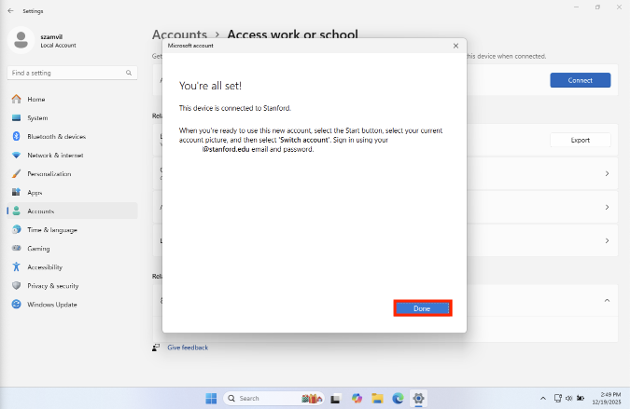
- Restart your computer to complete the setup. Alternatively, you can sign out and sign back in.
- Sign in with your SUNet credentials:
- On the login screen, select Other user.
- Enter your full Stanford email address as <yoursunetid>@stanford.edu.
- Enter your password.
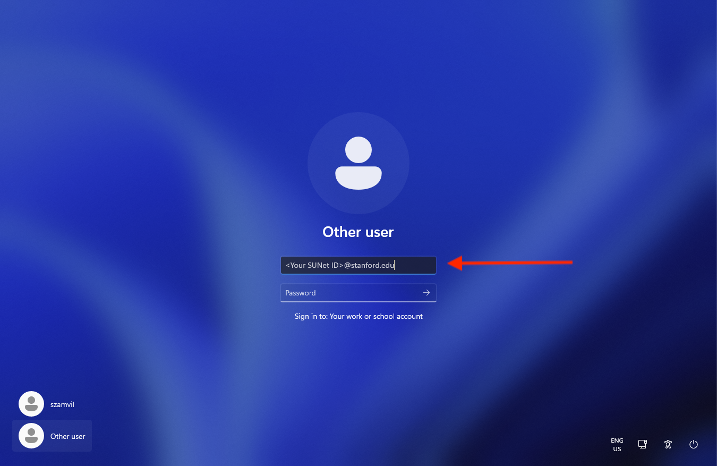
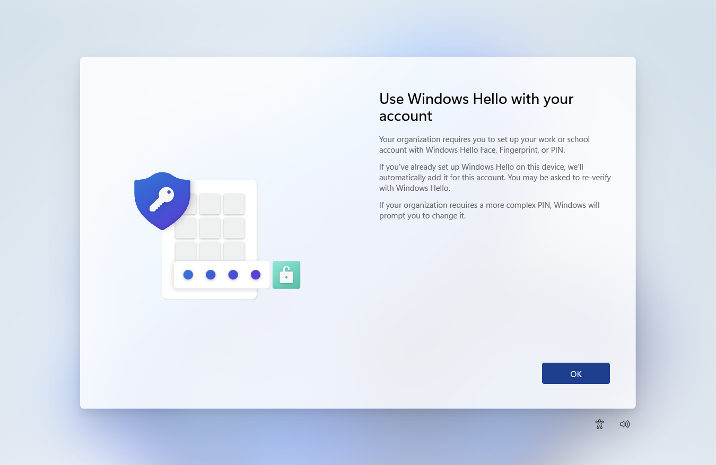
- You may be prompted to set up Windows Hello for secure sign-in. If so, follow the on-screen instructions to complete this step, this process may request the use of biometrics and you will need to generate a device specific PIN.
What's next
Wait at least one hour after completing registration, then verify your device's registration on the company portal web site.
See also
- How to Check and Remediate Device Compliance on Windows
- How to Configure Firefox for Device Compliance for macOS and Window
Need help?
- Check out our FAQs for the answers to commonly asked questions.
- For additional assistance, contact SoM Entra ID / Intune support using any of the options listed below:
- SoM TDS Service Desk: Call (650) 725-8000 (option 7), available 6:00 a.m. - 10:00 p.m., 7 days a week Hours have been expanded to handle increased demand.
- SoM Tech Bar: Schedule an appointment at the location nearest you.
