 University IT
Connecting to eduroam on Windows 11
- From the desktop, select the Wi-Fi icon in the taskbar. You can find this at the bottom right of the screen.
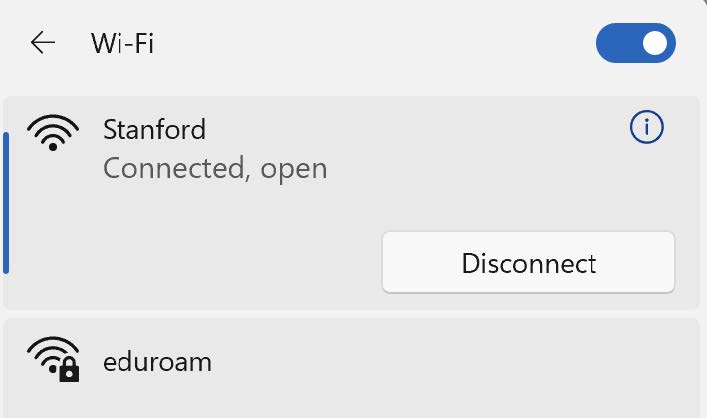
On the Wi-Fi pop-up window, you will select eduroam and click Connect.
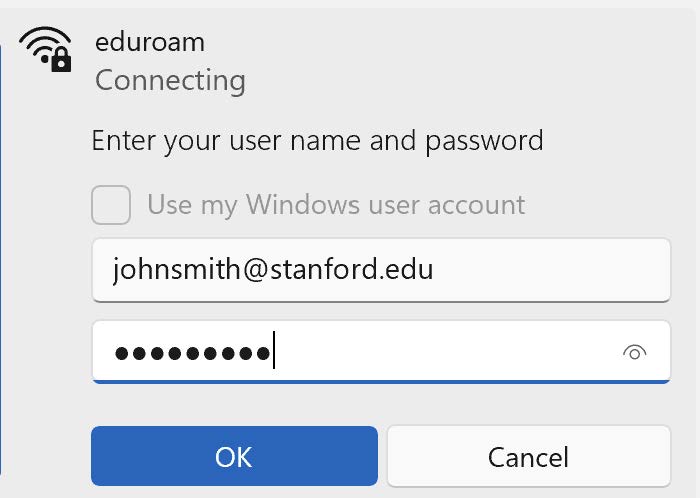
The next window should prompt you to input your Stanford email and SUNet password. Click OK to continue.
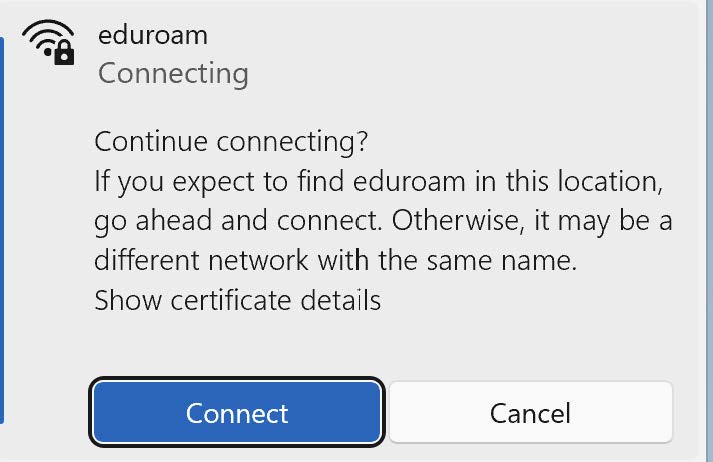
You will be prompted to "Continue connecting." Click Connect, you should now be connected to the eduroam Wi-Fi.
Last modified
