 University IT
How to View Your Actual GCP Spend
Stanford Google Cloud Platform (GCP) may occasionally receive promotional credits at the organizational level. These credits are meant to be allocated for specific projects. However, they can cause your overall spend in GCP to appear lower than it actually is. By following these instructions, you can create a billing report that accurately reflects the true expense of your GCP project.
View the actual expense of your project
To view your actual GCP spend, follow these steps to create a billing report that excludes promotions:
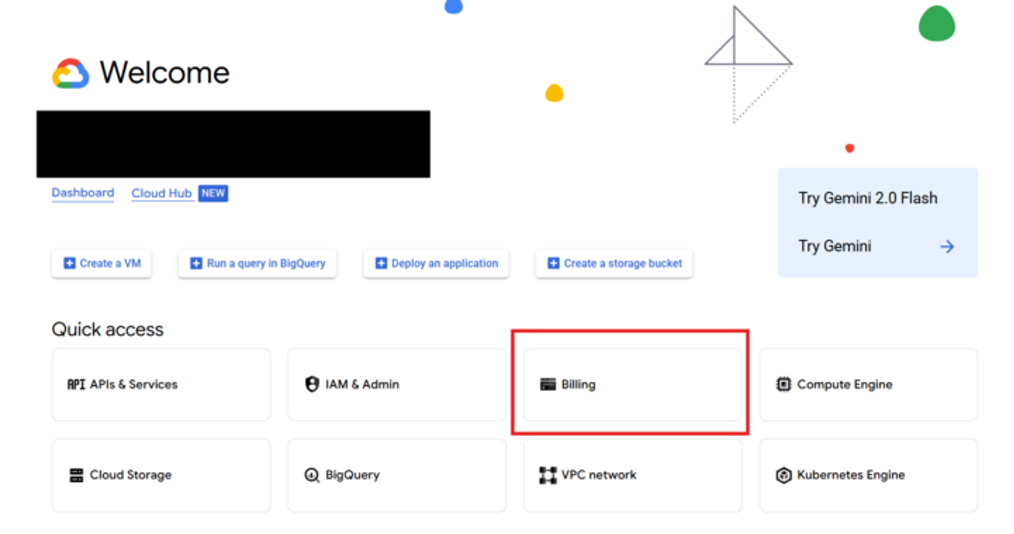
- Navigate to the Google Cloud Platform console (https://console.cloud.google.com) to view the welcome page for your project.
Note: If you have multiple GCP projects, use the top search bar to find and select your desired project.
- Go to the Billing section.
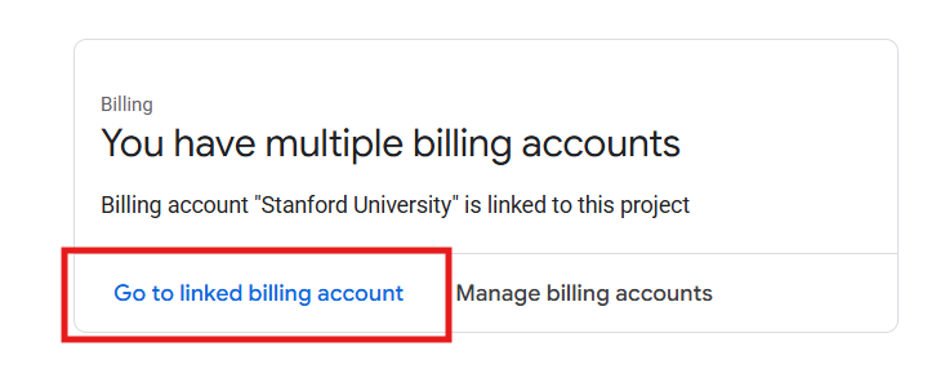
- If prompted, click Go to linked billing account to access the billing account associated with your selected project.
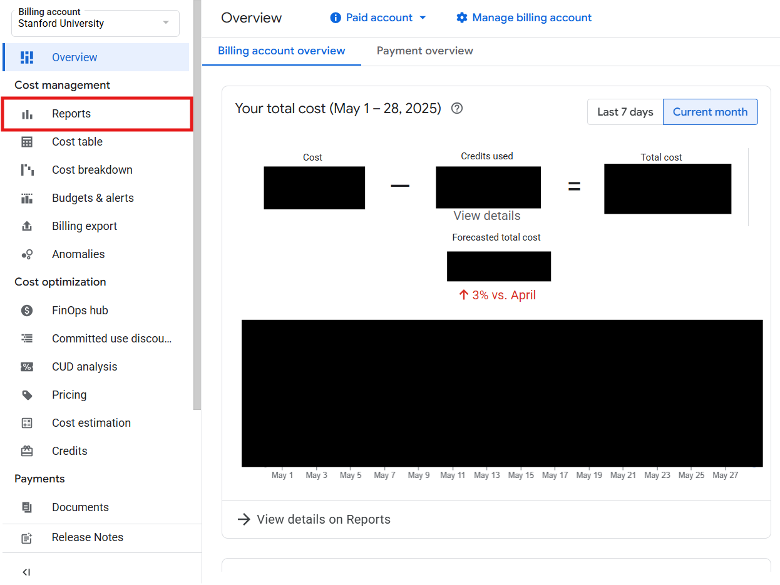
- In the left sidebar, click Reports to access the Reports page.
- The Reports page enables you to view and analyze your Google Cloud usage cost and cost trends using a variety of configurable settings and filters. Under Filters, find Credits.
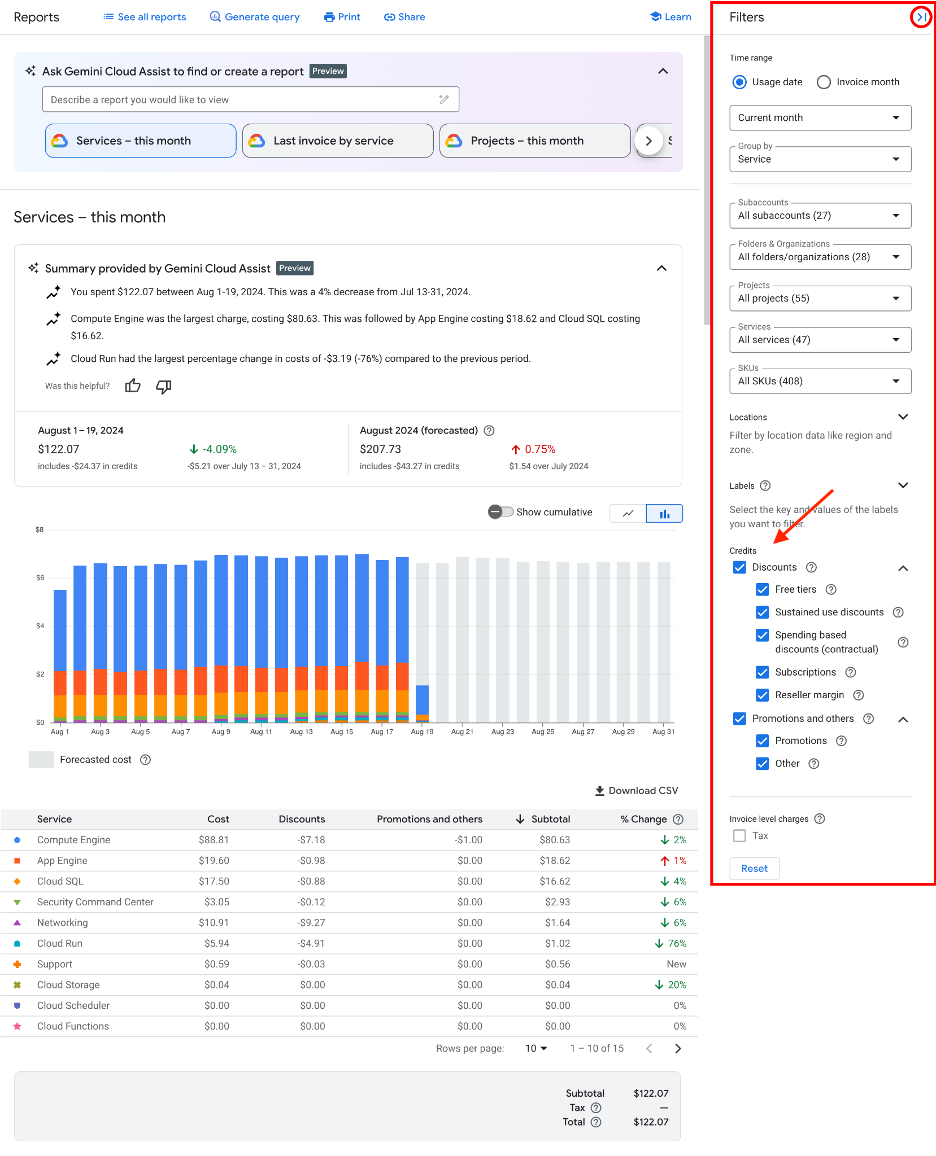
- Uncheck Select all Promotions & others to exclude these from the cost calculations from your report.
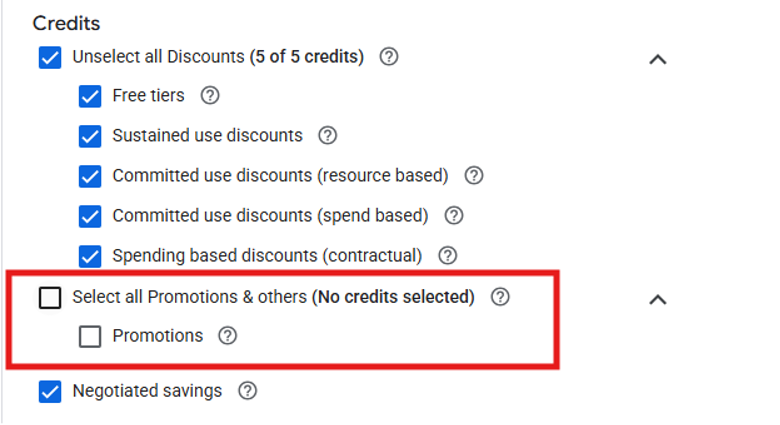
The report will now show your costs without organizational credits, providing a clearer view of the actual costs associated with your usage. To learn more about running reports, visit the Google Cloud resource: Analyze billing data and cost trends with Reports.
