 University IT
CardinalShield Account Setup
Before you can log in to CardinalShield, you must be added to the system and granted access based on your role. If you are unsure whether your profile has already been created, or if you need clarification about your role, please contact the CardinalShield system administrators at cardinalshieldadmins@lists.stanford.edu.
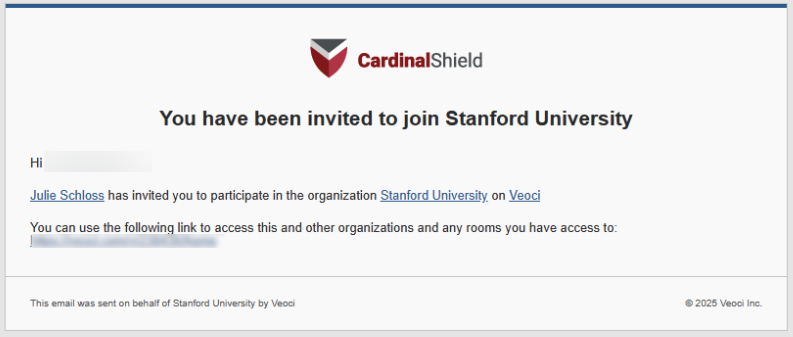
Once your profile is set up, you will receive an automated email from CardinalShield inviting you to log in.
Follow the steps below to complete your registration.
- A system administrator will create your CardinalShield account. You’ll receive an email invitation. Open the email and click the link provided to get started.
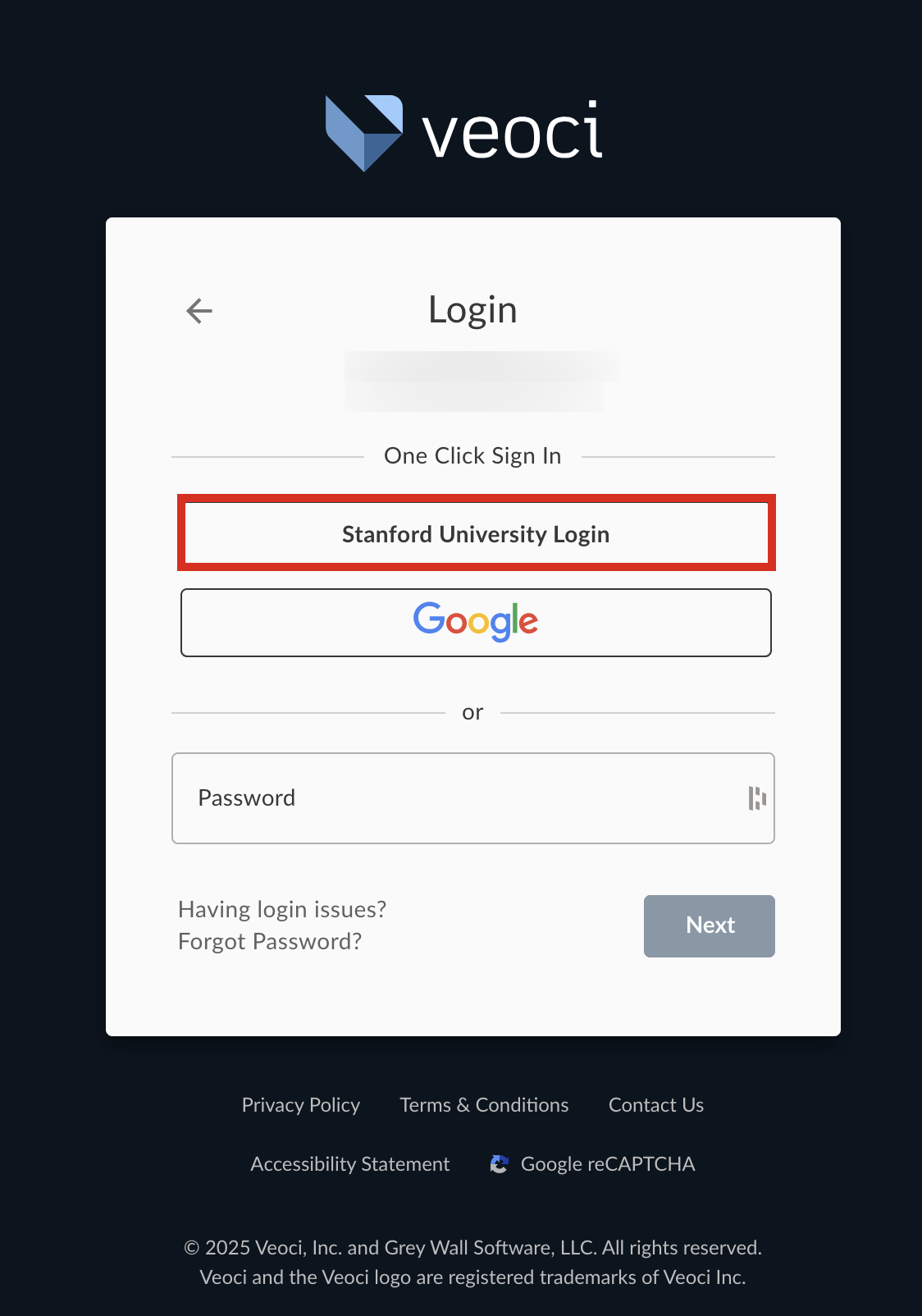
- The link will take you to the Veoci login page (Veoci is branded as CardinalShield). Click Stanford University Login to sign in using your Stanford credentials.
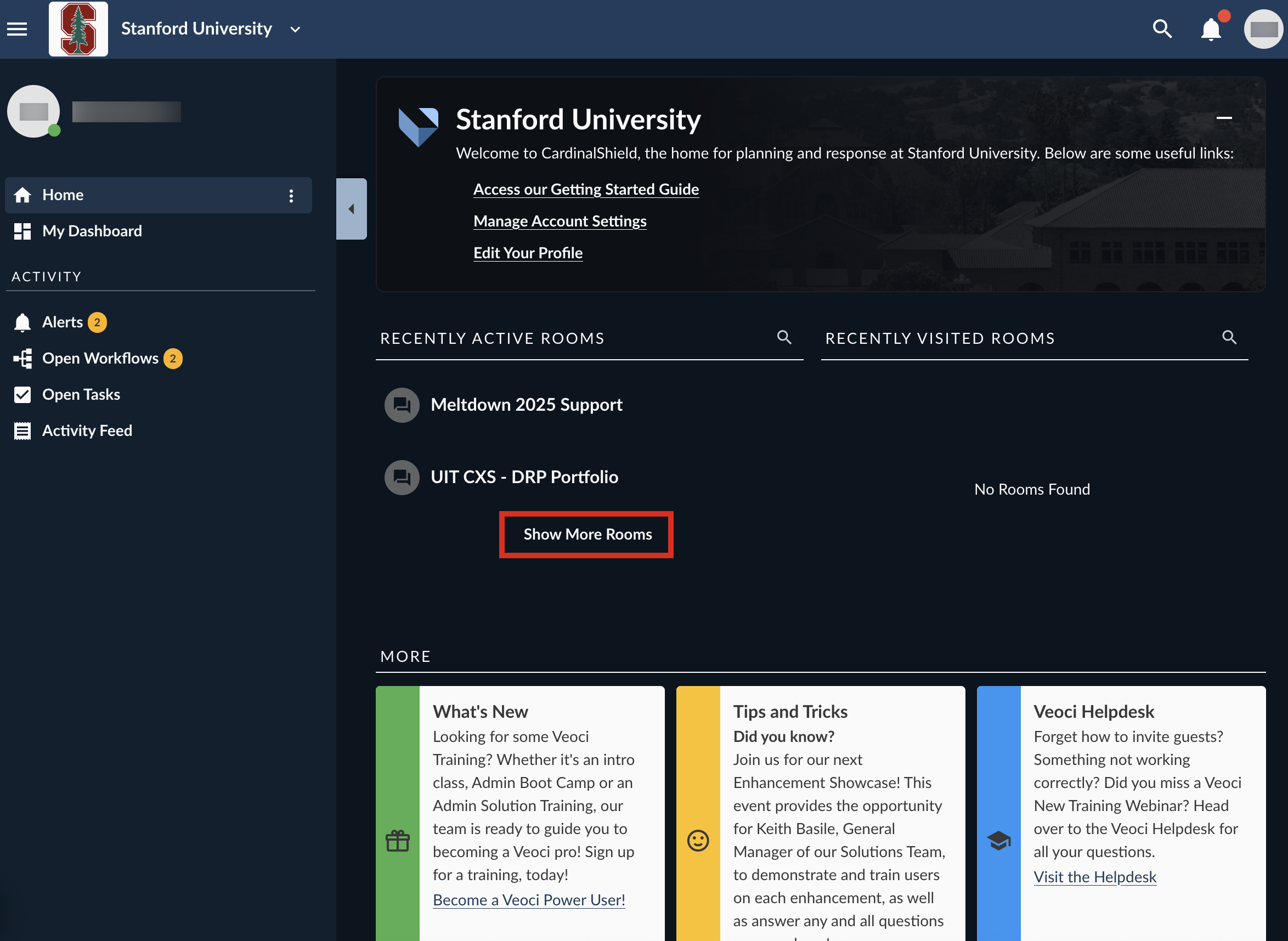
- After logging in, you’ll arrive at your Home page. In the “Recently Active Rooms” section, you’ll see all the spaces you’ve been added to in CardinalShield.
- Click Show More Rooms to view the full list. To enter a specific room, simply click its name.
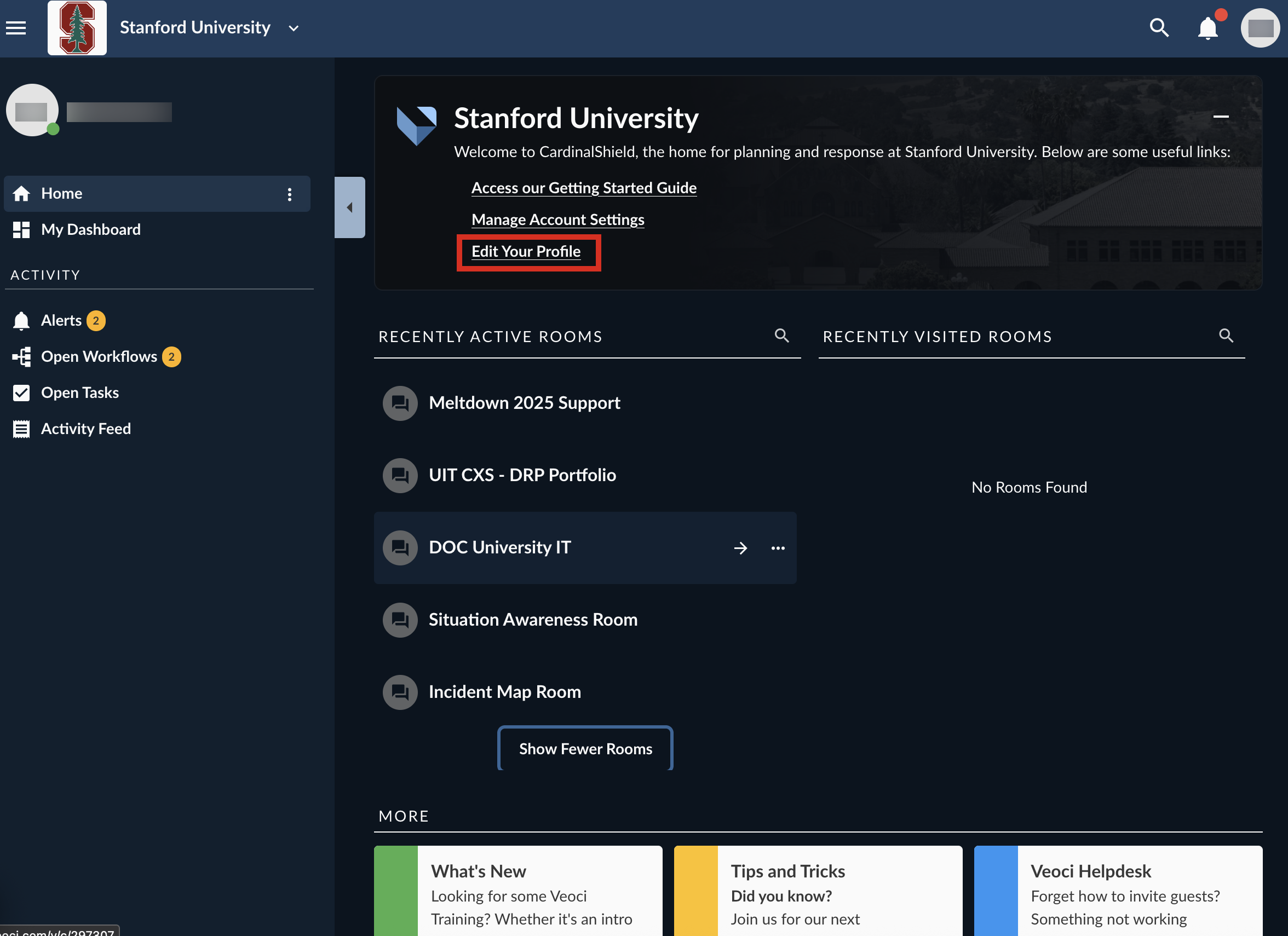
- Click Show More Rooms to view the full list. To enter a specific room, simply click its name.
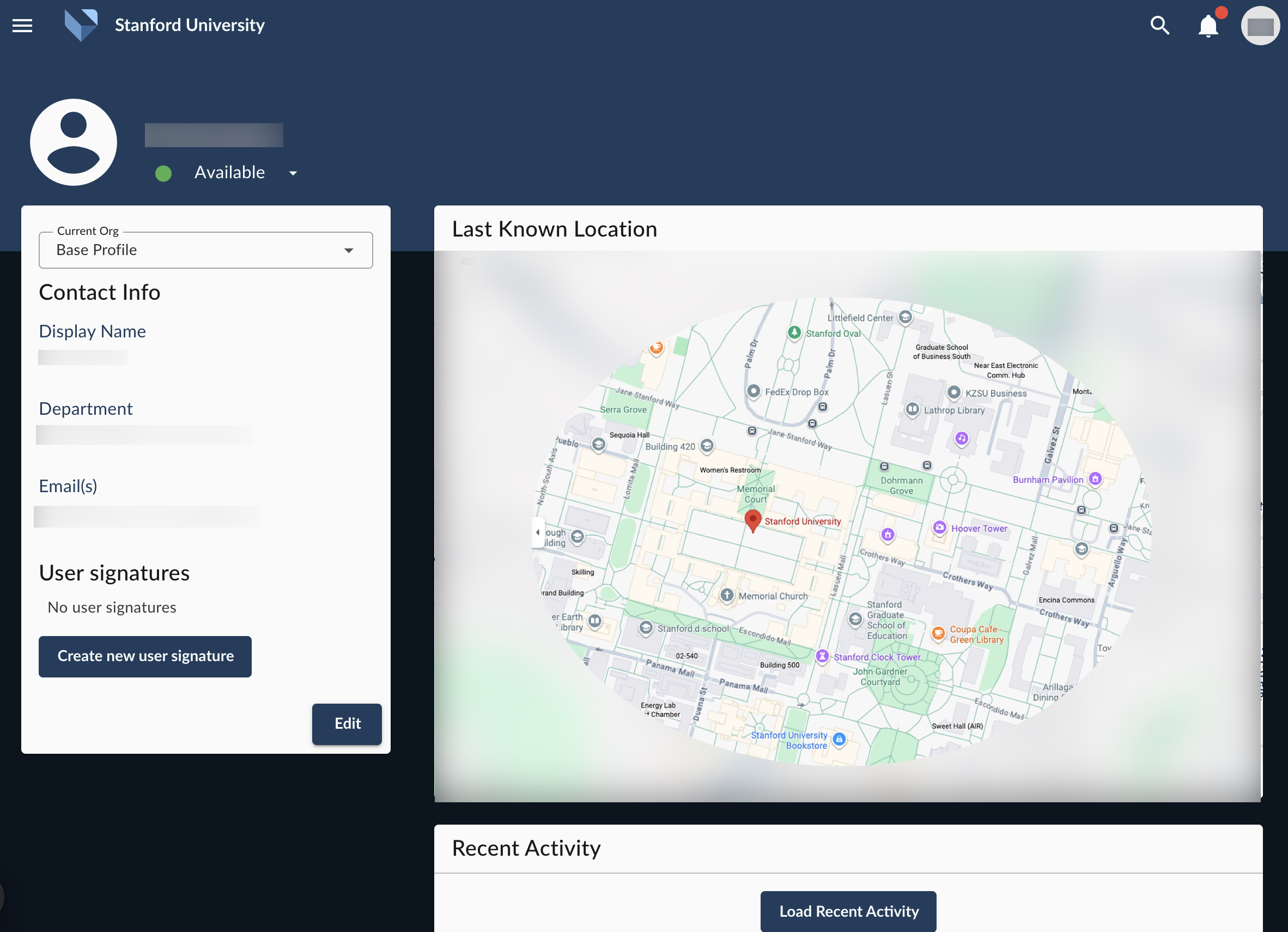
- To update your display name or add a profile photo, click the Edit Your Profile link at the top, under the Stanford University section.
- When your profile opens, you can create a personalized user signature by clicking Create new user signature. To update your main profile details, click the blue Edit button.
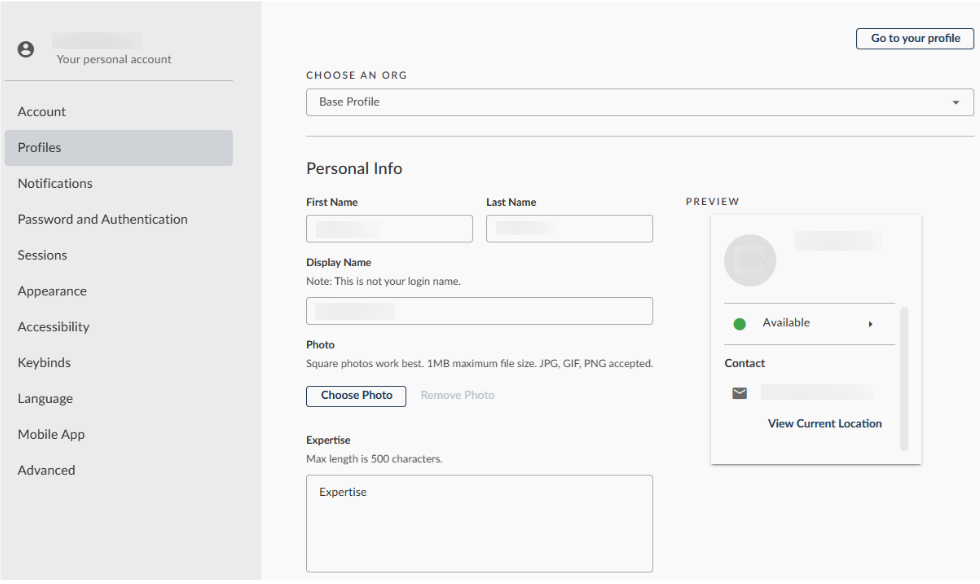
- In edit mode, you can update your display name, add a profile photo, and adjust other personal details.
Learn more
Visit the CardinalShield service page for Instructions on how to use CardinalShield.
Get help
If you need additional support, submit a Help request.
Last modified
