 University IT
Configure Apple Mail for Microsoft 365 Using Exchange
You can configure the Mail app to connect to your email and calendar events on the Microsoft 365 server.
- Launch Mail. (Click the icon in the dock or go to the Applications folder to open it.)
- Add a mail account:
- If you have not previously configured an account in Mail you will be prompted to add an account. Click Exchange and then click Continue.
- Otherwise, go to the Mail menu and click Add Account > Exchange and then click Continue.
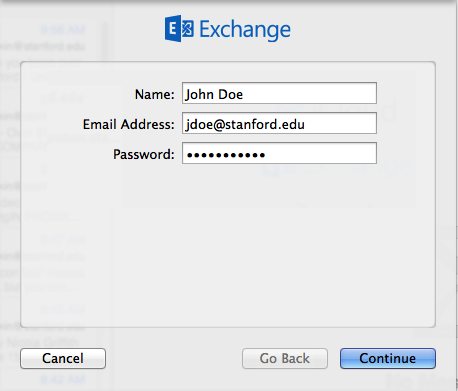
- Enter the following information and then click Continue when done.:
- Full Name: the name you want displayed on your outgoing mail
- Email Address: your @stanford email address
- Password: stanford (do not enter your SUNet ID password here)
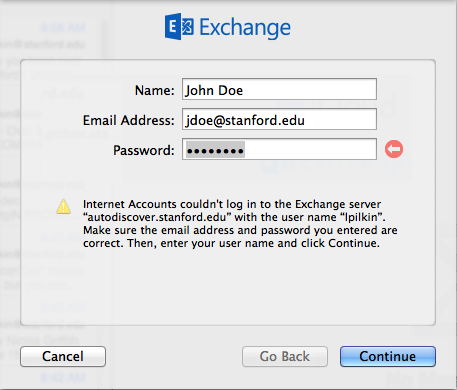
- A message displays staying that you couldn't log on to the Exchange server. Click Continue.
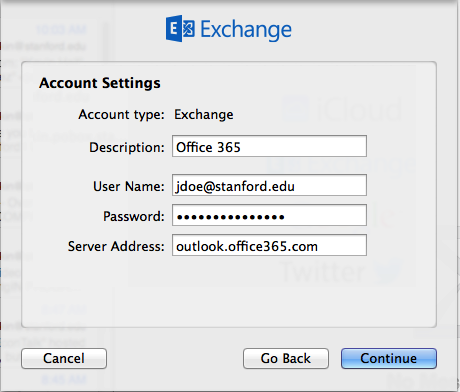
- In the Account Settings window, enter the following information and then click Continue.
- Description: enter a name for this account if you wish
- User Name: your SUNet ID@stanford.edu
- Password: your SUNet ID password
- Server Address: outlook.office365.com
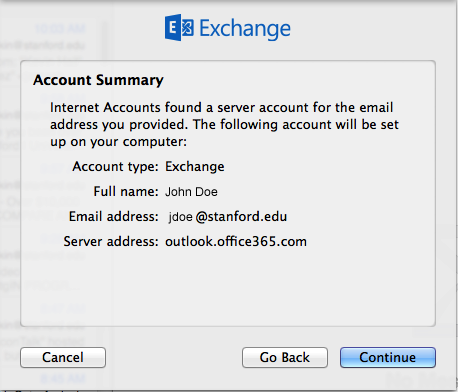
- The Account Summary displays. Click Continue.
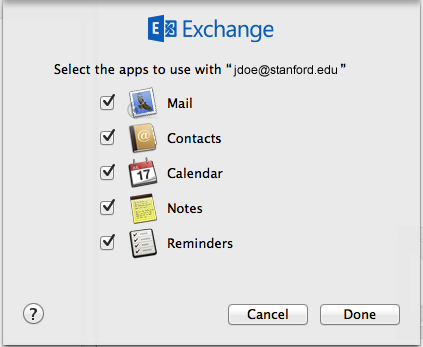
- Select the apps you want to use with this account and then click Done.
Last modified
