 University IT
How to Add a Passkey to Authenticator
These instructions are intended for participants of the Microsoft Authenticator Pilot Program only. Before you can complete this process, you'll need to set up the Microsoft Authenticator app on your mobile phone.
Prerequisite
Before you begin, you must have already enabled passwordless sign-in in the Microsoft Authenticator app.
Step 1: On your Phone - Add Passkey
- On your phone, open Microsoft Authenticator and select your Stanford UAT account.
- Tap Create a Passkey.
- Follow the instructions — you may need to verify the one-time passcode displayed for your UAT account in the Authenticator app.
Step 2: On your Computer - Login
- On your computer, open a new incognito/private browser session and go to http://outlook.office365.com. If your browser attempts to use Cardinal Key, cancel out of it.
- Enter your username as <your SUNetID>@stanford.edu.
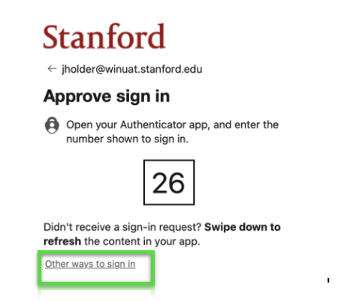
- If prompted for a two-digit code, select Other ways to sign in instead.
- Select Face, fingerprint, PIN or security key.
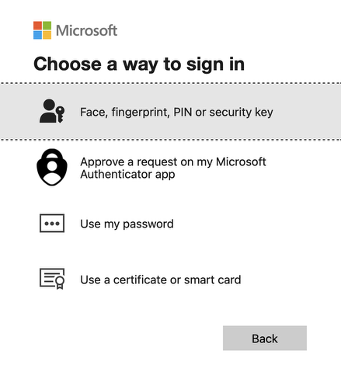
- Select the option to use your passkey.
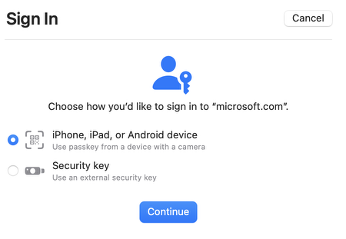
- With your phone, open the camera app and point it at the QR code presented on the computer screen. Confirm when prompted.
Last modified
